**It is necessary to have ZI-LicenseSystem already installed in the system prior to any other ZI-\* zimlet installation.** Check here: [ZI-LicenseSystem - Installation or update](https://docs.intalioservices.com/books/zi-licensesystem/page/installation-or-update "ZI-LicenseSystem - Installation or update")
To update zimlet to the newer version just follow the installation steps and when the installer asks you if you want to update answer: Y
Download the latest version of the zimlet package from [https://www.intalio.pl/en/zi-access-downloads](https://www.intalio.pl/en/zi-access-downloads) and unpack it in /tmp (as root) for exmaple: ``` cd /tmp wget https://www.intalio.pl/sites/default/files/modules-files/zi-access-1.9-zimbra9.tar__0.gz tar xvzf zi-access-1.9-zimbra9.tar_.gz ```Be sure to download zimlet designed for your Zimbra release eg. 8.8.15 or 9.0.0
Run installation script (as root): ``` cd ./ZI-Access-1.9-Zimbra9/ perl ./ZI-Installer --install-deps ``` At the beginning required perl packages will be installed if they are not available in the system already: [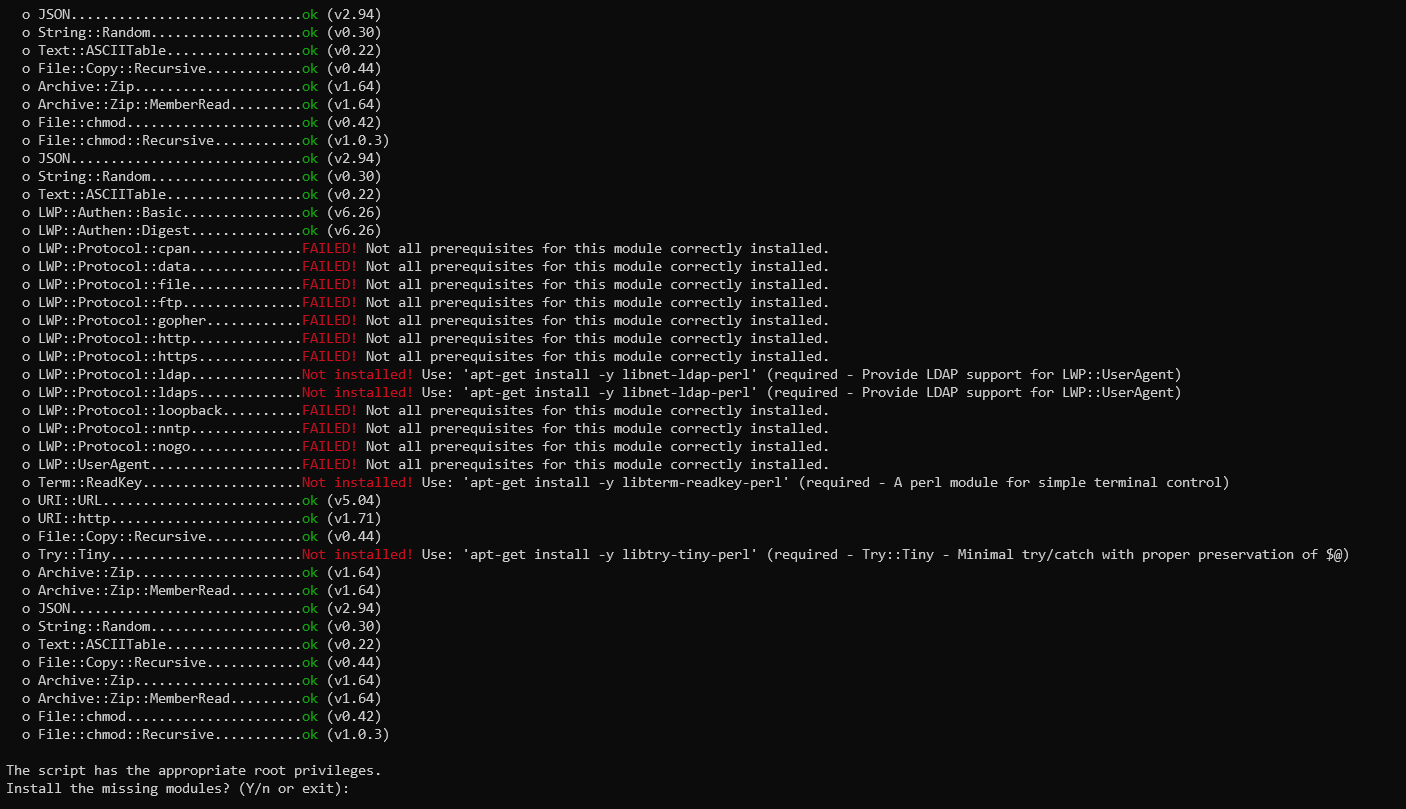](https://docs.intalioservices.com/uploads/images/gallery/2022-09/GcN0fAGFG4hZDHcv-image-1662460986477.png) Answer: Y and wait until the package manager finishes its work: [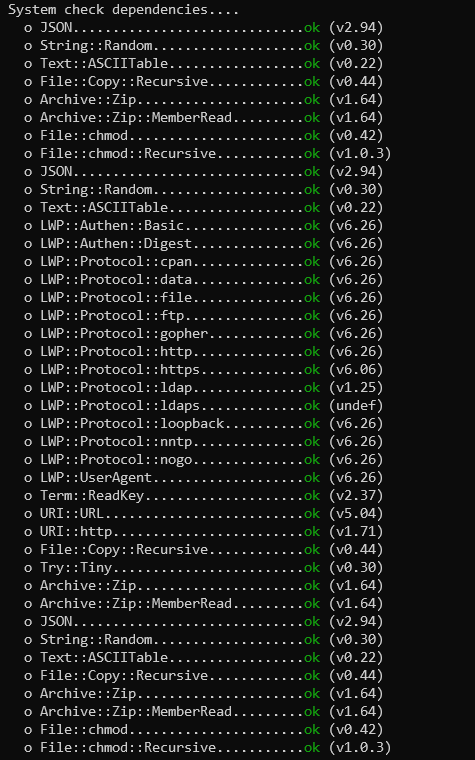](https://docs.intalioservices.com/uploads/images/gallery/2022-09/kzHvyuHe7bthuvRf-image-1662461747823.png) [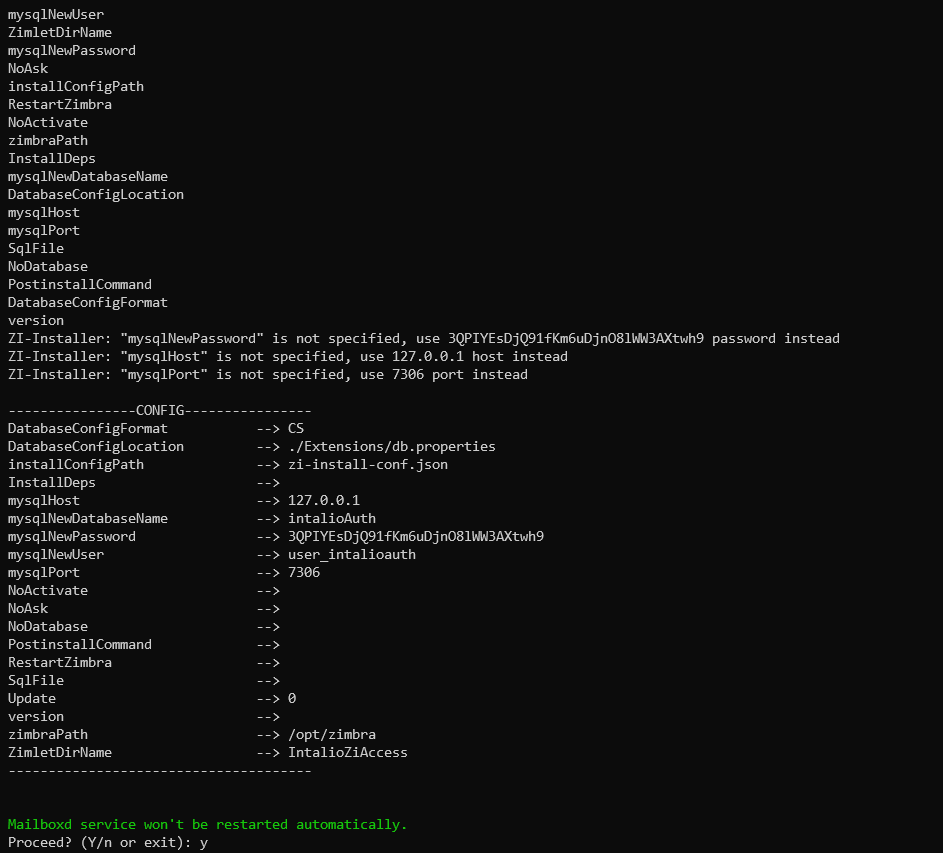](https://docs.intalioservices.com/uploads/images/gallery/2022-09/0EdQW3KgaSs93Clo-image-1662461532014.png) Type: Y and press Enter [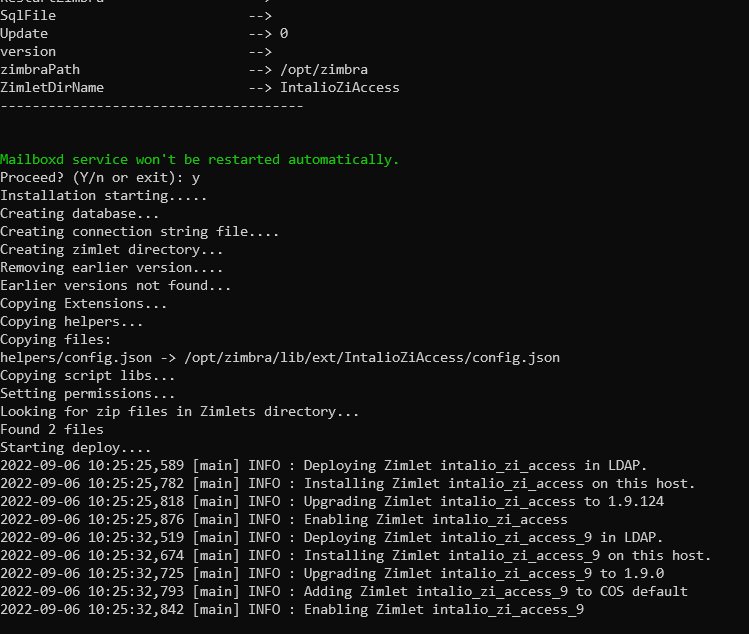](https://docs.intalioservices.com/uploads/images/gallery/2022-09/f2GYdbdRlgCN2jY7-image-1662461803898.png) When the deployment process is done you will be asked to provide the login and password that you can find in the license documents you received from us: [](https://docs.intalioservices.com/uploads/images/gallery/2022-09/uWPZCNZ5WQ0eXQs2-image-1662461878009.png) Choose the license number (usually you will see only one option), press Enter, verify that the details are correct and proceed by answering Y [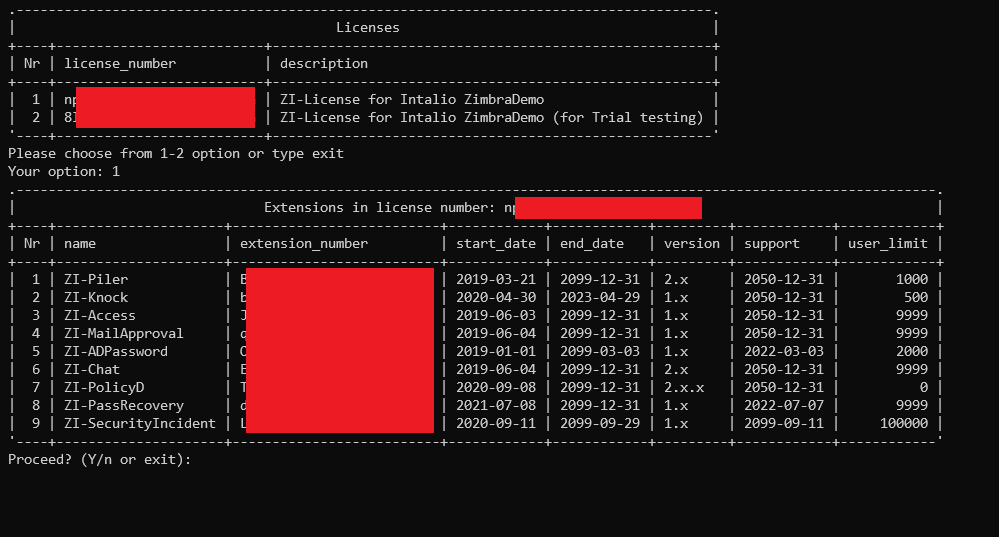](https://docs.intalioservices.com/uploads/images/gallery/2022-09/HsNsfVQwYpTkhS0e-image-1662462073054.png) Your license will be downloaded and activated. In the last step you will be asked to restart the mailbox service. **You can skip it (answer: N) and restart the mailboxd service manually later but until that zimlet will not work properly.**If you are going to install another zimlet right after this one it's not necessary to restart the mailbox at this point and you can do it only once after installing the last one.
[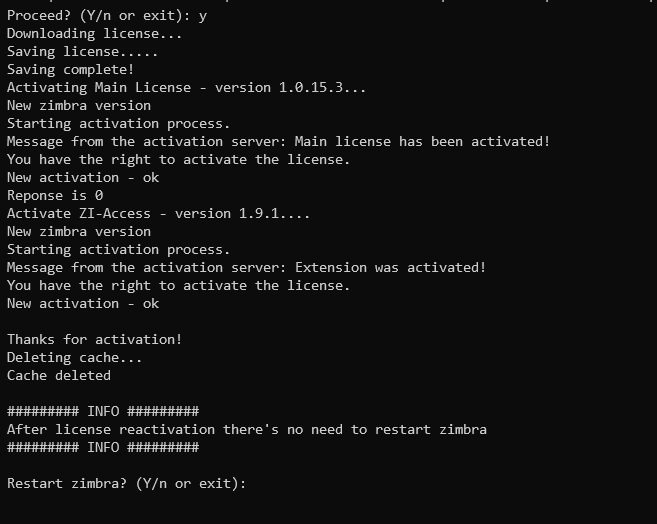](https://docs.intalioservices.com/uploads/images/gallery/2022-09/r1u4T8Maq63Y29iQ-image-1662462330191.png) After the mailboxd restart, zimlet should be installed. To check it, log in to the Administration Console of your ZCS Server and navigate to Tools and Migration > ZI-LicenseSystem where you can find details about granted licenses or Tools and Migration > ZI-Access where you can configure your zimlet. [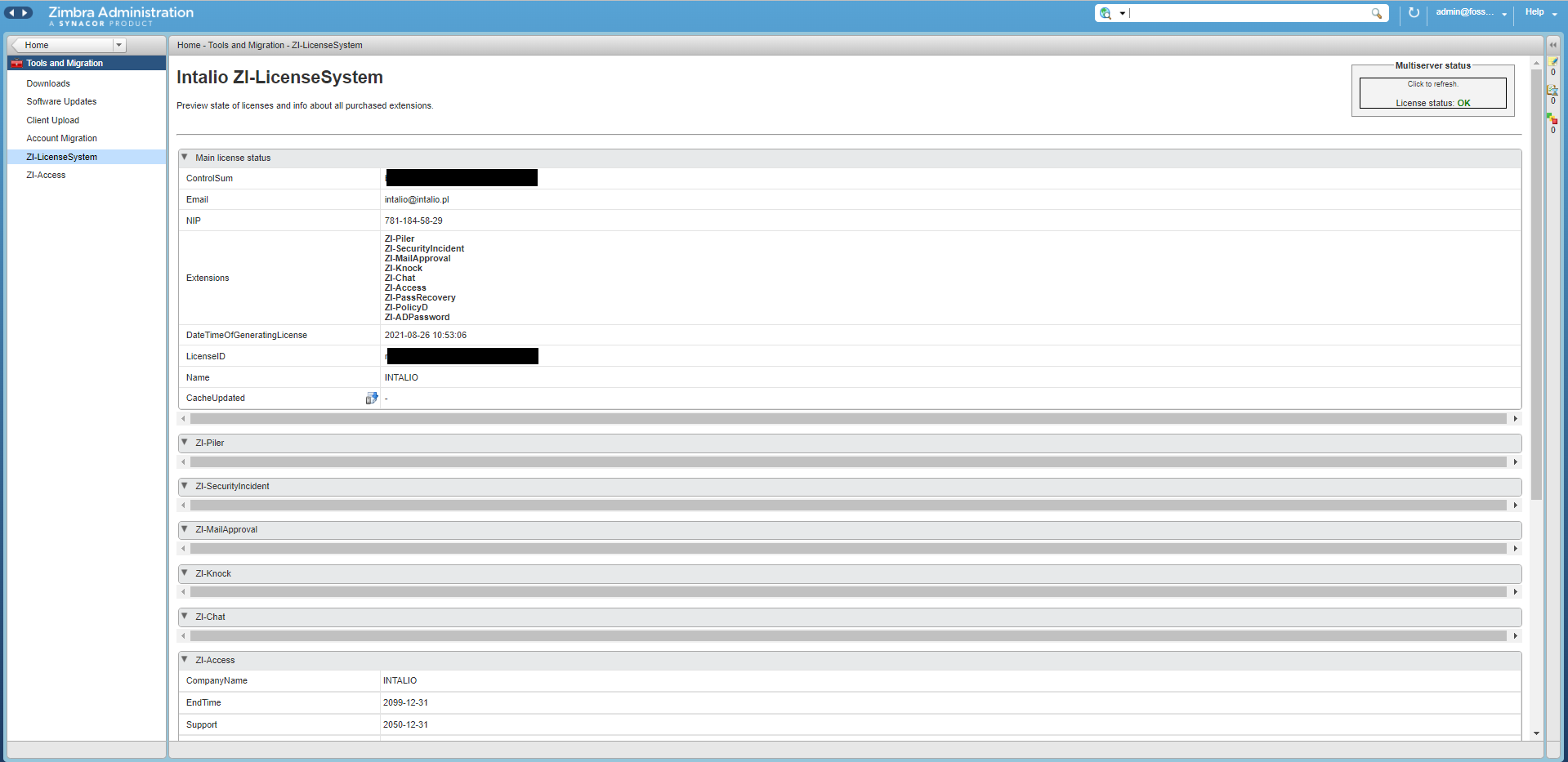](https://docs.intalioservices.com/uploads/images/gallery/2022-09/7t4QOtHTXy5gVpQt-image-1662462684070.png) [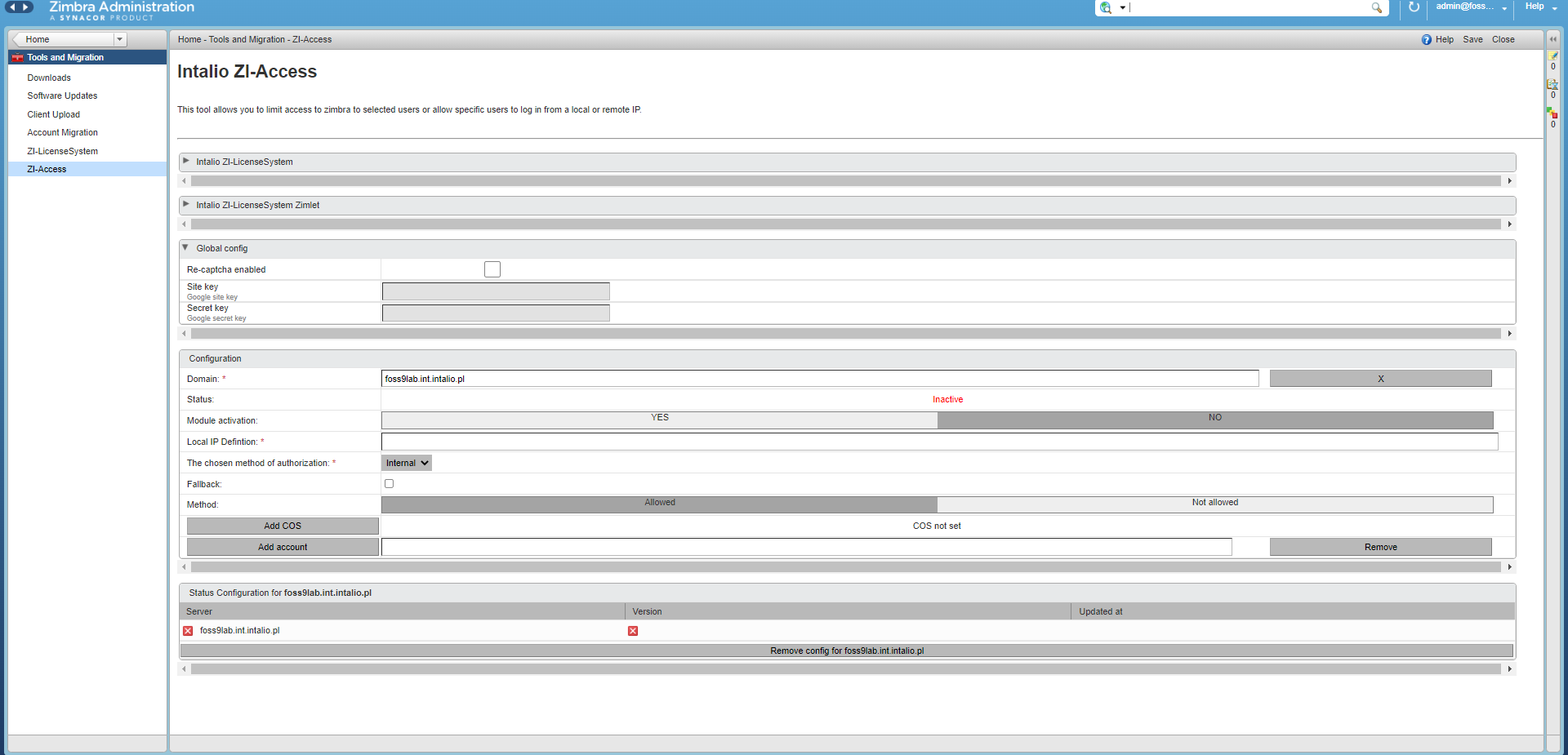](https://docs.intalioservices.com/uploads/images/gallery/2022-09/WGyI4qjNdSP1fIfh-image-1662481316136.png) #### reCAPTCHA (only in v2.x) To be able to use the reCaptcha feature you have to **manually** **copy** the whole content of the helpers/reCaptcha\_patch.html file to the /opt/zimbra/jetty/webapps/zimbra/public/login.jsp file **right before** the ```