Read more about modules [here](https://docs.intalioservices.com/books/customer-panel---installation-and-administrators-guide/page/modules "Modules")
##### CustomerOTRSFrontendModule::DefaultOverviewColumns List of parameters that are available to choose as columns on the tickets list in the widget configuration. [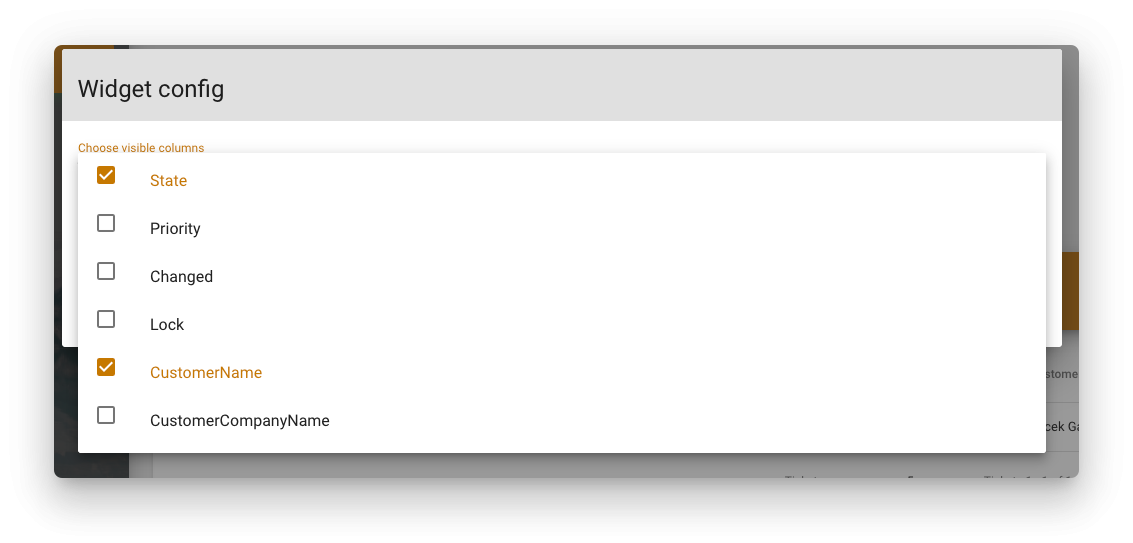](https://docs.intalioservices.com/uploads/images/gallery/2020-06/c7fTjp9EdPMuTjy6-image-1591264212150.png)Read more about widgets [here](https://docs.intalioservices.com/books/customer-panel---installation-and-administrators-guide/page/widgets "Widgets")
##### CustomerOTRSFrontendModule::Permissons Defines user groups that are allowed to see the given module. [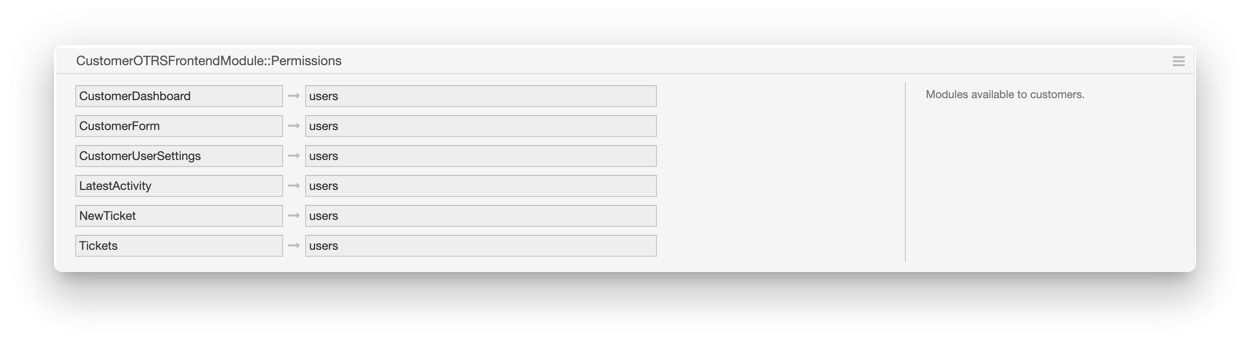](https://docs.intalioservices.com/uploads/images/gallery/2020-06/5Uiewa25bhbYfjzm-image-1591269480839.png) ##### CustomerOTRSFrontendModule::ScreenAfterLogin Defines the address that will be used to redirect after successful login [](https://docs.intalioservices.com/uploads/images/gallery/2020-06/hflStSQljnPPufar-image-1591269745009.png) ##### CustomerOTRSFrontendModule::Styles Defines the styles and images that are used to personalise the panel [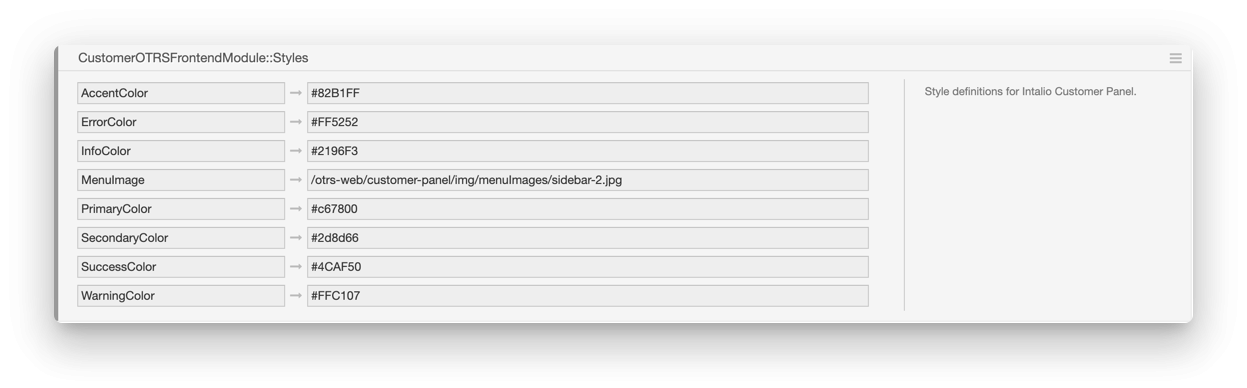](https://docs.intalioservices.com/uploads/images/gallery/2020-06/B2cJ4y8OEkCLT3vX-image-1591270045882.png)Read more about customising the panel [here](https://docs.intalioservices.com/books/customer-panel---installation-and-administrators-guide/page/customising-styles "Customising styles")
##### CustomerOTRSFrontendModule::TicketPreviewTitleTemplate Defines a ticket title template [](https://docs.intalioservices.com/uploads/images/gallery/2020-06/k3gofNhYcY6MgKeP-image-1591277759950.png)This field uses the OTRS templating mechanism. [Read more about it in OTRS documentation.](https://doc.otrs.com/doc/manual/developer/6.0/en/html/TemplatingMechanism.html "Templating Mechanism")
##### CustomerOTRSFrontendModule::TicketViewFieldOrder Defines the priority (order) of properties on the ticket view's information column. [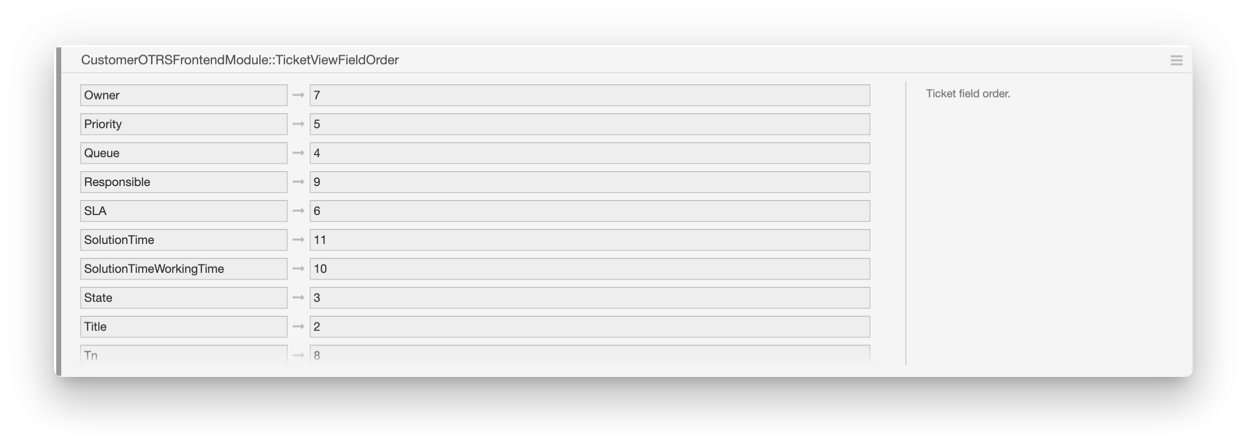](https://docs.intalioservices.com/uploads/images/gallery/2020-06/saUKRPSOpTzZdhwu-image-1591277743121.png) [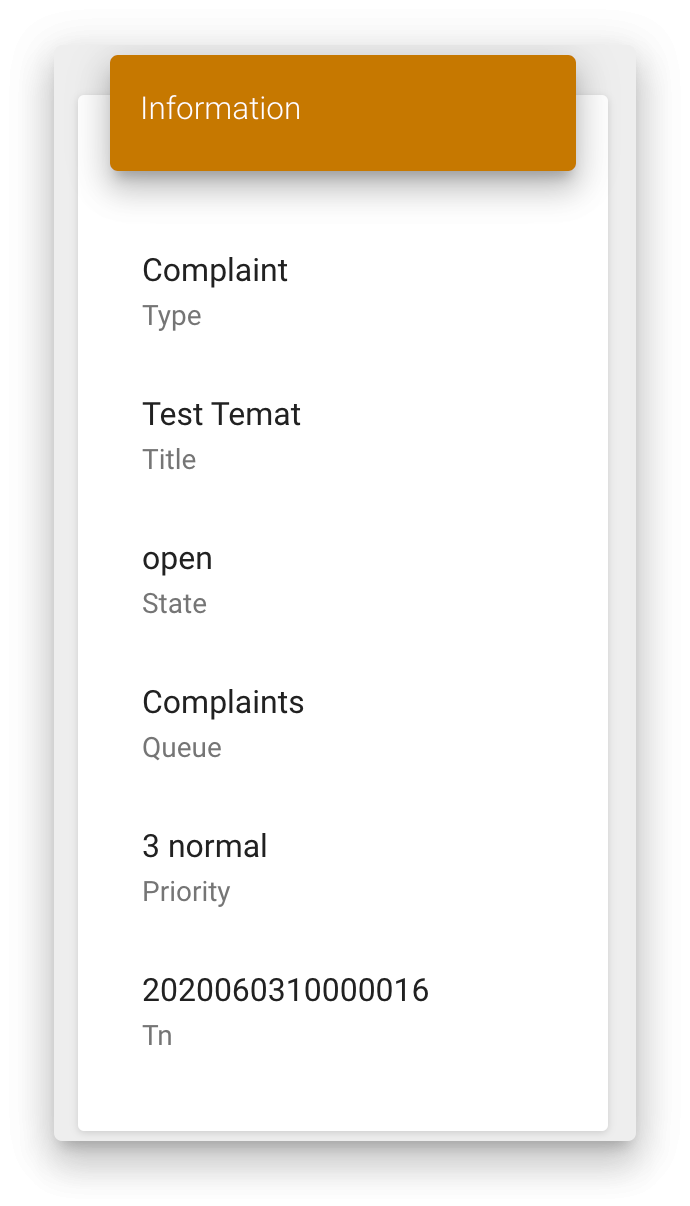](https://docs.intalioservices.com/uploads/images/gallery/2020-06/umMb9OFDCI9Y4ggN-image-1591281531357.png) ##### EscalationSuspendedStates If a SLA suspension module is used which uses ticket states for controlling the time counter, we can specify the suspend states here. [](https://docs.intalioservices.com/uploads/images/gallery/2020-06/yIiUclKOSYUaLzrU-image-1591283090361.png) ##### LoginPanel This configuration let you customise your login panel. [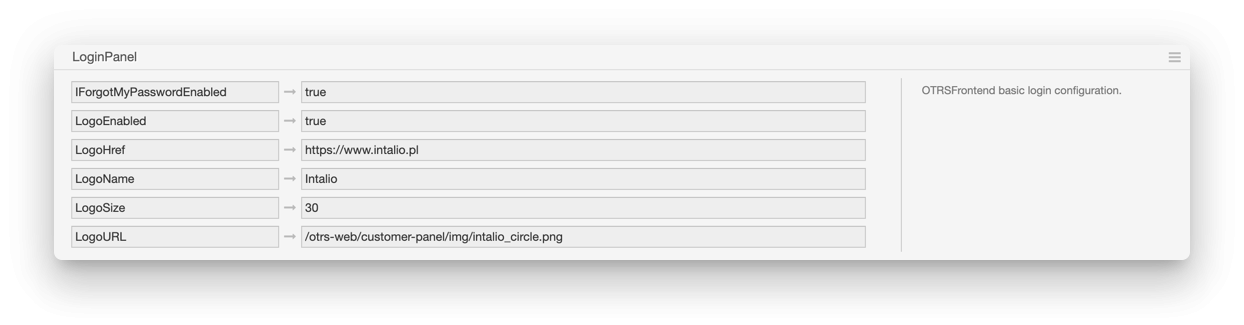](https://docs.intalioservices.com/uploads/images/gallery/2020-06/VbYksn7QQlzxHIeR-image-1591342807613.png) You can customise the following items - IForgotMyPasswordEnabled - enable password remainder option - LogoEnabled - shows logo in the login panel title bar - LogoHref - Redirect after clicking the logo - LogoName - text on the tooltip (hover on the logo to see it) - LogoSize - size of the image - LogoUrl - image source file path ##### OTRSFrontendModule Configurations starting with **OTRSFrontendModule::** is the configuration for specific module such as CustomerDashboard, CustomerForm etc. They all have the similar configuration options to set and some of them have also a widgets section or mode.More information about Modules documentation can be found [here](https://docs.intalioservices.com/books/customer-panel---installation-and-administrators-guide/page/modules "Modules")
[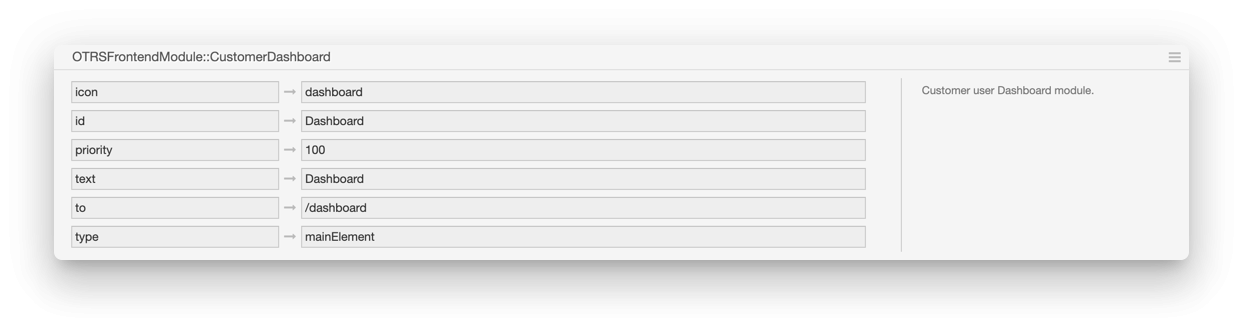](https://docs.intalioservices.com/uploads/images/gallery/2020-06/oSmGIBmUl602j3LX-image-1591344906221.png) ##### TicketListMaxRows Defines the maximum number of rows on the tickets list. [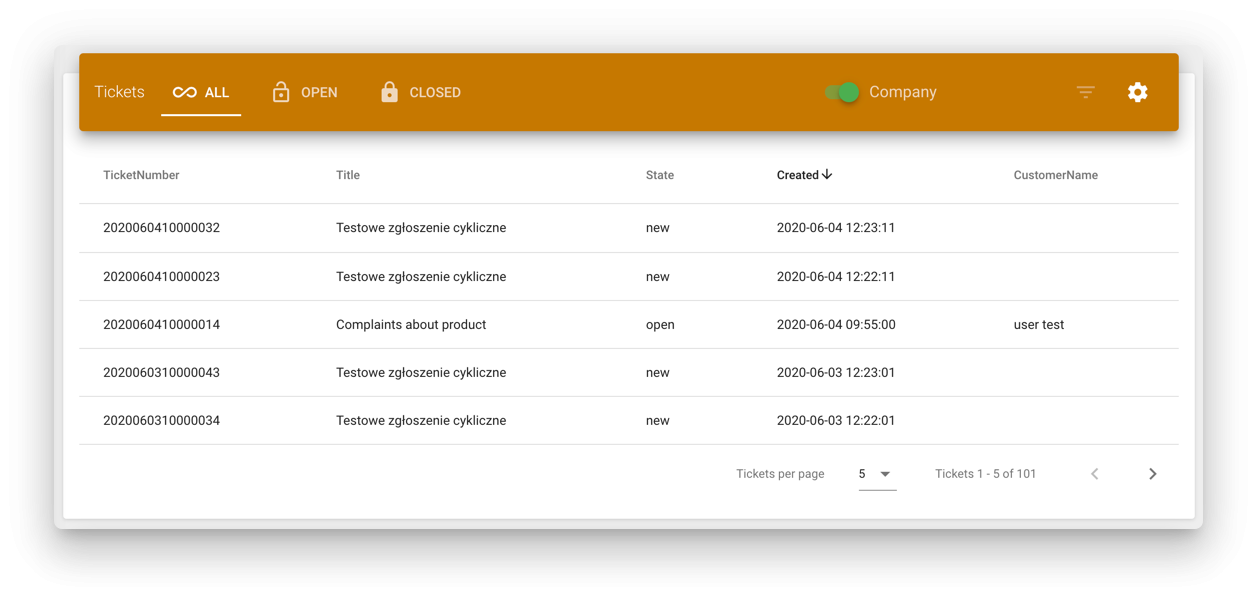](https://docs.intalioservices.com/uploads/images/gallery/2020-06/23c0ZzBK9mimrgRO-image-1591349524264.png)