If you're looking for the information about adding new custom modules to the Intalio Customer Panel check out this [link](https://docs.intalioservices.com/books/customer-panel---developer-guide "Customer Panel - Developer Guide")
### Module types There are two types of modules: - Module This type of module displays its content (widgets) in the main customer panel section [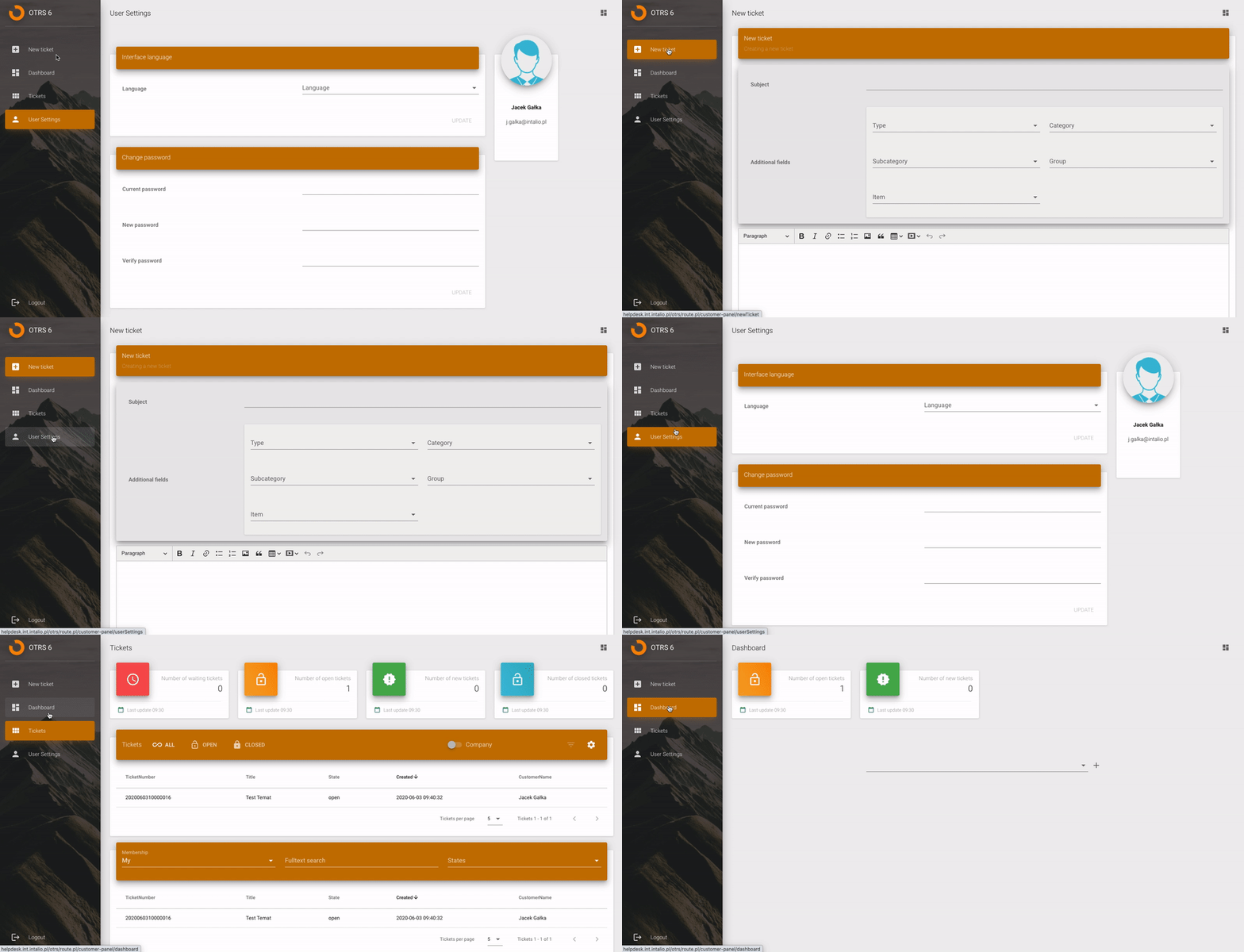](https://docs.intalioservices.com/uploads/images/gallery/2020-07/Opb0cqNHQoNkmDtS-image-1593766154580.gif) This are all examples of modules with type `module` - Redirect Redirects are simply links in the Customer Panel's menu - Hidden Module is available but is not visible in the menu. It's only available by typing its address in the browser Each module, regardless of type can be located in the menu. [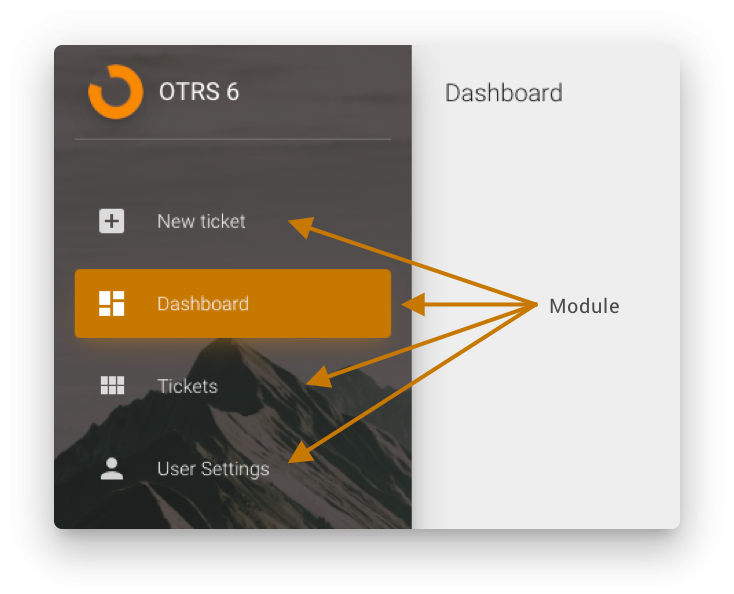](https://docs.intalioservices.com/uploads/images/gallery/2020-06/EehkzmEMHjsj4hY6-image-1592214848323.png) ### Modules configuration Each module consists of three OTRS configuration options 1. Modules specific configuration [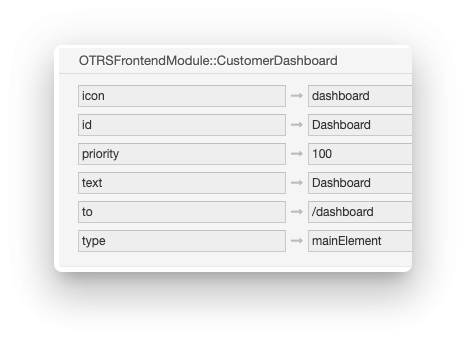](https://docs.intalioservices.com/uploads/images/gallery/2020-06/Sgxf1JKs0uCDxdJ2-image-1592215342106.png) 2. Module availability (set to `1` to make it available) [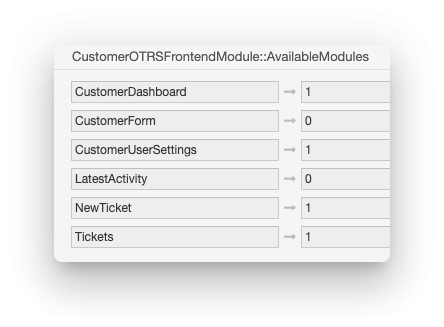](https://docs.intalioservices.com/uploads/images/gallery/2020-06/hUJ53yhmNWGrtHoE-image-1592215435177.png) 3. Correct module permission - users that are in specified OTRS's group will see given module in the menu and will be able to open the module view [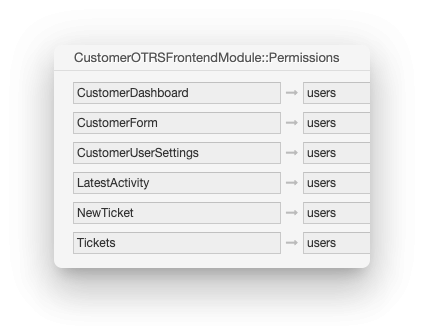](https://docs.intalioservices.com/uploads/images/gallery/2020-06/Ca5UjxRLDDPg543y-image-1592215497537.png) ### Module customisation #### Menu icon [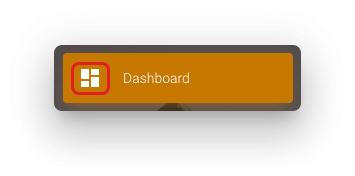](https://docs.intalioservices.com/uploads/images/gallery/2020-06/ryDMjOmvLDoiayo5-image-1592217480882.png) To customise menu icon of the given module find the module configuration in System Config.Read more about Customer Panel configuration [here](https://docs.intalioservices.com/books/customer-panel---installation-and-administrators-guide/page/system-configuration "System Configuration")
To change default icon go to the [icons library](https://material.io/resources/icons/?style=baseline "Material Design Icons") and pick the icon that you want to set. [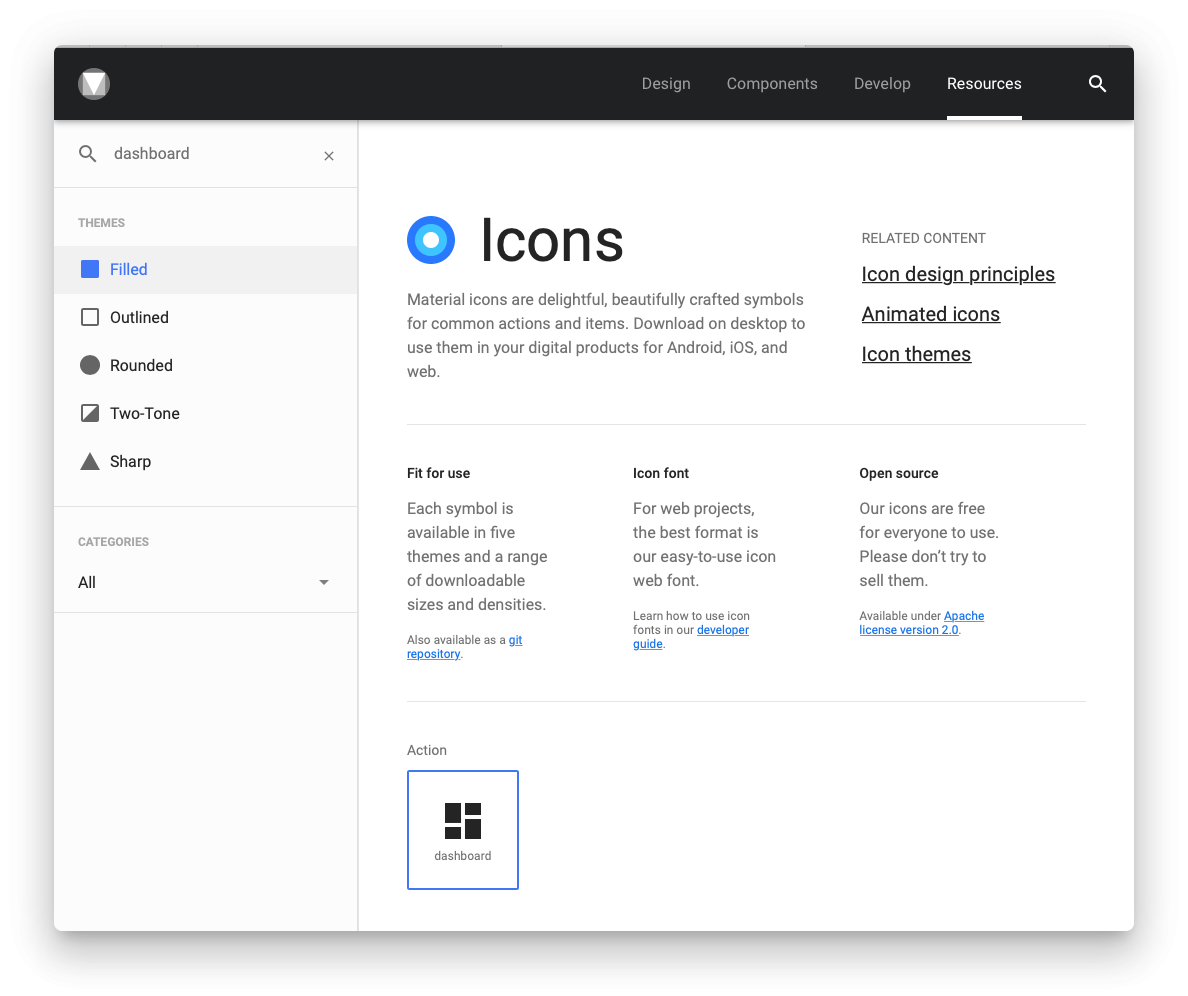](https://docs.intalioservices.com/uploads/images/gallery/2020-07/8CBsMlxrcH9jd6wB-image-1593761684674.png) Find the module configuration in System Configuration. [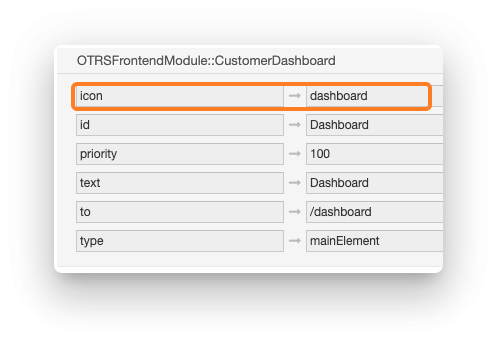](https://docs.intalioservices.com/uploads/images/gallery/2020-07/qZ6HNISAu2HnTbzf-image-1593762696935.png) Paste the new icon name in the `icon` option. #### Modules menu order The higher the priority the higher the module is on the menu. [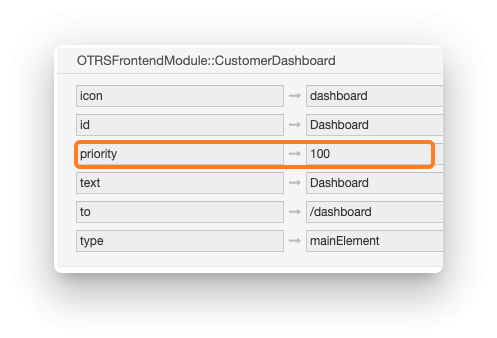](https://docs.intalioservices.com/uploads/images/gallery/2020-07/iuKidFt2B3PDrpgp-image-1593762484939.png) #### Module name You can change the module name in the menu by changing the `text` setting in the module configuration. [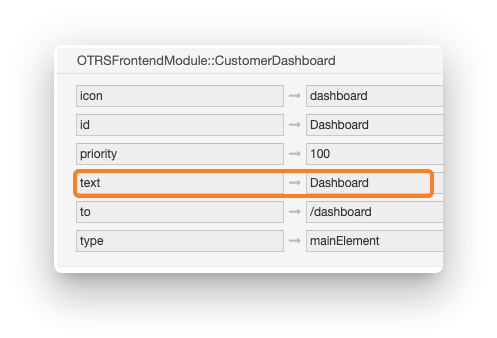](https://docs.intalioservices.com/uploads/images/gallery/2020-07/coECDtUFLONvFk1g-image-1593762679097.png) #### Setting the module type (module/redirect) You can change the behaviour of the menu option by setting it's type. You can choose between views and redirects. ##### Module If you set the module type to `module`, selecting the module in the menu will result in displaying its content directly in the customer panel. `User Settings` is the example of this behaviour. [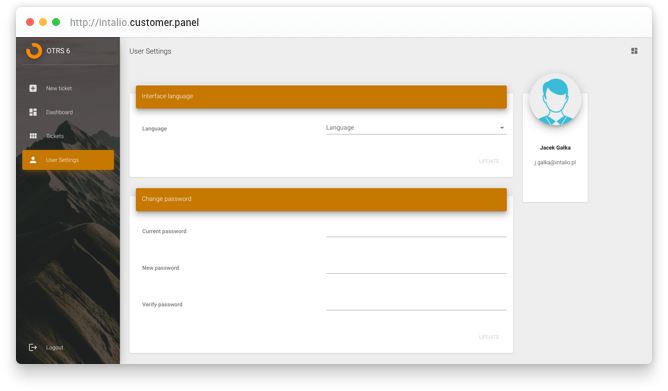](https://docs.intalioservices.com/uploads/images/gallery/2020-07/tIBm46WxJAZmzI0W-image-1593765222167.png) ##### Redirect Redirect is simply a link in the menu of the customer panel. It can be used to redirect users to another systems. [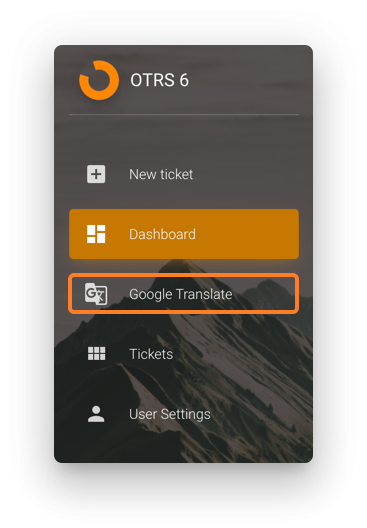](https://docs.intalioservices.com/uploads/images/gallery/2020-07/ZWeCIOrlcbrL1PaD-image-1593767300818.png)Redirects can be opened in new tab or new window. Use `mode` setting to set proper browser behaviour. Available options: - newWindow - tab