Read more about modules [here](https://docs.intalioservices.com/books/customer-panel---installation-and-administrators-guide/page/modules "Modules")
##### CustomerOTRSFrontendModule::DefaultOverviewColumns List of parameters that are available to choose as columns on the tickets list in the widget configuration. [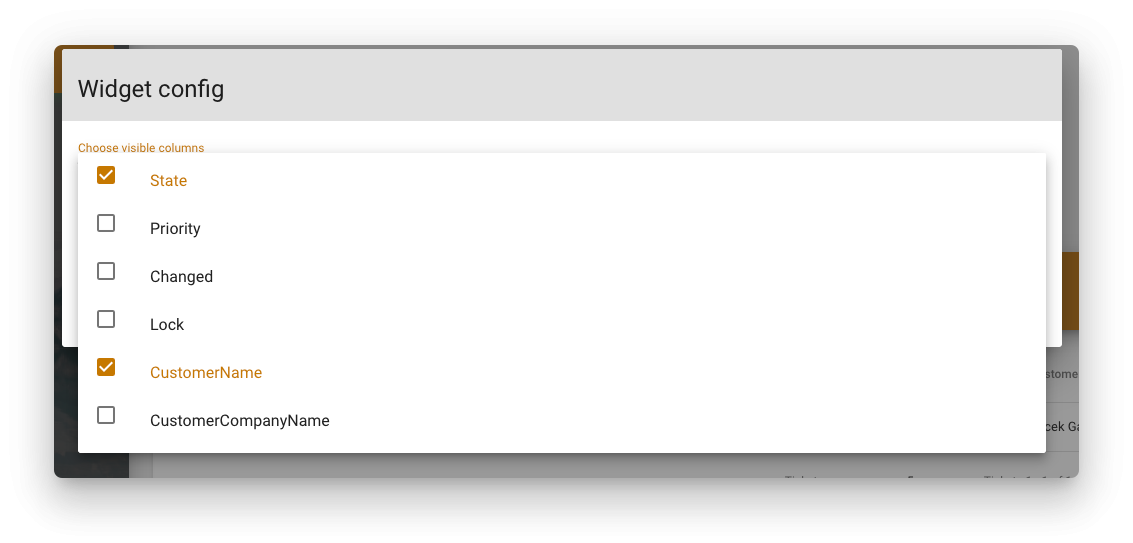](https://docs.intalioservices.com/uploads/images/gallery/2020-06/c7fTjp9EdPMuTjy6-image-1591264212150.png)Read more about widgets [here](https://docs.intalioservices.com/books/customer-panel---installation-and-administrators-guide/page/widgets "Widgets")
##### CustomerOTRSFrontendModule::Permissons Defines user groups that are allowed to see the given module. [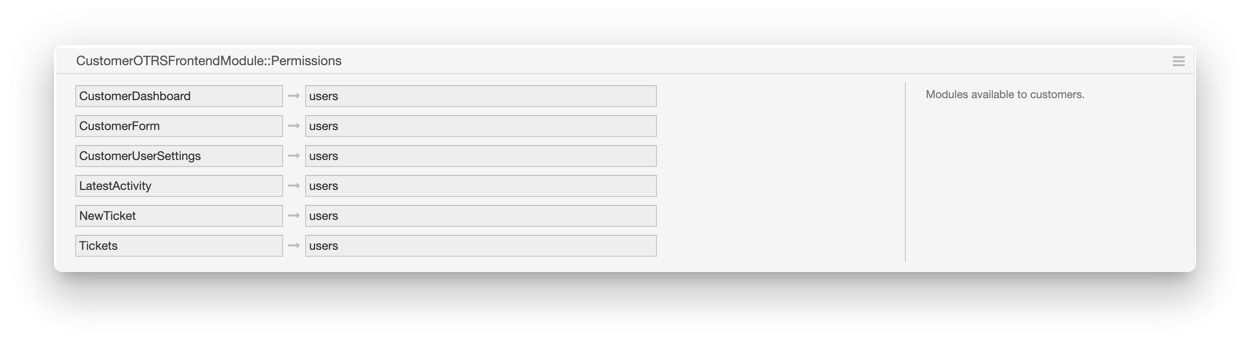](https://docs.intalioservices.com/uploads/images/gallery/2020-06/5Uiewa25bhbYfjzm-image-1591269480839.png) ##### CustomerOTRSFrontendModule::ScreenAfterLogin Defines the address that will be used to redirect after successful login [](https://docs.intalioservices.com/uploads/images/gallery/2020-06/hflStSQljnPPufar-image-1591269745009.png) ##### CustomerOTRSFrontendModule::Styles Defines the styles and images that are used to personalise the panel [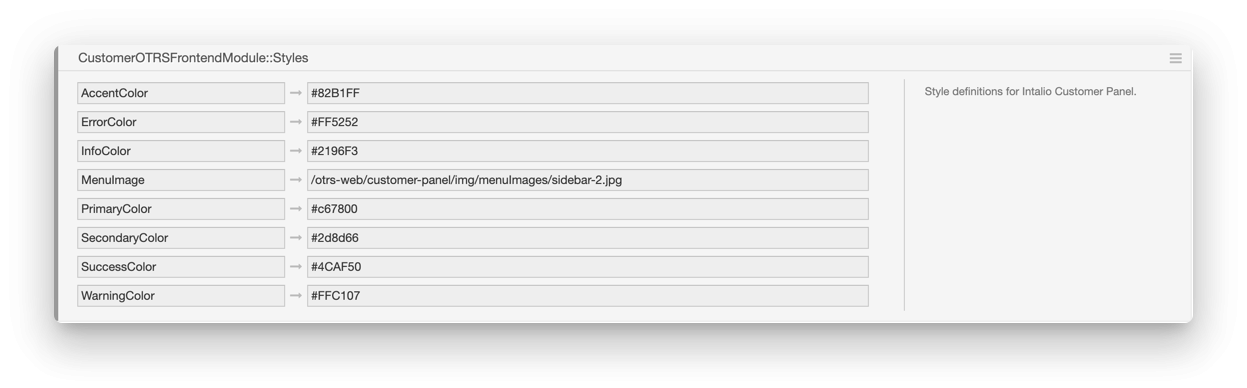](https://docs.intalioservices.com/uploads/images/gallery/2020-06/B2cJ4y8OEkCLT3vX-image-1591270045882.png)Read more about customising the panel [here](https://docs.intalioservices.com/books/customer-panel---installation-and-administrators-guide/page/customising-styles "Customising styles")
##### CustomerOTRSFrontendModule::TicketPreviewTitleTemplate Defines a ticket title template [](https://docs.intalioservices.com/uploads/images/gallery/2020-06/k3gofNhYcY6MgKeP-image-1591277759950.png)This field uses the OTRS templating mechanism. [Read more about it in OTRS documentation.](https://doc.otrs.com/doc/manual/developer/6.0/en/html/TemplatingMechanism.html "Templating Mechanism")
##### CustomerOTRSFrontendModule::TicketViewFieldOrder Defines the priority (order) of properties on the ticket view's information column. [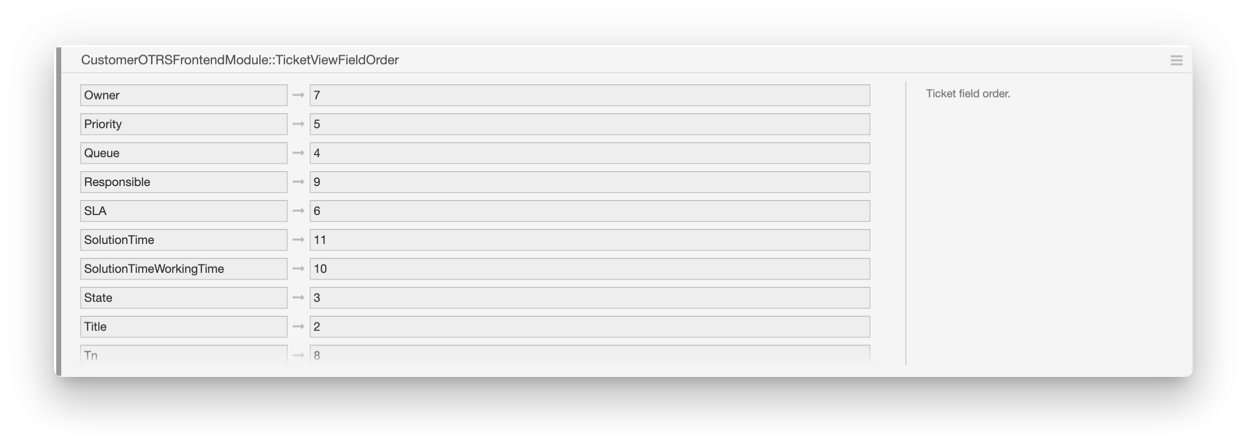](https://docs.intalioservices.com/uploads/images/gallery/2020-06/saUKRPSOpTzZdhwu-image-1591277743121.png) [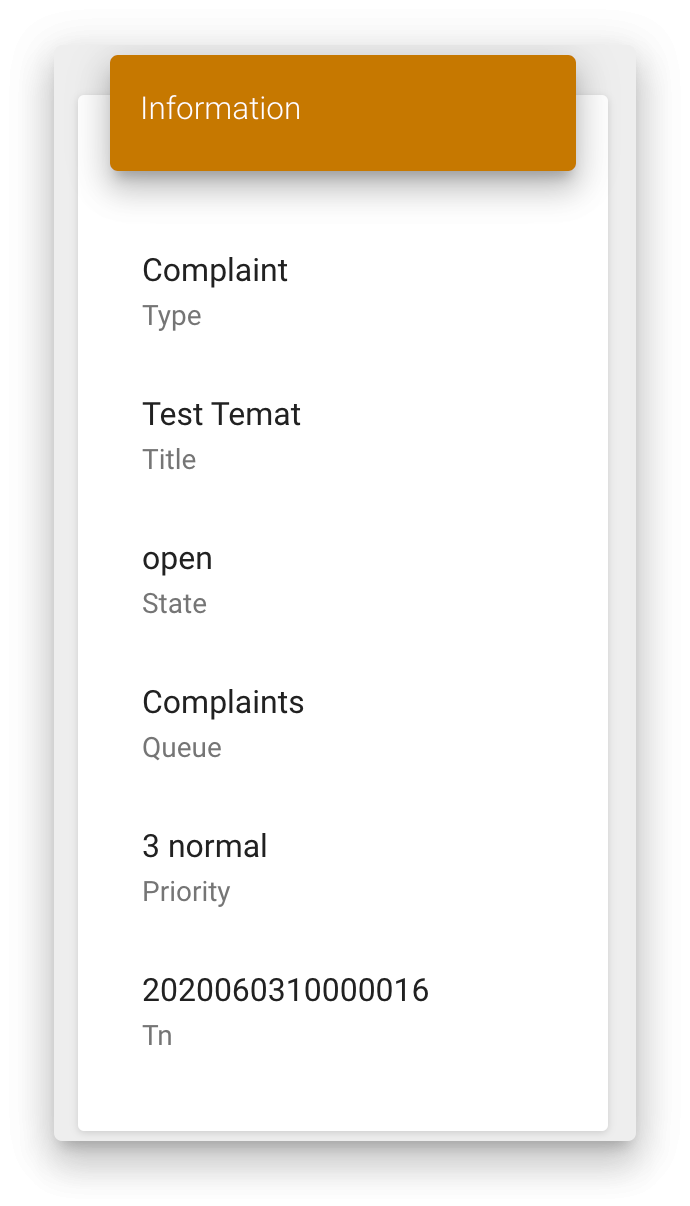](https://docs.intalioservices.com/uploads/images/gallery/2020-06/umMb9OFDCI9Y4ggN-image-1591281531357.png) ##### EscalationSuspendedStates If a SLA suspension module is used which uses ticket states for controlling the time counter, we can specify the suspend states here. [](https://docs.intalioservices.com/uploads/images/gallery/2020-06/yIiUclKOSYUaLzrU-image-1591283090361.png) ##### LoginPanel This configuration let you customise your login panel. [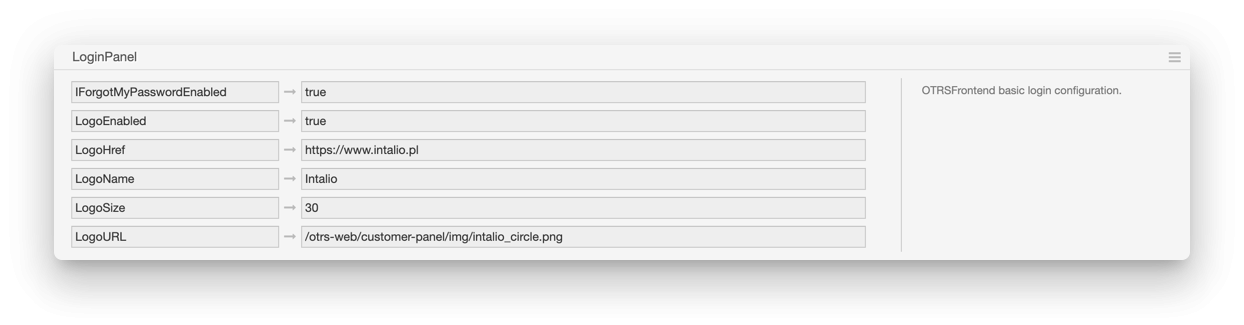](https://docs.intalioservices.com/uploads/images/gallery/2020-06/VbYksn7QQlzxHIeR-image-1591342807613.png) You can customise the following items - IForgotMyPasswordEnabled - enable password remainder option - LogoEnabled - shows logo in the login panel title bar - LogoHref - Redirect after clicking the logo - LogoName - text on the tooltip (hover on the logo to see it) - LogoSize - size of the image - LogoUrl - image source file path ##### OTRSFrontendModule Configurations starting with **OTRSFrontendModule::** is the configuration for specific module such as CustomerDashboard, CustomerForm etc. They all have the similar configuration options to set and some of them have also a widgets section or mode.More information about Modules documentation can be found [here](https://docs.intalioservices.com/books/customer-panel---installation-and-administrators-guide/page/modules "Modules")
[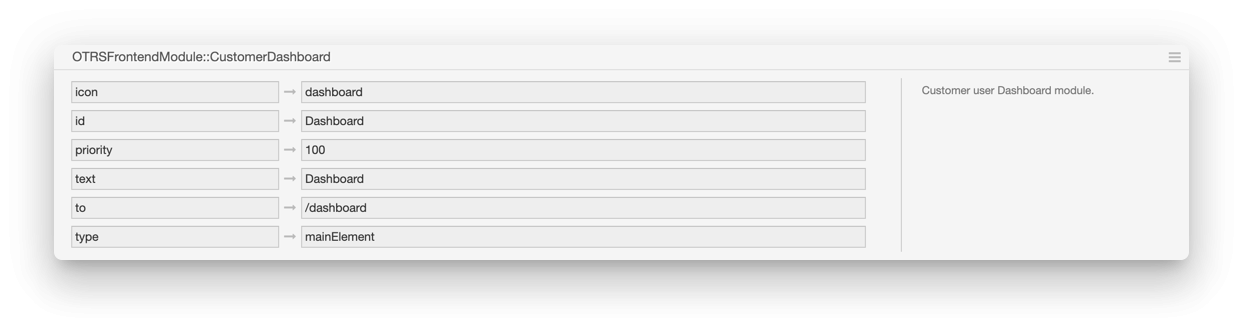](https://docs.intalioservices.com/uploads/images/gallery/2020-06/oSmGIBmUl602j3LX-image-1591344906221.png) ##### TicketListMaxRows Defines the maximum number of rows on the tickets list. [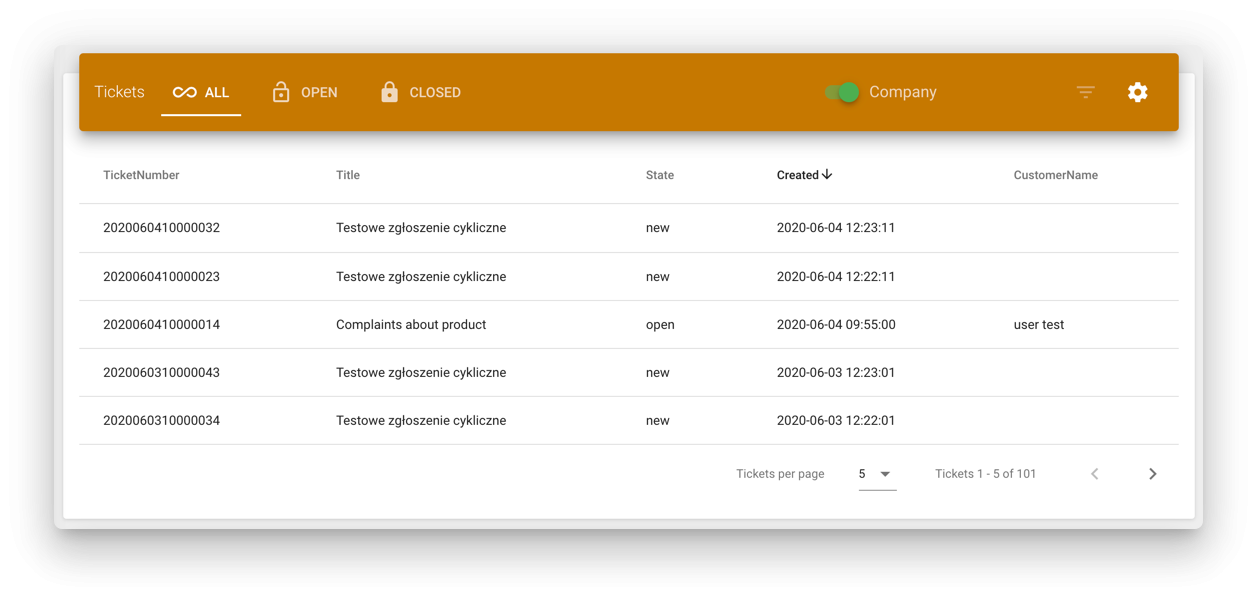](https://docs.intalioservices.com/uploads/images/gallery/2020-06/23c0ZzBK9mimrgRO-image-1591349524264.png) # Modules Modules are the main abstract elements of the customer panel.If you're looking for the information about adding new custom modules to the Intalio Customer Panel check out this [link](https://docs.intalioservices.com/books/customer-panel---developer-guide "Customer Panel - Developer Guide")
### Module types There are two types of modules: - Module This type of module displays its content (widgets) in the main customer panel section [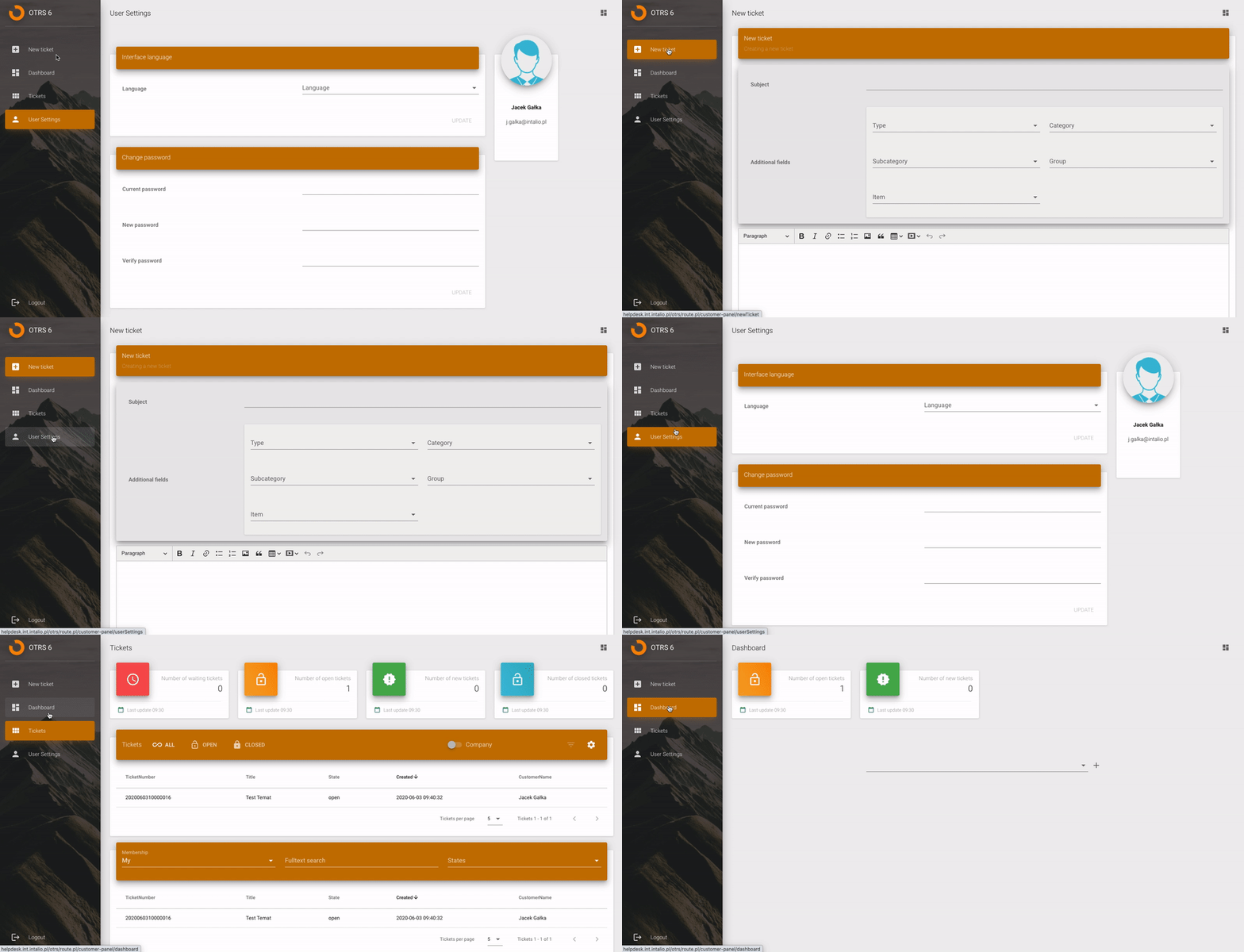](https://docs.intalioservices.com/uploads/images/gallery/2020-07/Opb0cqNHQoNkmDtS-image-1593766154580.gif) This are all examples of modules with type `module` - Redirect Redirects are simply links in the Customer Panel's menu - Hidden Module is available but is not visible in the menu. It's only available by typing its address in the browser Each module, regardless of type can be located in the menu. [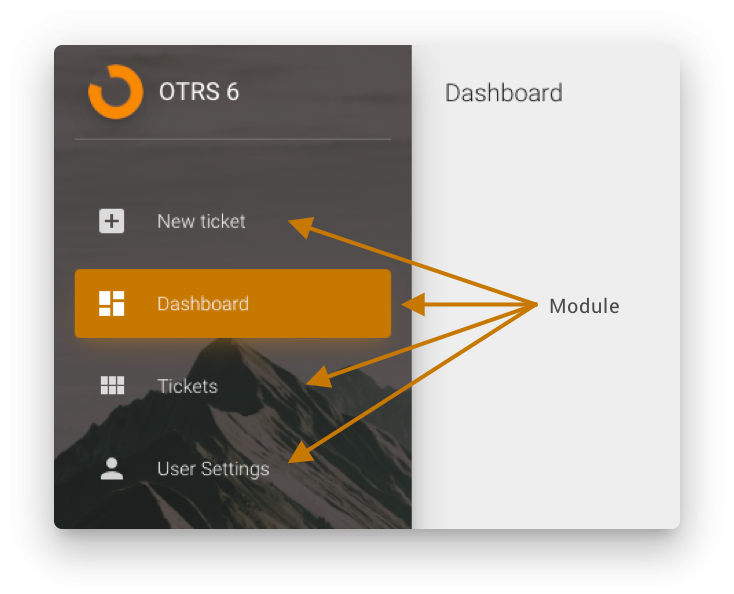](https://docs.intalioservices.com/uploads/images/gallery/2020-06/EehkzmEMHjsj4hY6-image-1592214848323.png) ### Modules configuration Each module consists of three OTRS configuration options 1. Modules specific configuration [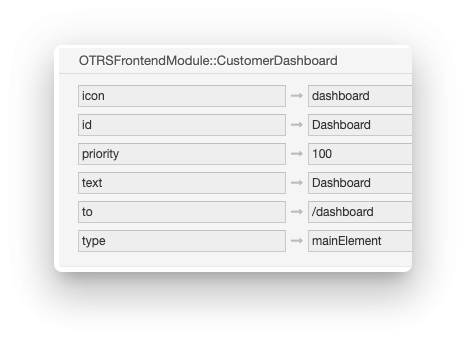](https://docs.intalioservices.com/uploads/images/gallery/2020-06/Sgxf1JKs0uCDxdJ2-image-1592215342106.png) 2. Module availability (set to `1` to make it available) [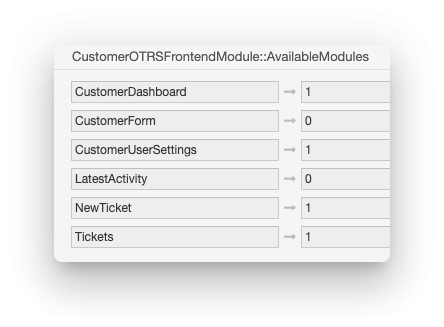](https://docs.intalioservices.com/uploads/images/gallery/2020-06/hUJ53yhmNWGrtHoE-image-1592215435177.png) 3. Correct module permission - users that are in specified OTRS's group will see given module in the menu and will be able to open the module view [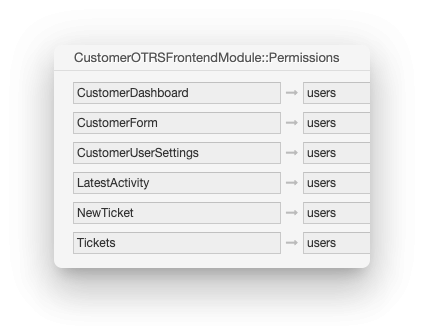](https://docs.intalioservices.com/uploads/images/gallery/2020-06/Ca5UjxRLDDPg543y-image-1592215497537.png) ### Module customisation #### Menu icon [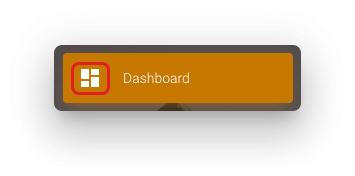](https://docs.intalioservices.com/uploads/images/gallery/2020-06/ryDMjOmvLDoiayo5-image-1592217480882.png) To customise menu icon of the given module find the module configuration in System Config.Read more about Customer Panel configuration [here](https://docs.intalioservices.com/books/customer-panel---installation-and-administrators-guide/page/system-configuration "System Configuration")
To change default icon go to the [icons library](https://material.io/resources/icons/?style=baseline "Material Design Icons") and pick the icon that you want to set. [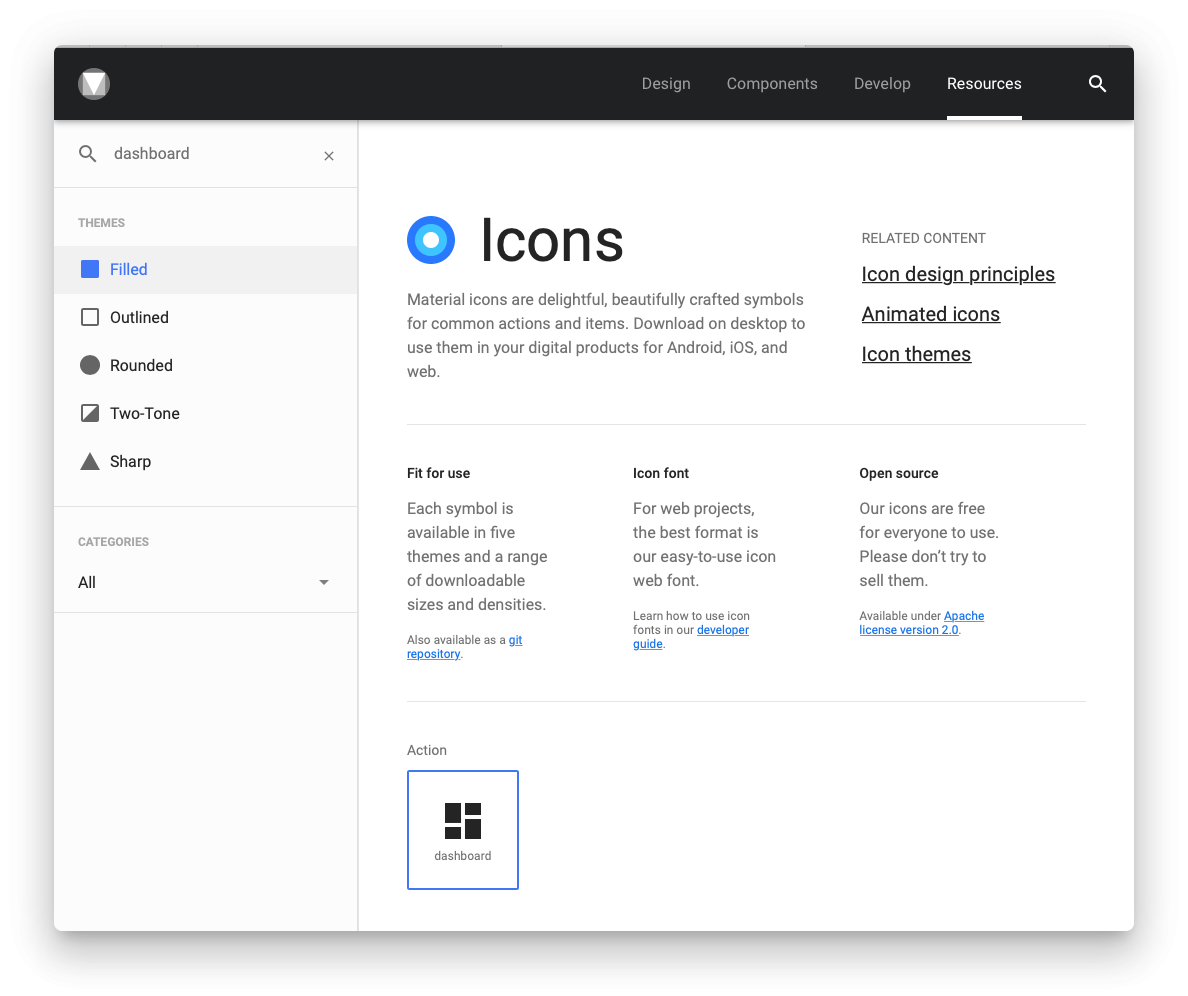](https://docs.intalioservices.com/uploads/images/gallery/2020-07/8CBsMlxrcH9jd6wB-image-1593761684674.png) Find the module configuration in System Configuration. [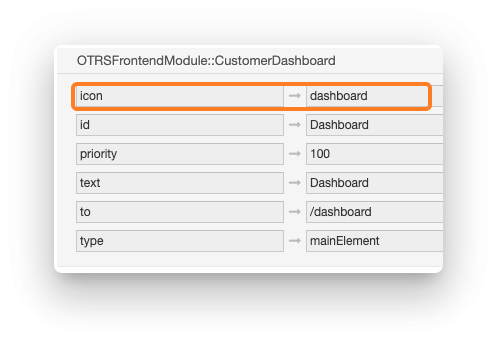](https://docs.intalioservices.com/uploads/images/gallery/2020-07/qZ6HNISAu2HnTbzf-image-1593762696935.png) Paste the new icon name in the `icon` option. #### Modules menu order The higher the priority the higher the module is on the menu. [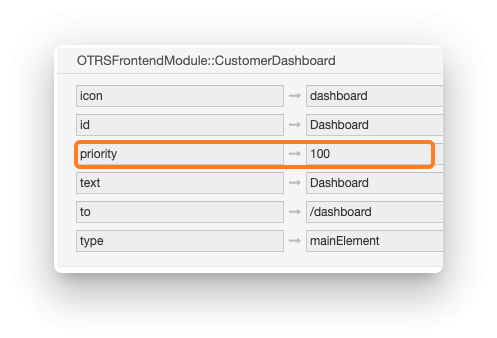](https://docs.intalioservices.com/uploads/images/gallery/2020-07/iuKidFt2B3PDrpgp-image-1593762484939.png) #### Module name You can change the module name in the menu by changing the `text` setting in the module configuration. [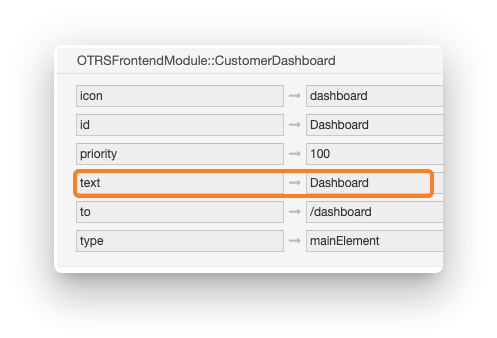](https://docs.intalioservices.com/uploads/images/gallery/2020-07/coECDtUFLONvFk1g-image-1593762679097.png) #### Setting the module type (module/redirect) You can change the behaviour of the menu option by setting it's type. You can choose between views and redirects. ##### Module If you set the module type to `module`, selecting the module in the menu will result in displaying its content directly in the customer panel. `User Settings` is the example of this behaviour. [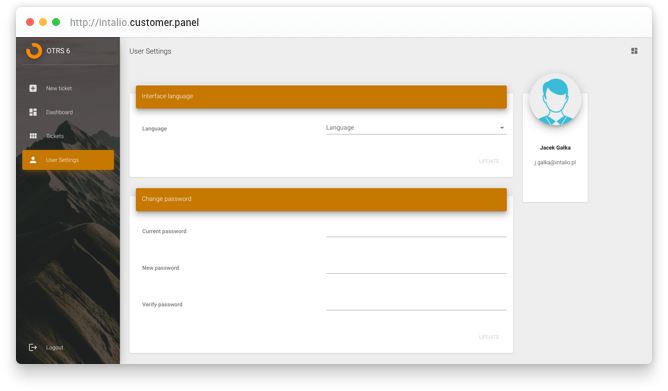](https://docs.intalioservices.com/uploads/images/gallery/2020-07/tIBm46WxJAZmzI0W-image-1593765222167.png) ##### Redirect Redirect is simply a link in the menu of the customer panel. It can be used to redirect users to another systems. [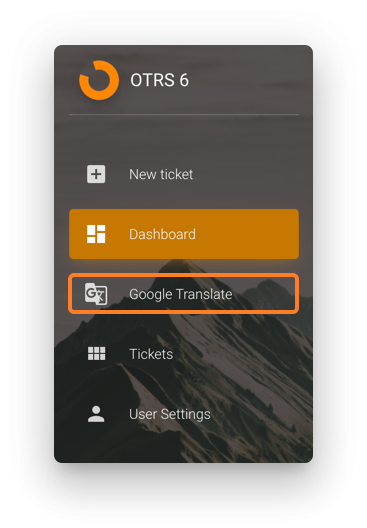](https://docs.intalioservices.com/uploads/images/gallery/2020-07/ZWeCIOrlcbrL1PaD-image-1593767300818.png)Redirects can be opened in new tab or new window. Use `mode` setting to set proper browser behaviour. Available options: - newWindow - tab
# Widgets ### Introduction Widgets are the basic elements of the customer panel that users interacts with. Widgets can be simple... [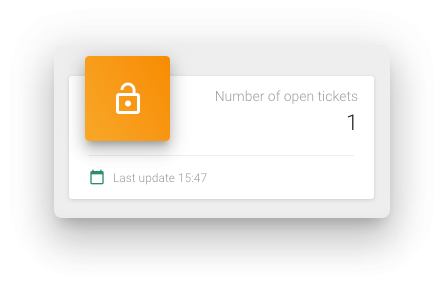](https://docs.intalioservices.com/uploads/images/gallery/2020-07/1hJSPmrh1NaGvdLb-image-1594216210446.png) ... or complex. [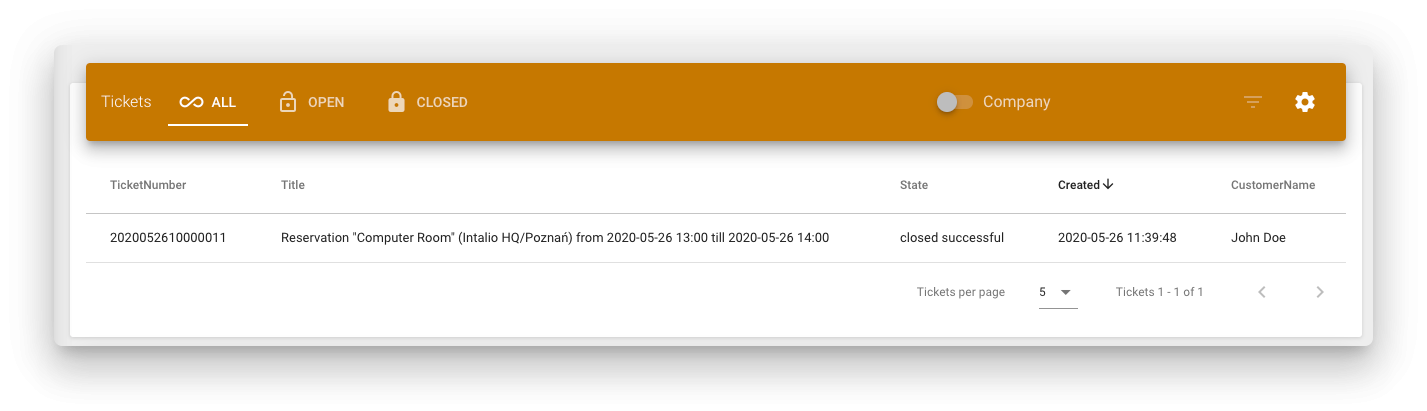](https://docs.intalioservices.com/uploads/images/gallery/2020-07/TjwIlQZG92AkIj4q-image-1594216444615.png) Widgets are part of the modules. [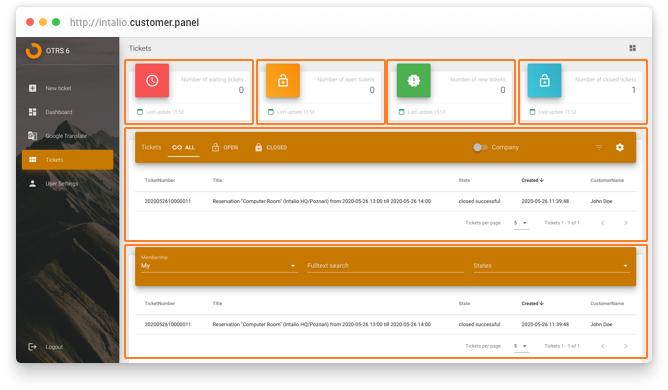](https://docs.intalioservices.com/uploads/images/gallery/2020-07/GTTpr2mi2OiefxK1-image-1594217756351.png) ### Saving the widgets configuration Widgets can be added to the customer's Dashboard. Dashboard is customisable by the user. Customers can add and remove widgets or arrange their order. [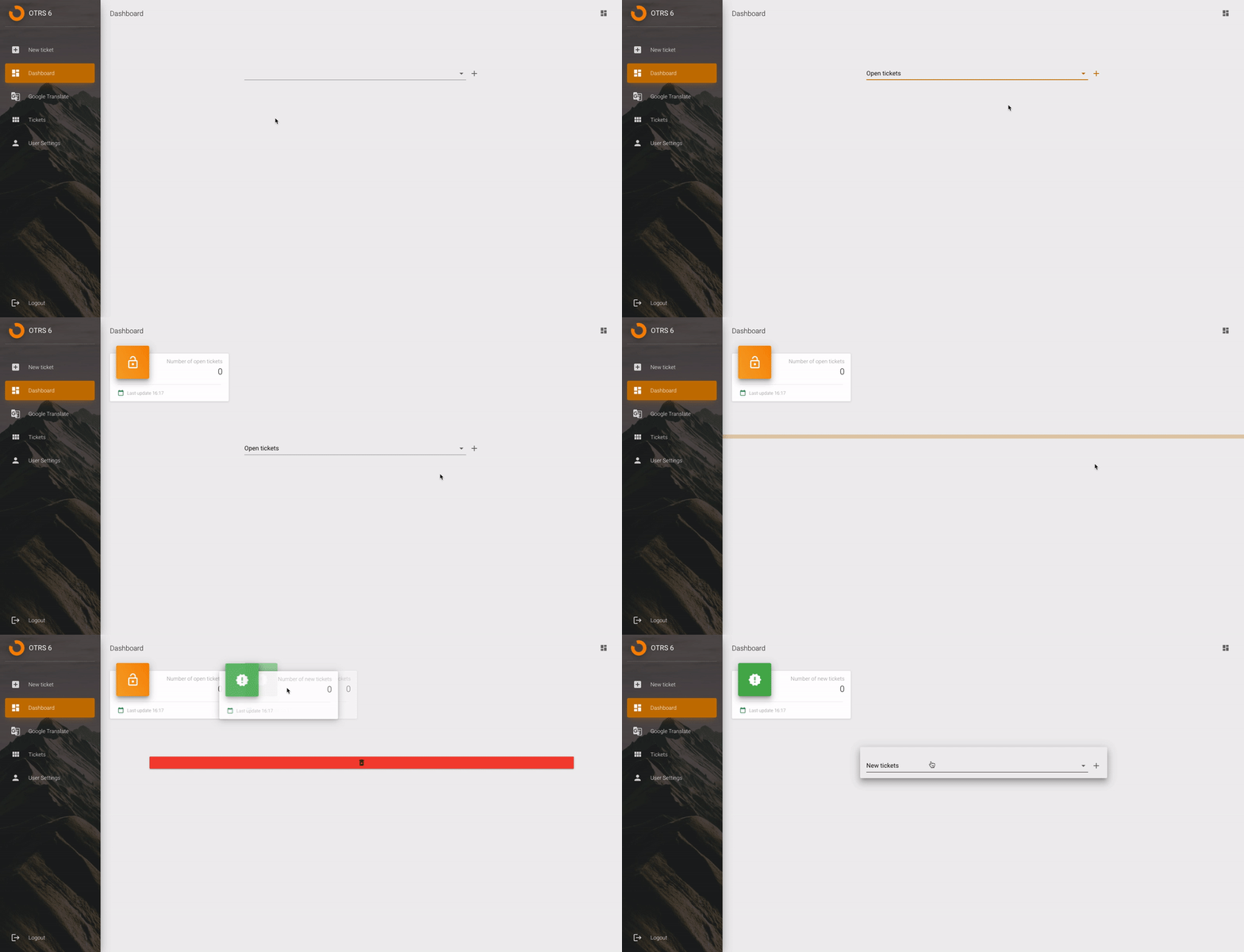](https://docs.intalioservices.com/uploads/images/gallery/2020-07/l1IjYpHaVEyrYSyx-image-1594218055981.gif) This configuration is saved in the customer specific configuration. When the user logs in to the Customer Panel again he will see the same widgets configuration not only in the Dashboard module but also in the widgets in other modules (for example, filters set in the Tickets widget). ### Different display style Widgets can be displayed differently in the module and in the customer's dashboard. ##### Module [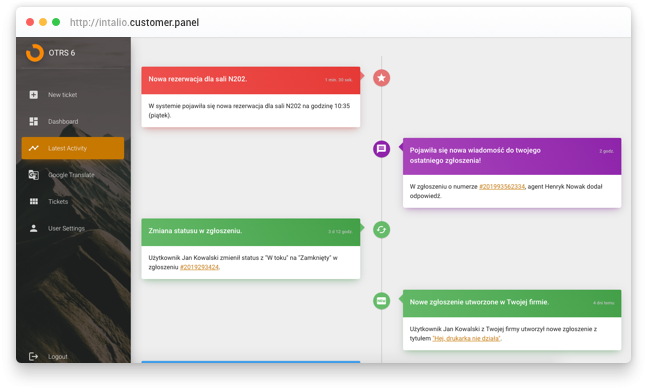](https://docs.intalioservices.com/uploads/images/gallery/2020-07/Ie12uvHd2FTATRss-image-1594219480797.png) ##### Dashboard [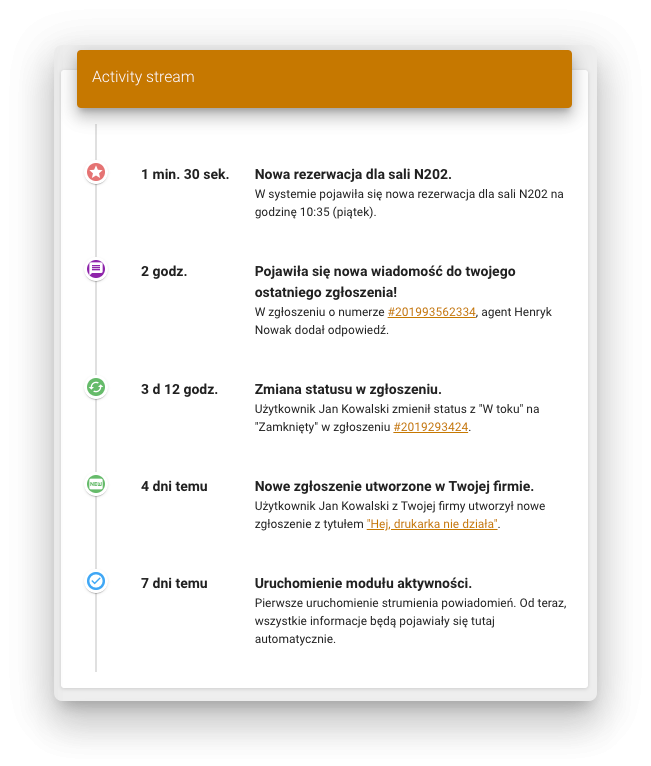](https://docs.intalioservices.com/uploads/images/gallery/2020-07/EKzRNBFcwLYzuUNW-image-1594219604235.png) ### Developing new widgets Developers have the ability to create new widgets without Intalio's assistance. Widgets consists of a single JavaScript file. If you know the basics of the Vue Framework you're good to go.Read more about developing new functionalities in the Intalio Customer Panel [here](https://docs.intalioservices.com/books/customer-panel---developer-guide "Customer Panel - Developer Guide")
# Customising styles The appearance of **Intalio Customer Panel** can be fully customised. ### List of customisable elements 1. Favicon (browser card icon) 2. Page Title 3. Menu Logo 4. Menu title 5. Active elements color (accent color) 6. Shades color 7. Widgets color 8. Menu background 9. Login page logo [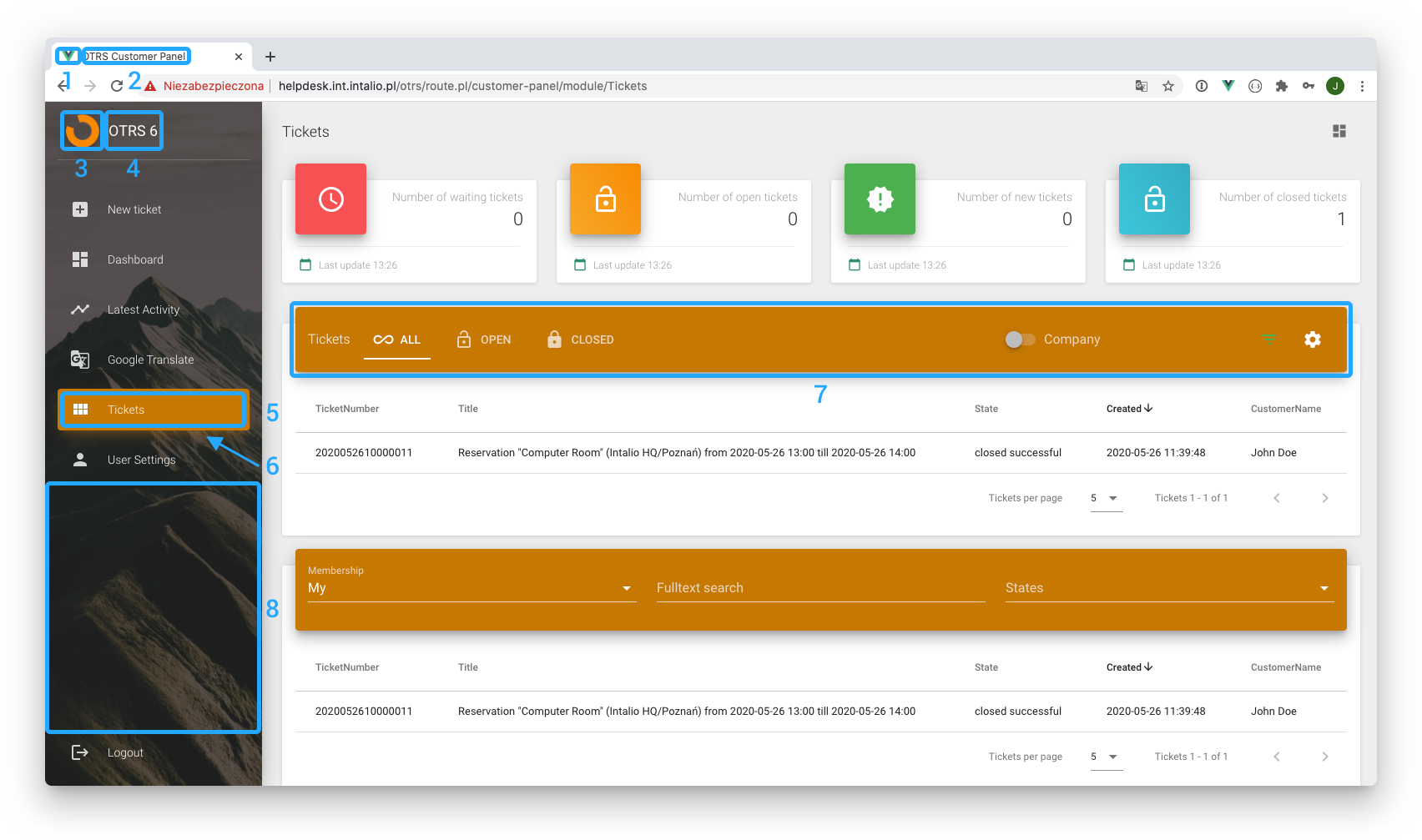](https://docs.intalioservices.com/uploads/images/gallery/2020-07/MDjZ64l2Eg7BKuXp-image-1594643723101.png) [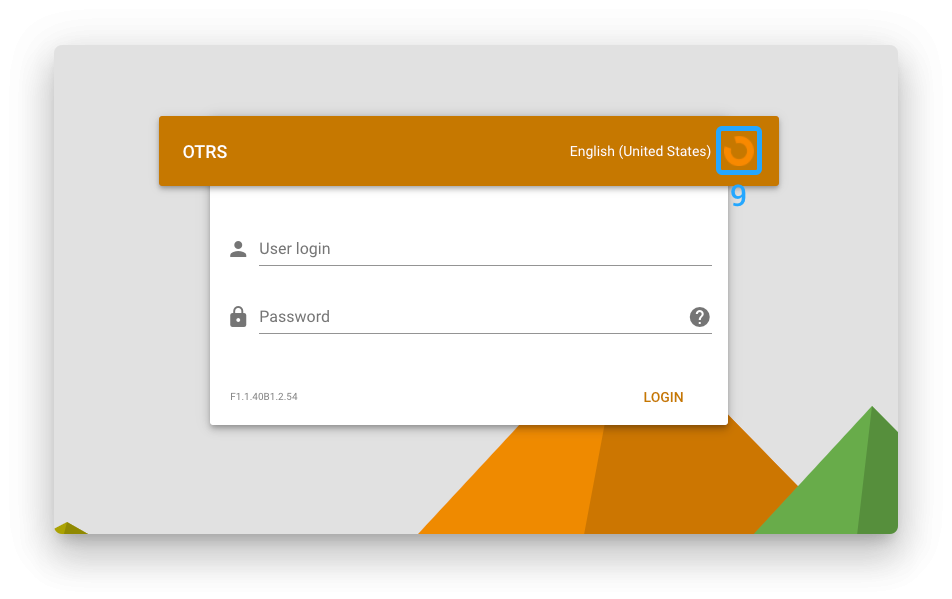](https://docs.intalioservices.com/uploads/images/gallery/2020-07/gxsjfSfmN00b4V1M-image-1594643702412.png) #### Progressive Web Apps Customer panel is made to work as Progressive Web App. PWA is a technology that seamlessly transforms a web application into mobile application. Users can install Intalio Customer Panel on their mobile devices and computers. 1. PWA app color accents 2. PWA app title 3. PWA icon and title on the apps list (desktop) 4. PWA icon and title on the main screen (mobile) [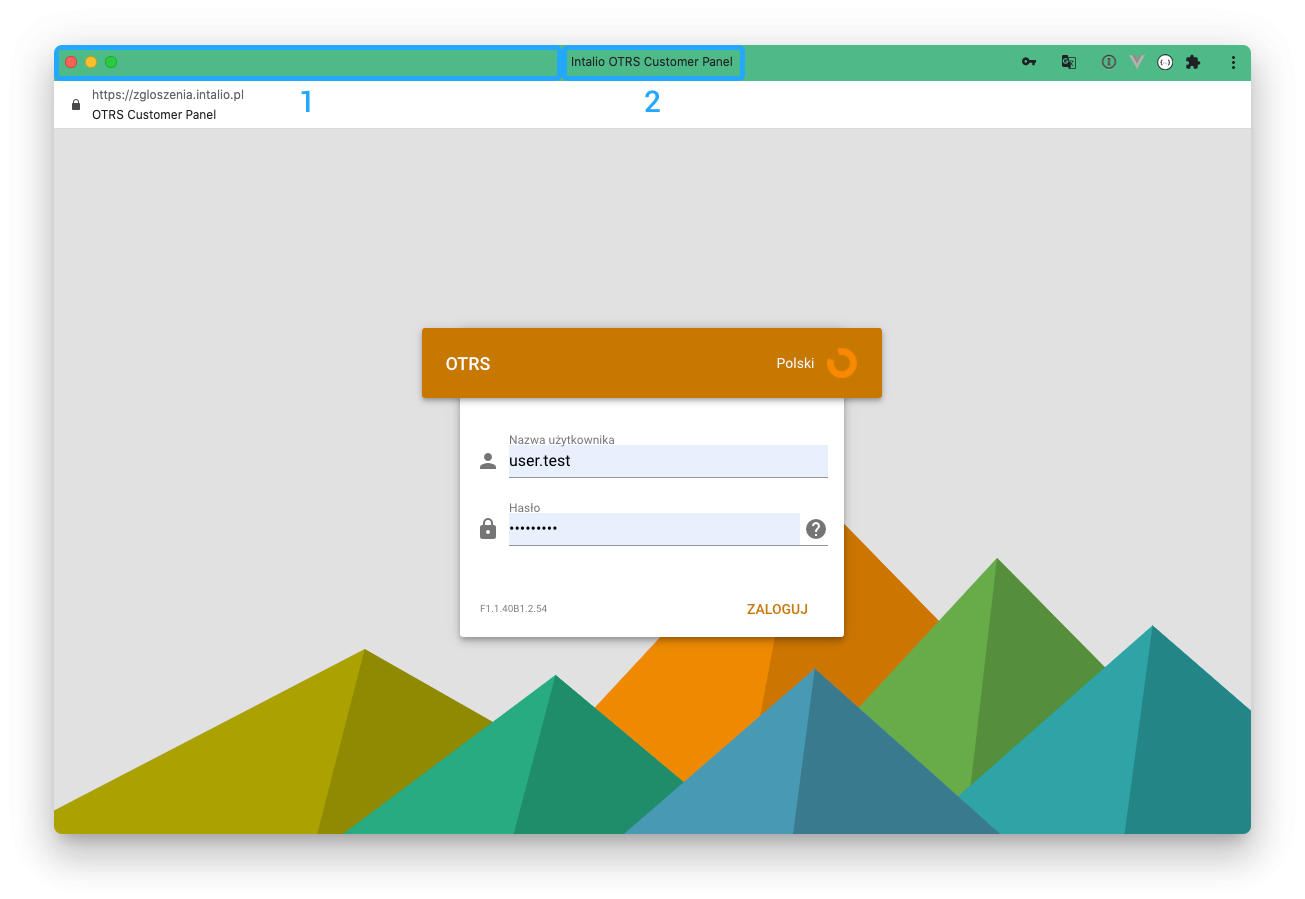](https://docs.intalioservices.com/uploads/images/gallery/2020-07/9QpbqvIilmhF0Oen-image-1594645317588.png) [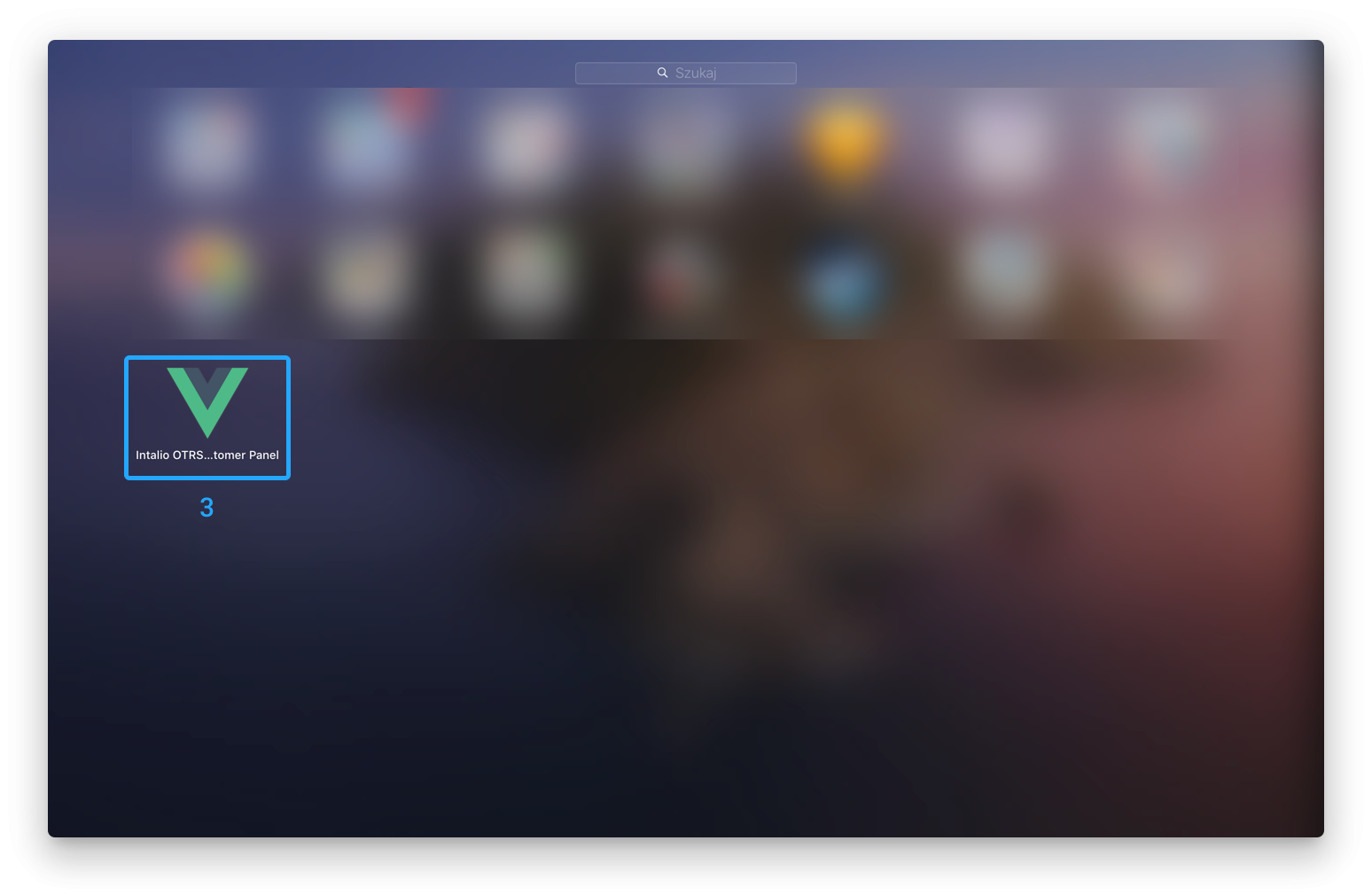](https://docs.intalioservices.com/uploads/images/gallery/2020-07/yAVhpfYg39P4XXHE-image-1594645401420.png) [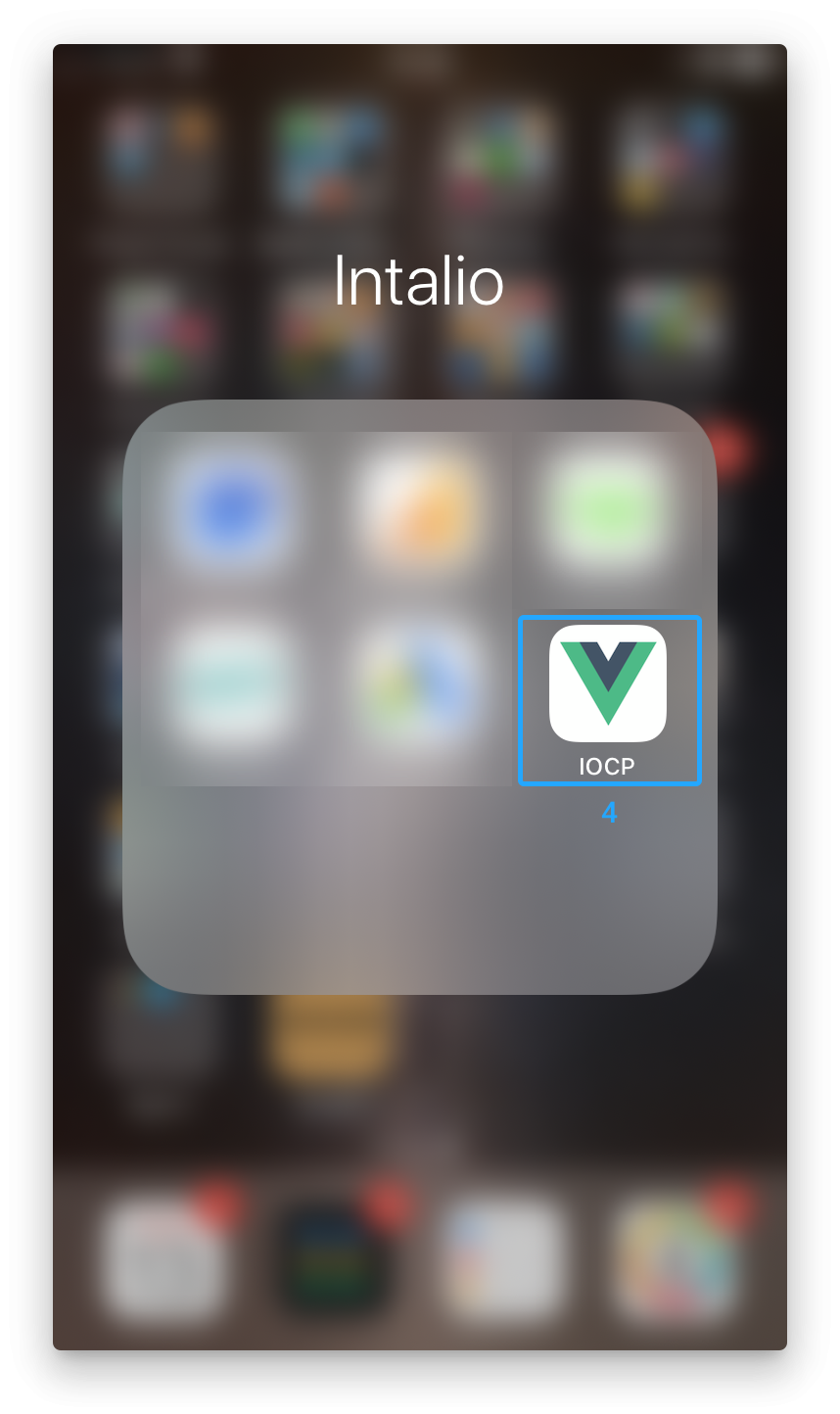](https://docs.intalioservices.com/uploads/images/gallery/2020-07/0H5GtJh8nO0UE1gr-image-1594645765220.png)