# XML Configuration
Widget's development process consists of a few simple steps to let your widget start work for you.
### XML configuration file:
The core of the whole widget. This one specifies visibility for specific groups, determines in which module should widget be located and how should it be called in the panel. The syntax and layout configuration is similar to every XML OTRS configuration.
There are two ways to configure widgets in the module:
- **Specifying the widgets array directly in the module's configuration file:**
```XML
Customer user latest activity menu module.
CustomerFrontend
- LatestActivity
- module
- Latest Activity
- /module/LatestActivity
- timeline
- 110
-
[
{
"props": {
},
"id": "5",
"widgetFile": "WIDGET_Timeline.js",
"compiled": false,
"view" : "Dashboard",
"slot" : "slot3",
"name": "Latest Activity"
}
]
```
- **Specifying widget as a separate configuration:**
```XML
Additional Ticket module widget for Intalio Customer Panel.
CustomerFrontend
-
{
"props": {
},
"id": "1000",
"widgetFile": "WIDGET_XYZ.js",
"compiled": false,
"view" : "TicketPreview",
"slot" : "slot4",
"name": "XYZ"
}
```
#### Schema
The schema file is a JSON file. It specifies the most important aspects of the whole widget.
```JSON
{
"props": {
"predefined_property": true
},
"id": "1000",
"widgetFile": "WIDGET_Contract.js",
"compiled": false,
"view" : "TicketPreview",
"slot" : "slot4",
"name": "Contracts"
}
```
- *<**props**>*
Specify predefined properties that could be referenced in the template file
- *<**id**>*
An **identification key** for your widget. Should be unique for every module**.** Id is responsible for creating unique widget settings for every user.
- *<**widgetFile**>*
Template file's name - see more on [the widget's template file](https://docs.intalioservices.com/books/customer-panel---developer-guide/page/template "Template").
- *<**view**>*
Specify the primary module where should widget be located. You can choose between multiple options starting, from predefined modules ending up to your own custom modules. You can find a more detailed explanation on [the administration section](https://docs.intalioservices.com/books/customer-panel---installation-and-administrators-guide/page/modules "Modules"),
- *<**compiled**>*
????????,
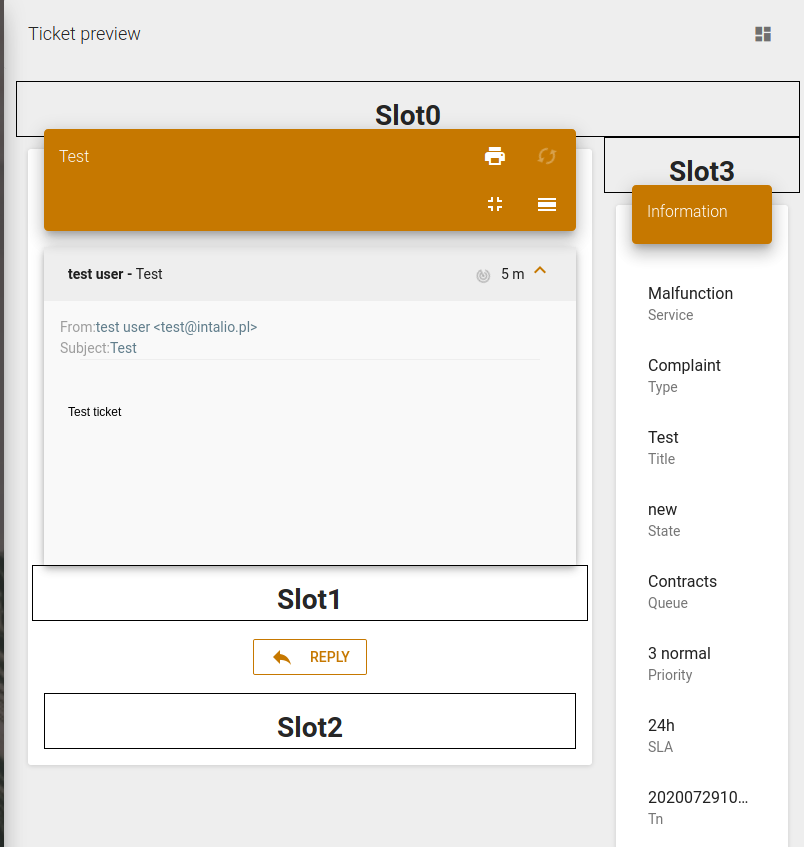
- *<**slot**>*
This label specifies a place on the layout where should widget be put in the module.
<**Slot**> property is required while creating a widget in the TicketPreview module.
You can display slot layout by adding query parameter - "dev=1" to the URL parameters eg. '/customer-panel/ticketPreview/000014/?dev=1'
#### [](https://docs.intalioservices.com/uploads/images/gallery/2020-07/ZQzzAs4g1Ny5yr7z-slot2.png)
#### CustomRedirectQuery
Since `v1.1.41` in the configuration of the widget responsible for the list of tickets, you can define additional parameters passed to the TicketPreview module. If you add a new parameter in `props => defaultConfig => customRedirectQuery` you can easily manage them in the TicketPreview module eg.
```JSON
[
{
"id" : "8",
"widgetFile" : "ticket-list",
"name" : "Tickets: Example queue",
"view" : "module",
"compiled" : true,
"props" : {
"defaultConfig" : {
"customRedirectQuery" : {
"queue" : "ExampleQueryParam"
}
}
}
}
]
```
In this example clicking on the specific ticket in the ticket list will result with URL like this:
`https:///otrs/route.pl/customer-panel/ticketPreview/?queue=ExampleQueryParam`