You can find a detailed description on how to get to the Conference Rooms [here](https://docs.intalioservices.com/books/conference-rooms---users-guide/page/how-to-get-to-the-conference-rooms "How to get to the Conference Rooms").
[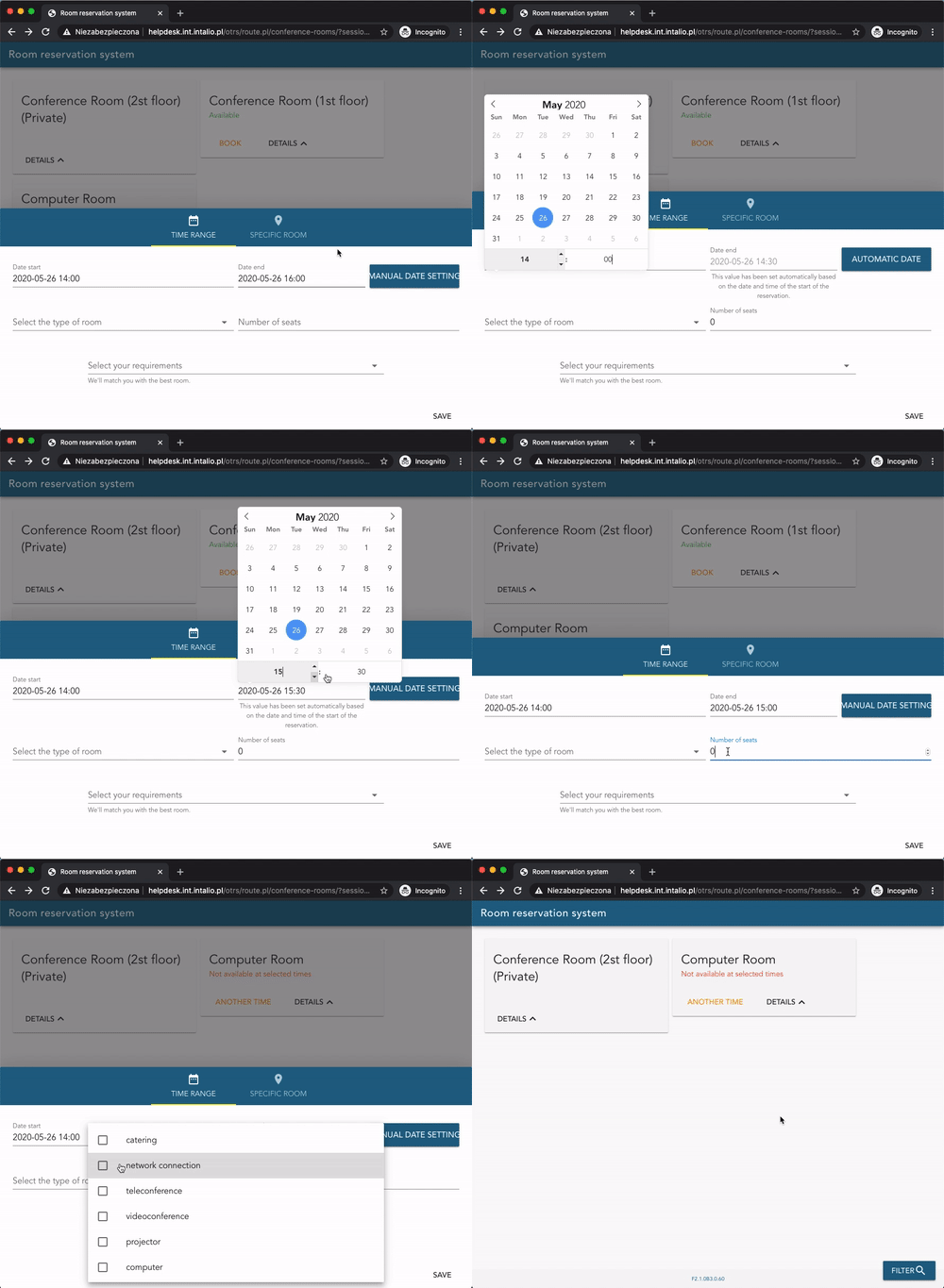](https://docs.intalioservices.com/uploads/images/gallery/2020-05/V6o7plZ877tFbgY9-image-1590499708580.gif) You can switch between two main filter menus: - Time Range - Specific Room ### Specific room Use this menu to switch between Cities and buildings or filter the rooms by their names.Note that rooms filtered out by those values won't be visible on the rooms list above the filter screen.
[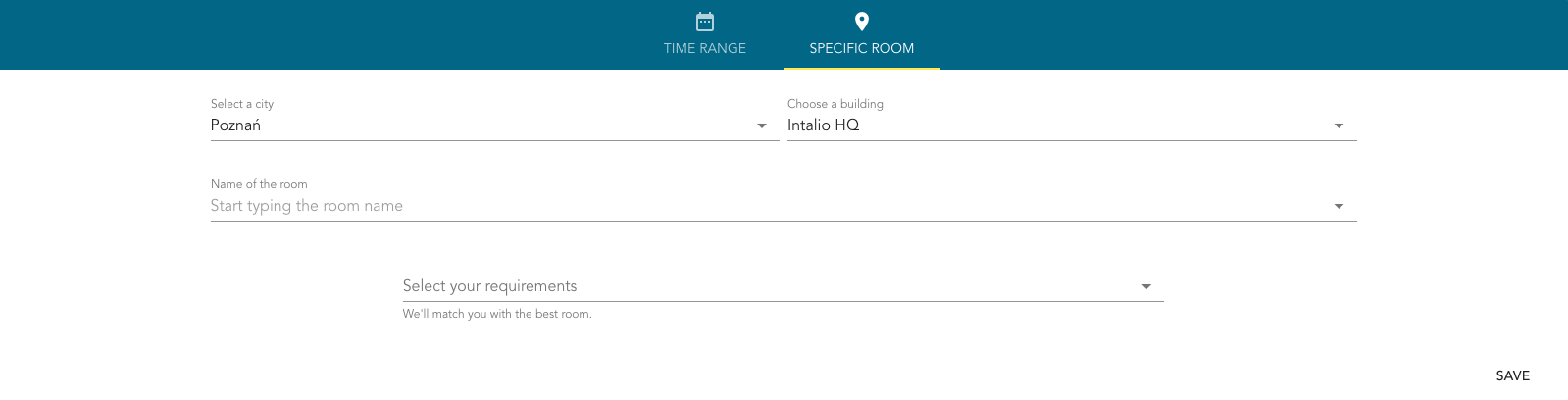](https://docs.intalioservices.com/uploads/images/gallery/2020-05/VBdRMBAPzpYSpQ20-image-1590490562099.png) You can also select your requirements from the dropdown list such as: - internet connection - projector - cateringYou can find more information about modifying additional resources list [here](https://docs.intalioservices.com/books/conference-rooms---installation-and-administrators-guide/page/system-configuration "System configuration"). If you don't have access to OTRS system configuration contact your OTRS administrator.
#### Time Range Use this menu to search for available rooms by dates. ##### Available filters - Date start Provide a start date of your reservation - Date end If `Automatic Date` is turned on end date is automatically set to half an hour after the start date If you wish to set the date manually, click on the `Automatic Date` button to set it to manual mode. - Select the type of room For example: conference, computer, other - Number of seats Enter maximum number of seats needed - Select your requirements As described above in the `Specific Room` section Click `Save` in the bottom right corner of click anywhere outside of the filters container to show the filtered rooms list. ### Rooms list In the upper part of the screen you can see filtered list of rooms. Each block is a different room which can or cannot be available to book. ##### Room Details If you look for detailed information about the room just click `DETAILS` button to expand the room card. [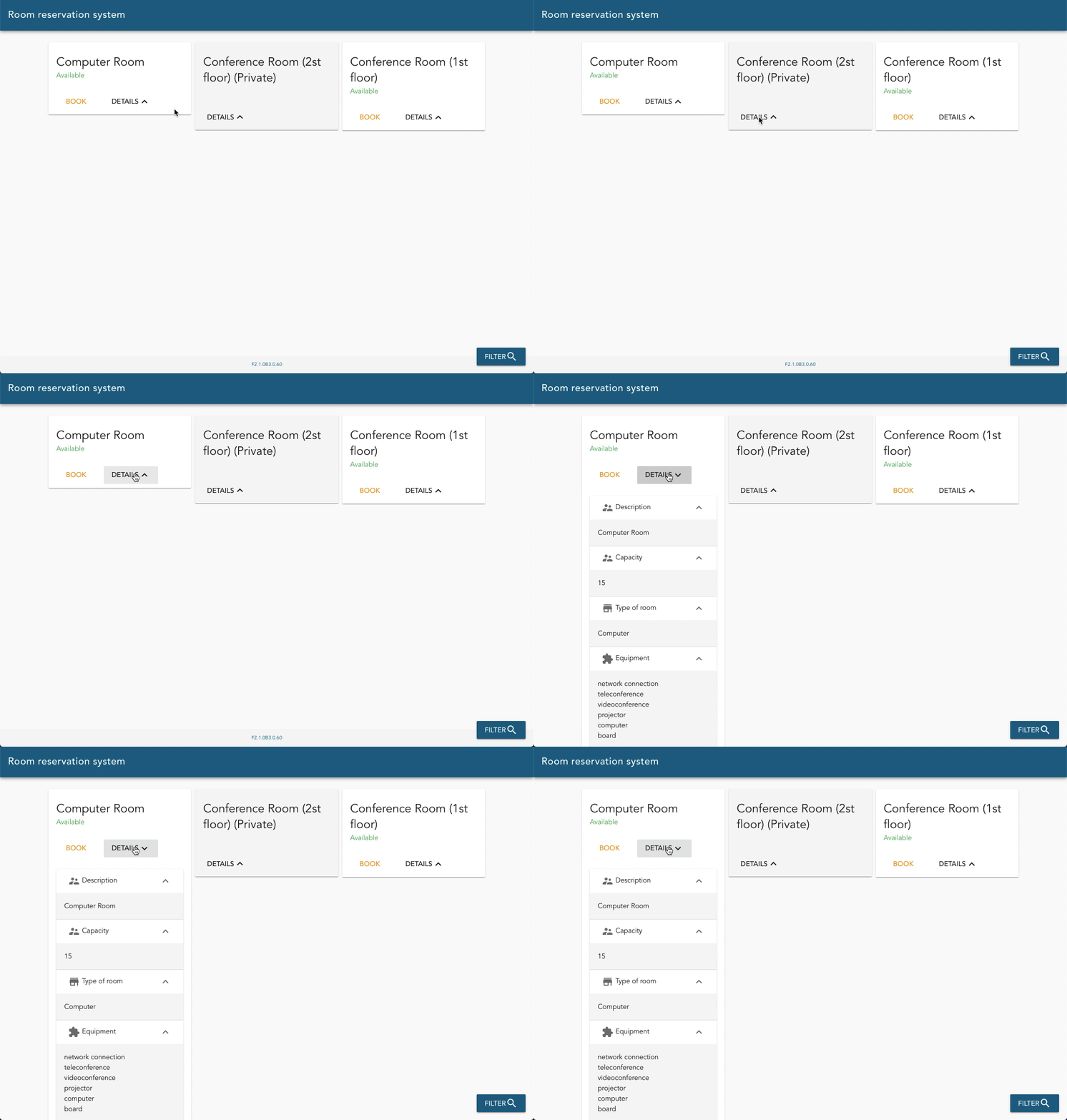](https://docs.intalioservices.com/uploads/images/gallery/2020-05/wG3spnMIoPW4mxZA-image-1590498676193.gif) #### Available room `Available` label means that the room meets all your requirements and is ready for booking at the times you specify. Click `BOOK` to open the New reservation form. ##### Not available at selected times `Not available at selected times` label means that room meets all your requirements but it is not available at selected times. You can still try to find available times by clicking `ANOTHER TIME`. You will be redirected to New Reservation form. ##### Private rooms Private rooms are special type of rooms that can only be booked by room managers. [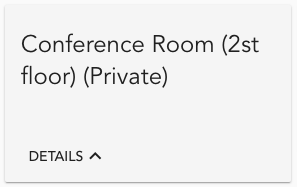](https://docs.intalioservices.com/uploads/images/gallery/2020-05/dujtn7VZNt8yeul6-image-1590497336877.png)Find out more about private rooms [here](https://docs.intalioservices.com/books/conference-rooms---users-guide/page/private-room "Private room").