Every room should have at least one room manager.
The room manager can also make reservations. In addition, it receives rights in the form of the ability to accept, reject or free the room. He also sees more information in the summary view of reservations as opposed to regular users.The method of granting permission to room managers has been described on the [Add rooms](https://docs.intalioservices.com/books/conference-rooms---installation-and-administrators-guide/page/adding-rooms "Adding rooms") page.
The room manager is identified by the email address assigned to his account in OTRS. This address should be entered in the "Room managers e-mail addresses" field. You can enter more than one address separated by a comma, without any extra spaces like this: `room.manager1@intalio.pl,room.manager2@intalio.pl` --- ### Reservations Reservation is basically a standard OTRS Ticket, in which additional information is saved in the form of dynamic fields. The booking status corresponds to the status of the ticket. By accepting or declining the reservation, we are changing the status of the ticket. Ticket is automatically created after sending a book request from the web interface.No actions on the ticket itself are required to effectively use the Conference Rooms system.
#### Reservation states Reservations have 3 states 1. Pending Reservation is pending when the user (regular or room manager) send a new reservation form and before acceptance by the room manager. 2. Accepted Reservation is accepted when the room manager accepts the reservation conditions 3. Rejected Reservation is rejected when the room manager rejects the reservation. The rejected reservation is visible only to the administrator and user who made the room reservation. --- ### Cities, buildings and rooms Reservations are linked to the specific room. Before you can start using the system you will have to add and configure your real estate. You can create this elements in your OTRS using the specially created panel. It's quick and simple.You can find more information about adding cities, buildings and rooms here in the [Administrators guide](https://docs.intalioservices.com/books/conference-rooms---installation-and-administrators-guide/chapter/administration "Administration").
--- ### Summary This is the most important information that you must know before using Conference Rooms. To learn all the advanced features of our system, read the rest of the user manual. # How to get to the Conference Rooms ### Agent Login to OTRS's agent panel. #### New room reservation From the top menu open Conference Rooms tab and click on the New Room Reservation option. [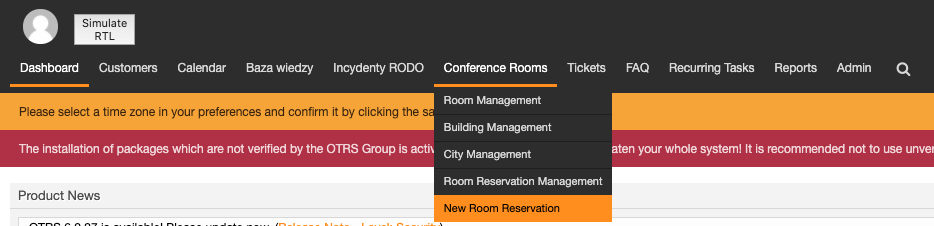](https://docs.intalioservices.com/uploads/images/gallery/2020-05/EjPIs7G2KkPQPu6Y-image-1590149024974.png) You will be redirected to the Conference Rooms' booking view. [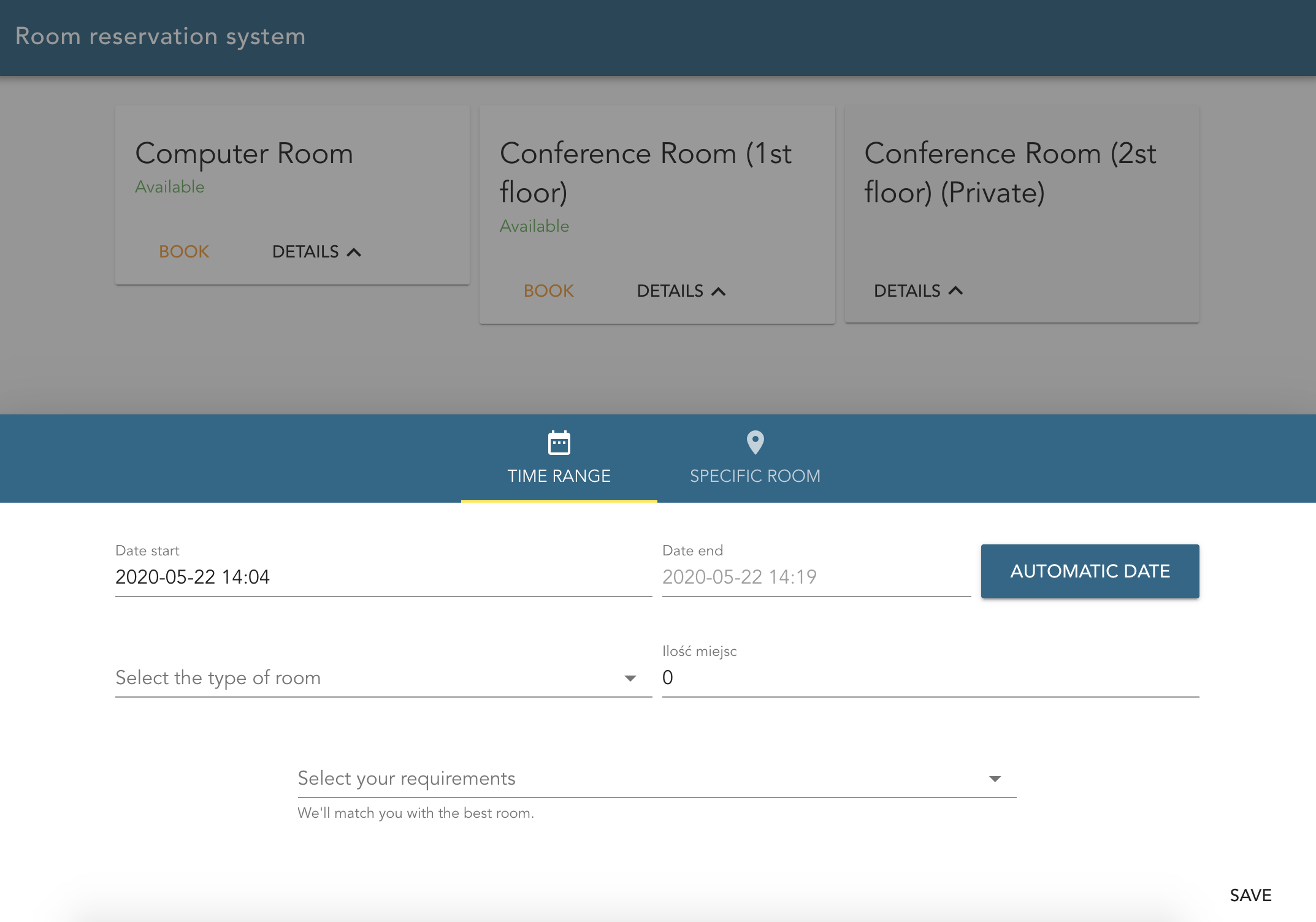](https://docs.intalioservices.com/uploads/images/gallery/2020-05/QLUOH0pf6VRRMYAn-image-1590149155667.png) #### Management view From the top menu open Conference Rooms tab and click on the Room Reservation Management option. You will be redirected to the Conference Rooms' management view. [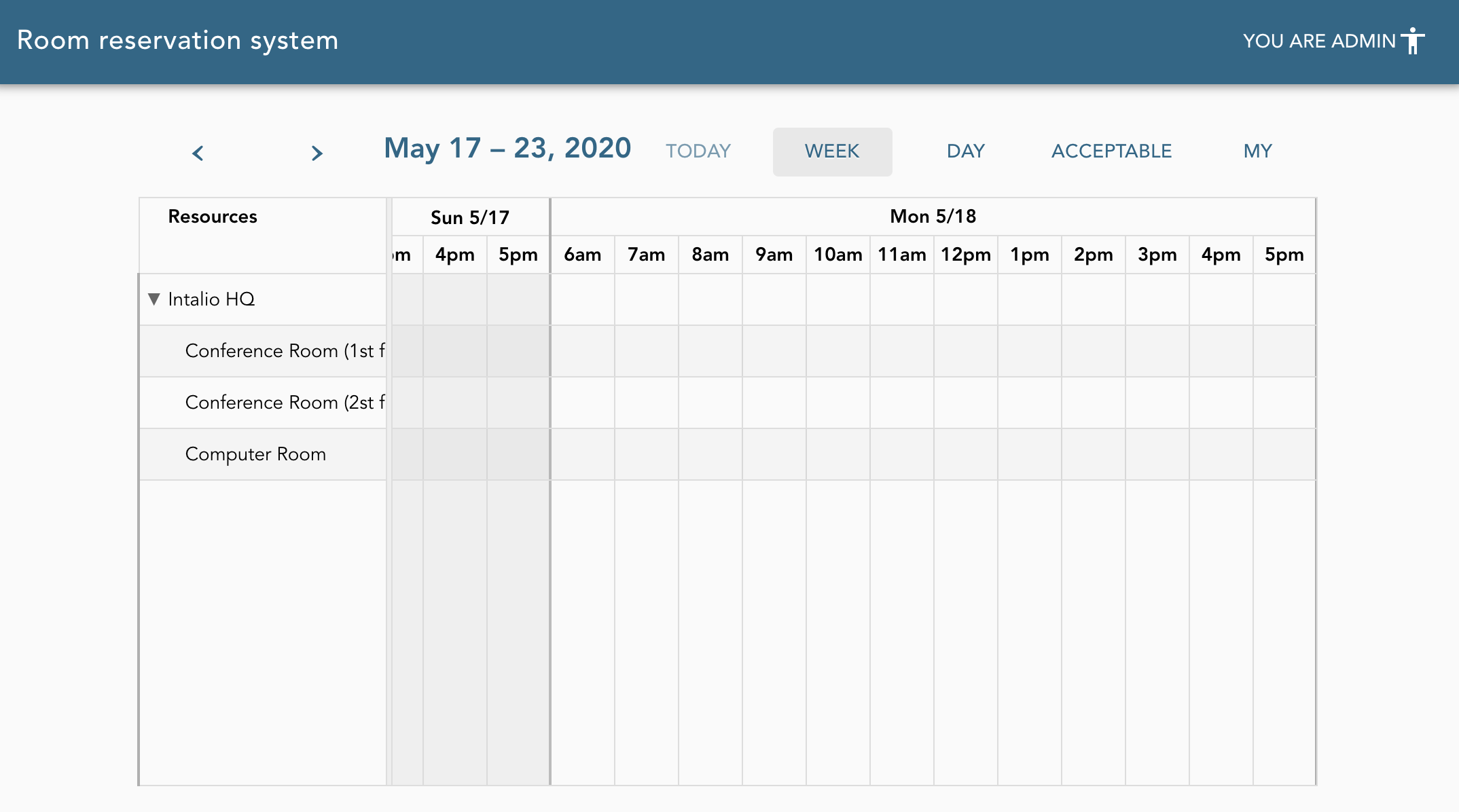](https://docs.intalioservices.com/uploads/images/gallery/2020-05/oCilxfQSl72PW5cF-image-1590151552584.png) --- ### Customer user Login to OTRS's customer panel. #### New room reservation Open Room Reservation Management menu and choose New Room Reservation. [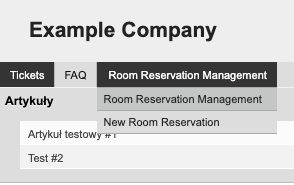](https://docs.intalioservices.com/uploads/images/gallery/2020-05/OSVETeLLEiNxUMId-image-1590482634030.png) You will be redirected to the Conference Rooms' booking view. [](https://docs.intalioservices.com/uploads/images/gallery/2020-05/QLUOH0pf6VRRMYAn-image-1590149155667.png) --- #### Management view Open Room Reservation Management menu and choose Room Reservation Management. You will be redirected to the Conference Rooms' management view. [](https://docs.intalioservices.com/uploads/images/gallery/2020-05/oCilxfQSl72PW5cF-image-1590151552584.png) # Overview of the reservations (dashboard) Open the room management (dashboard) view.If you don't know how to find the dashboard check out [this](https://docs.intalioservices.com/books/conference-rooms---users-guide/page/how-to-get-to-the-conference-rooms "How to get to the Conference Rooms") article.
The dashboard is represented in a convenient calendar view. You can switch between plenty of views: - Today - Week - Day - Pending - My - My Rooms ### Events visibility The number of events you can see in the dashboard view depends on the type of user you are. #### Unauthorised user Unauthorised user is the user that is not logged in to the OTRS system.You became unauthorised user when there is no sessionId parameter provided in the URL or the user session has expired.
This type of users can see: - accepted reservations of all other users ##### Recommended personel Cleaning services personel can use the Conference Rooms system as unauthorised users.The reservations calendar can be printed and passed to the cleaning services personel
#### Regular user Regular user is the authorised user (logged in to OTRS) who is not a room manager. The regular user can be "regular" in one room and room manager in another room. This permissions are set per room, not globally for the whole system. This type of users can see: - reservations that he owns - pending, accepted or rejected (all states) - other users' reservations - pending or accepted ##### Recommended personel Employees that organise meetings in the company. #### Room manager Room manager is the authorised user (logged in to OTRS) who is a local administrator (manager) for the given room.The room manager permissions are given per single room, not globally. User can be a manager for one room, but a regular user for the other rooms.
This type of users can see: - reservations that he owns - pending, accepted or rejected (all states) - other users' reservations - pending or accepted - reservations in rooms in which he is a room manager (local administrator) ##### Recommended personel Employees that organise meetings in the company and are responsible for accepting or reject requests for room reservations. ### Calendar tabs #### Week This tab represent a calendar view on which you can see all the reservations that are visible to you based on your current roles and will take place this week. You can navigate between weeks using the navigation arrows. [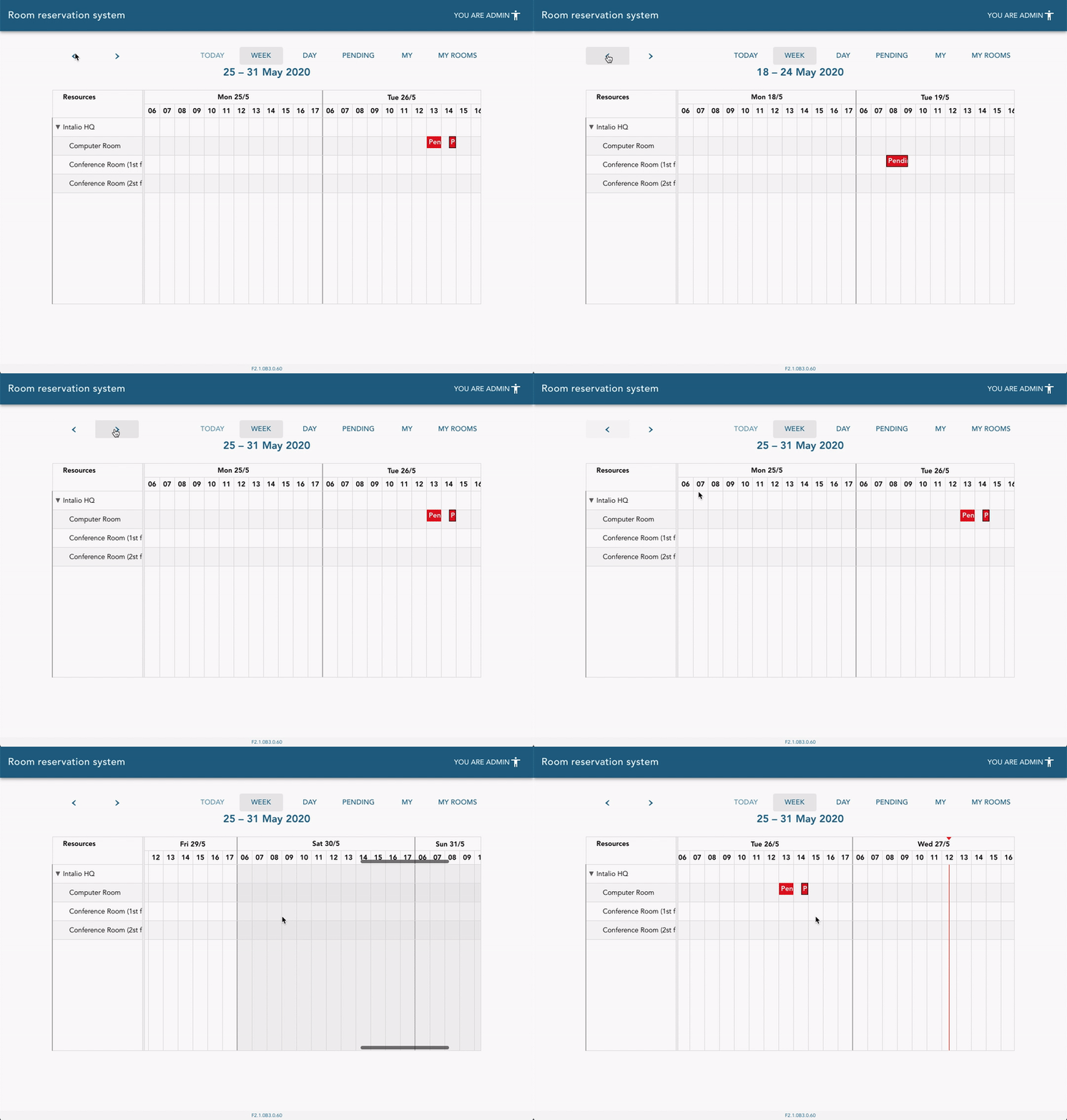](https://docs.intalioservices.com/uploads/images/gallery/2020-05/ZRy9OQZXhuAiX7td-image-1590575554478.gif) #### Day This tab represent a calendar view on which you can see all the reservations that are visible to you based on your current roles. You can navigate between days using the navigation arrows. #### Pending This tab represent a list view on which you can see all the reservations that are currently in pending state. [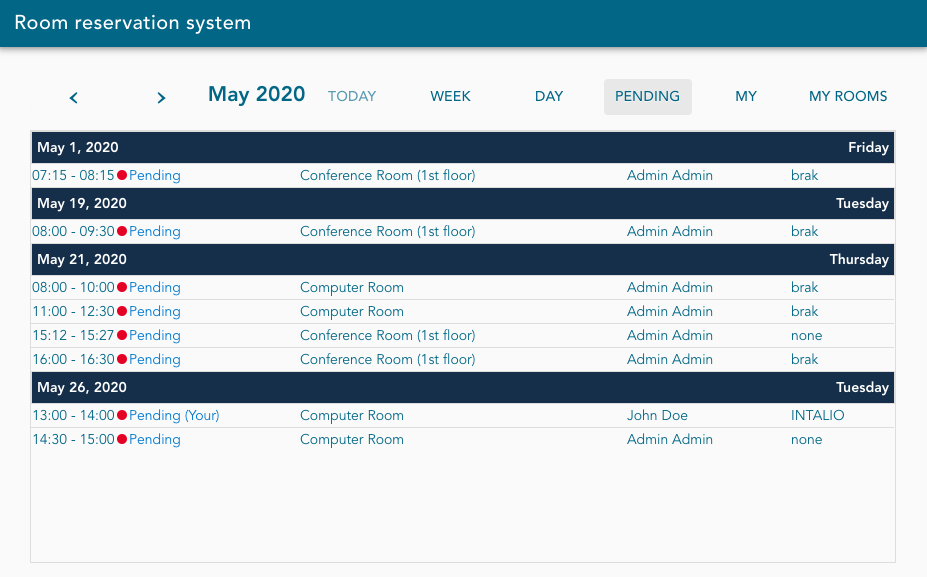](https://docs.intalioservices.com/uploads/images/gallery/2020-05/OoNPEYviGUbbNaeh-image-1590576012966.png) #### My This tab represent a calendar view on which you can see all your private.You can quickly differentiate your reservations from others by looking on its state label. `Your` text is always added to the reservations that you own on lists. In calendar view your reservations are also bordered by blue line.
[](https://docs.intalioservices.com/uploads/images/gallery/2020-05/BEOA9Yiug9g8CC0Y-image-1590576149564.png) [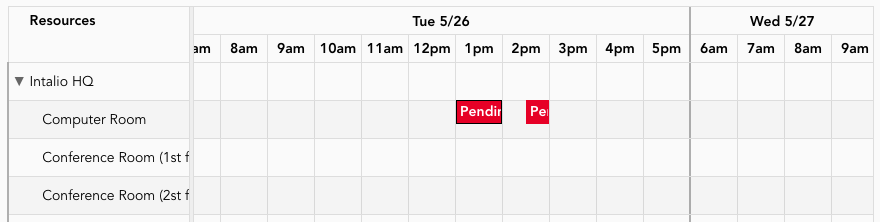](https://docs.intalioservices.com/uploads/images/gallery/2020-05/oKjh1nTWJlXyBtME-image-1590576238742.png) #### My rooms This tab represent a calendar view on which you can see all reservations that have been scheduled in rooms in which you're a room manager (local administrator). If you want to accept or reject the reservations in rooms that you're responsible for this is the most convenient way. ### Reservation details To open the reservation details simply click on the reservation in calendar view or list view. [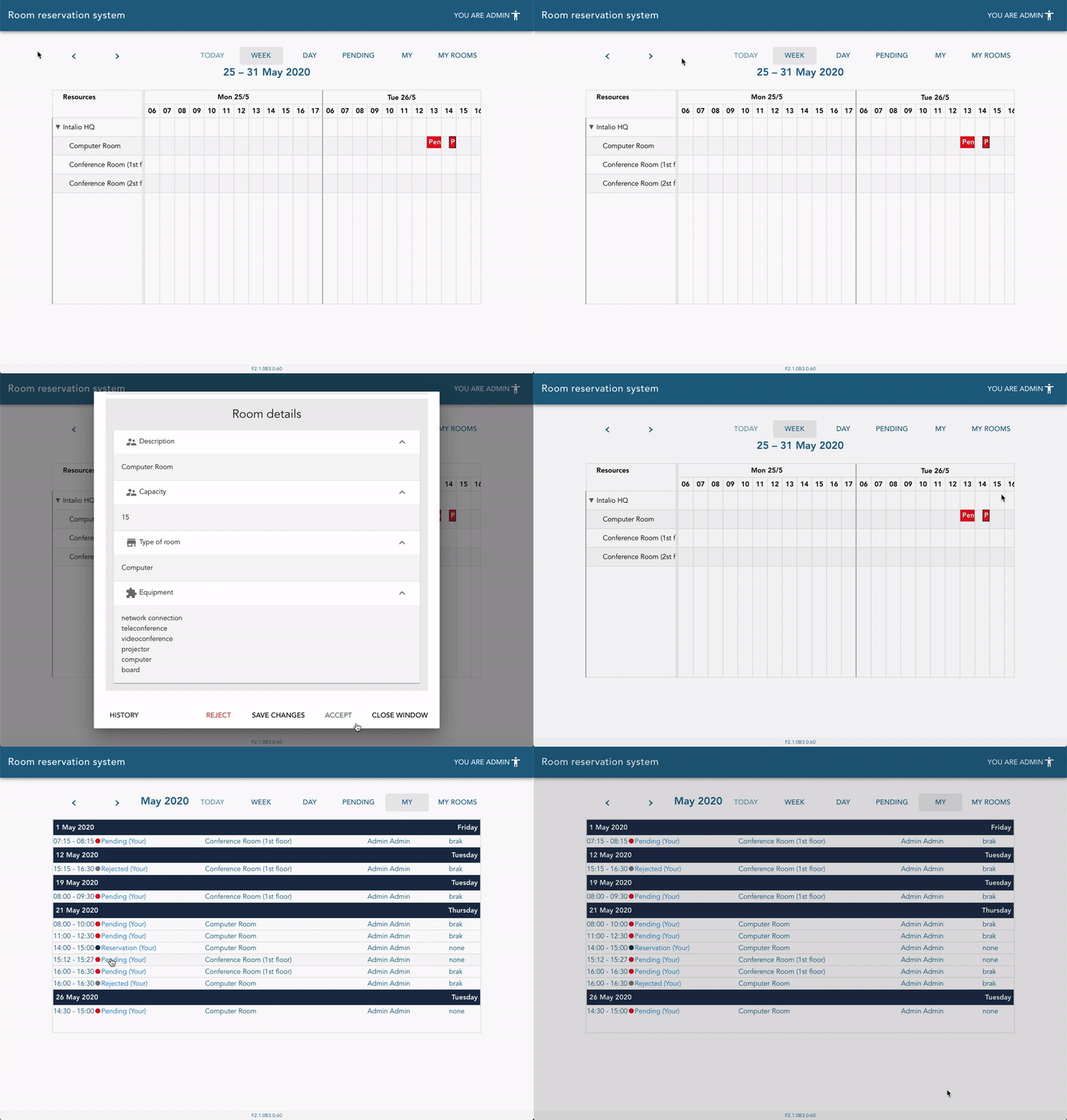](https://docs.intalioservices.com/uploads/images/gallery/2020-05/BERiPMYDPKif4gqv-image-1590577367989.gif) # Actions and permission There are couple of actions that can be performed on a reservation based on your roles and current reservation state. - Edit Edit currently open reservation. Press save changes to send an update. - Accept - Reject - Release When the reservation is accepted it can be canceled by owner or the room manager by pressing release button. [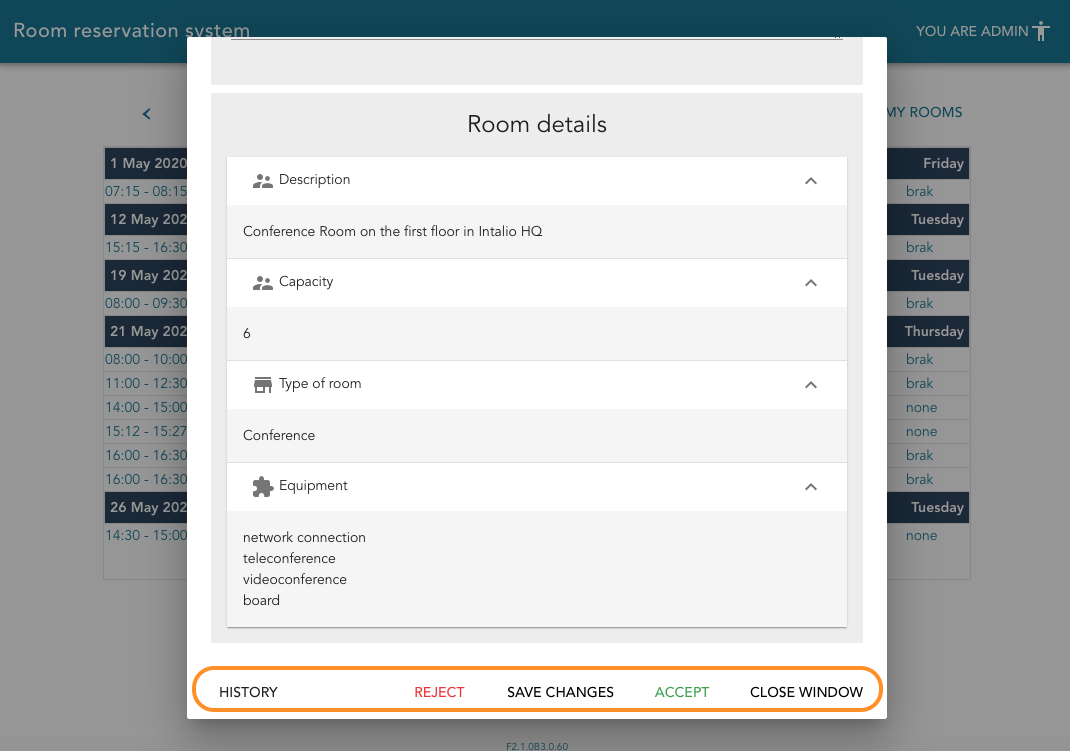](https://docs.intalioservices.com/uploads/images/gallery/2020-05/XpI0N2a9qXG6yjqq-image-1590582712359.png) --- #### Unauthorised users ##### Pending Not visible for this type of user ##### Accepted No action is available ##### Rejected Not visible for this type of user --- #### Regular users ##### Pending **Reservation owner:** - - - - - Reject - Edit **Not reservation owner: **No action is available ##### Accepted **Reservation owner:** - - - - - Release - Edit **Not reservation owner: **No action is available ##### Rejected **Reservation owner:** No action is available **Not reservation owner: **No action is available --- #### Room managers ##### Pending **Reservation owner:** - - - - - Accept - Reject - Edit **Not reservation owner: ** - - - - - Accept - Reject - Edit ##### Accepted **Reservation owner:** - - - - - Release - Edit **Not reservation owner: ** - - - - - Release - Edit ##### Rejected **Reservation owner:** No action is available **Not reservation owner: **No action is available # User Instructions for using the system for the user who makes the reservations - regular user. # Find available room Go to the main Conference Rooms panel.You can find a detailed description on how to get to the Conference Rooms [here](https://docs.intalioservices.com/books/conference-rooms---users-guide/page/how-to-get-to-the-conference-rooms "How to get to the Conference Rooms").
[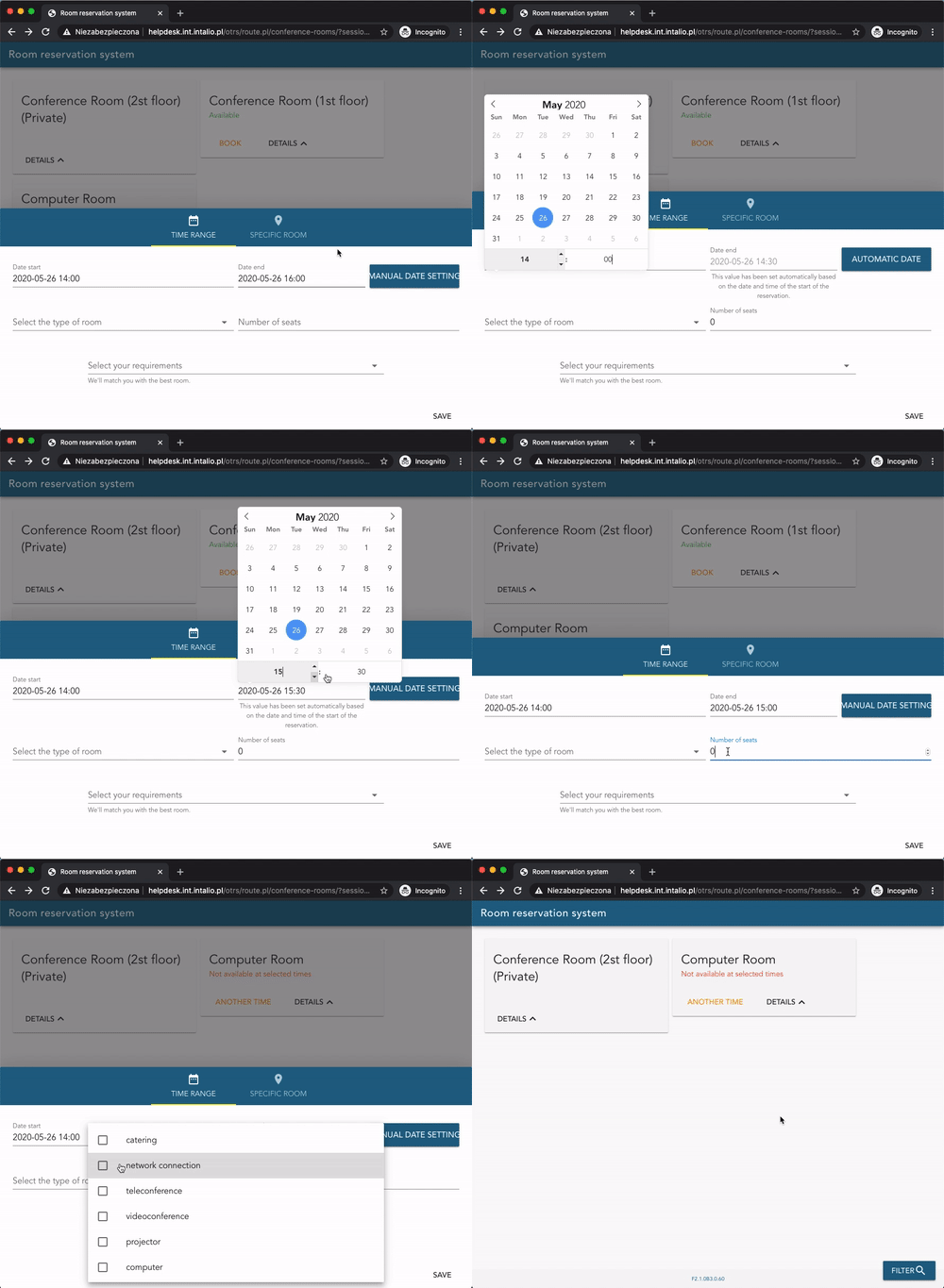](https://docs.intalioservices.com/uploads/images/gallery/2020-05/V6o7plZ877tFbgY9-image-1590499708580.gif) You can switch between two main filter menus: - Time Range - Specific Room ### Specific room Use this menu to switch between Cities and buildings or filter the rooms by their names.Note that rooms filtered out by those values won't be visible on the rooms list above the filter screen.
[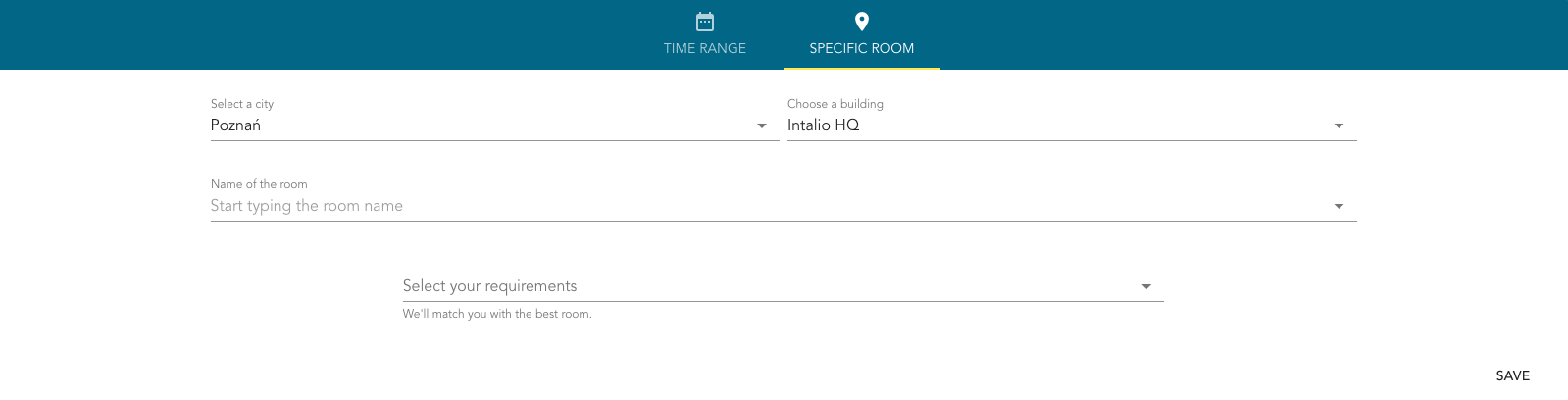](https://docs.intalioservices.com/uploads/images/gallery/2020-05/VBdRMBAPzpYSpQ20-image-1590490562099.png) You can also select your requirements from the dropdown list such as: - internet connection - projector - cateringYou can find more information about modifying additional resources list [here](https://docs.intalioservices.com/books/conference-rooms---installation-and-administrators-guide/page/system-configuration "System configuration"). If you don't have access to OTRS system configuration contact your OTRS administrator.
#### Time Range Use this menu to search for available rooms by dates. ##### Available filters - Date start Provide a start date of your reservation - Date end If `Automatic Date` is turned on end date is automatically set to half an hour after the start date If you wish to set the date manually, click on the `Automatic Date` button to set it to manual mode. - Select the type of room For example: conference, computer, other - Number of seats Enter maximum number of seats needed - Select your requirements As described above in the `Specific Room` section Click `Save` in the bottom right corner of click anywhere outside of the filters container to show the filtered rooms list. ### Rooms list In the upper part of the screen you can see filtered list of rooms. Each block is a different room which can or cannot be available to book. ##### Room Details If you look for detailed information about the room just click `DETAILS` button to expand the room card. [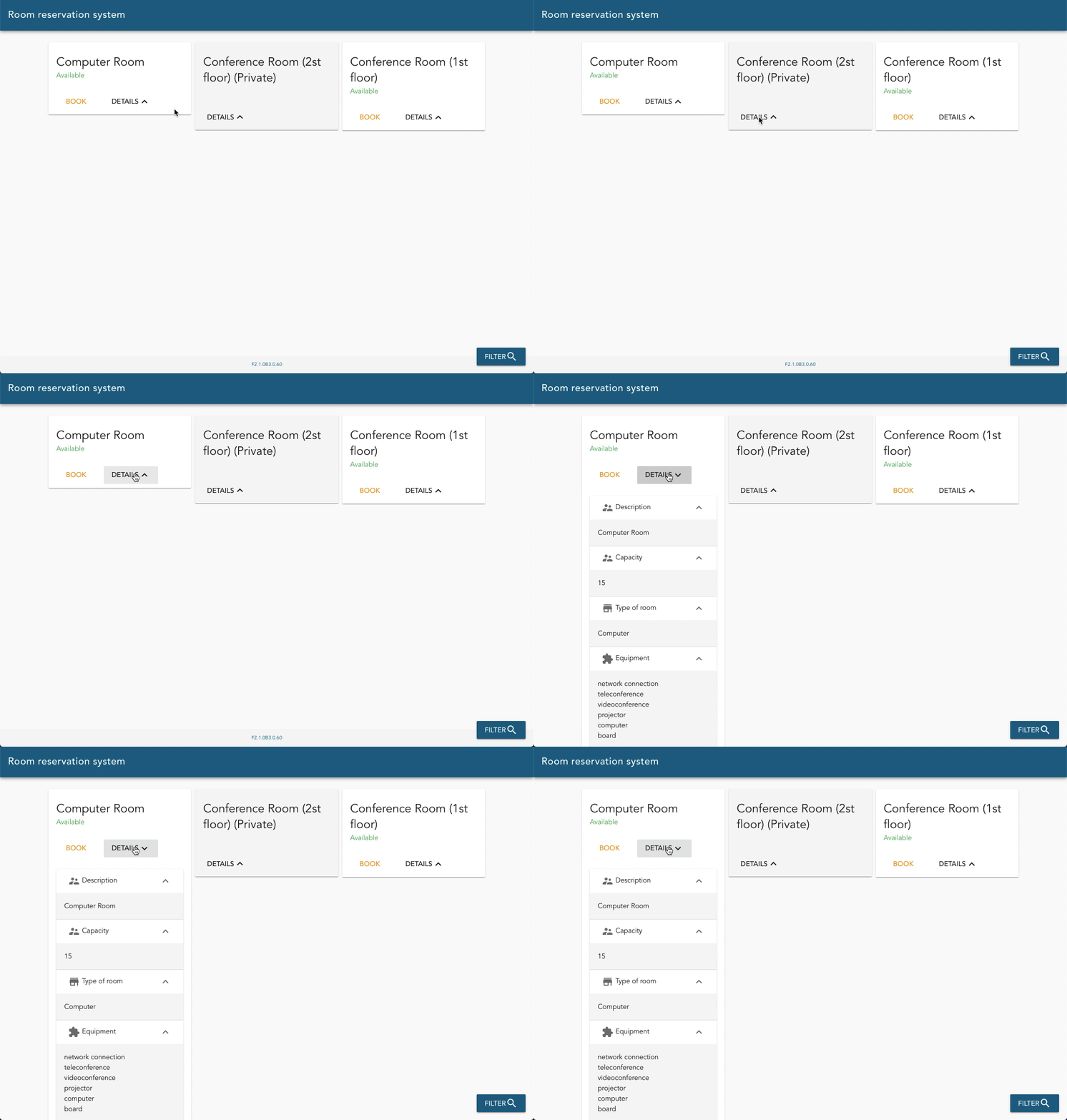](https://docs.intalioservices.com/uploads/images/gallery/2020-05/wG3spnMIoPW4mxZA-image-1590498676193.gif) #### Available room `Available` label means that the room meets all your requirements and is ready for booking at the times you specify. Click `BOOK` to open the New reservation form. ##### Not available at selected times `Not available at selected times` label means that room meets all your requirements but it is not available at selected times. You can still try to find available times by clicking `ANOTHER TIME`. You will be redirected to New Reservation form. ##### Private rooms Private rooms are special type of rooms that can only be booked by room managers. [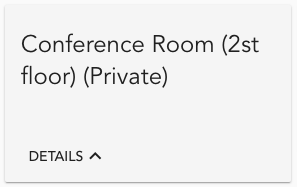](https://docs.intalioservices.com/uploads/images/gallery/2020-05/dujtn7VZNt8yeul6-image-1590497336877.png)Find out more about private rooms [here](https://docs.intalioservices.com/books/conference-rooms---users-guide/page/private-room "Private room").
# Private room Private rooms are special types of rooms that cannot be booked by regular users. Only room managers of the given room are allowed to book it. [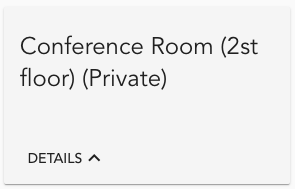](https://docs.intalioservices.com/uploads/images/gallery/2020-05/0hOi0G1M6oiZzpCe-image-1590498142190.png)If you wish to book private room contact your private room manager.
You can find a list of private room managers (Local administrator) if you expand the room's details. [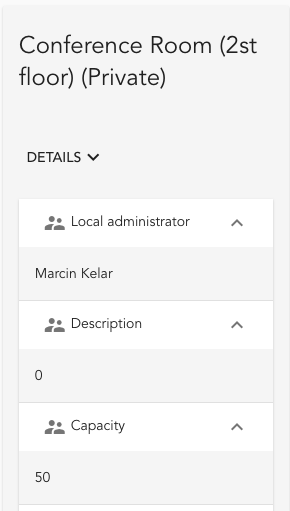](https://docs.intalioservices.com/uploads/images/gallery/2020-05/AyxMpd1Hf2WAN4um-image-1590498161983.png) # Add new reservation 1. To open the add new form click on the **`BOOK`** or `ANOTHER TIME` button in the room card. [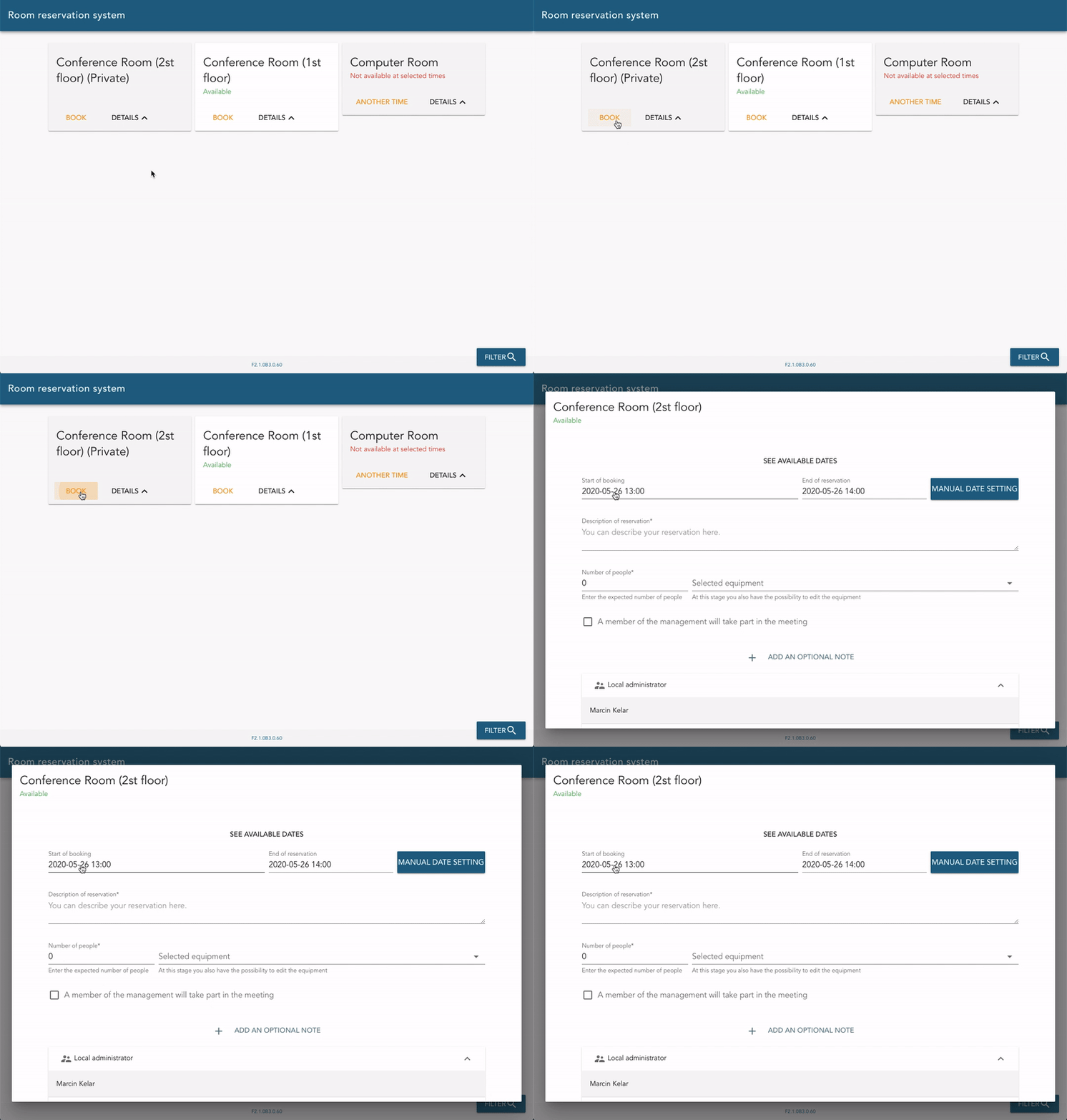](https://docs.intalioservices.com/uploads/images/gallery/2020-05/DUnk3kIr9aA3uKrB-image-1590501471884.gif) #### Available dates You can set start and end date using date picker fields (like in the filters) or you can take a quick look on the calendar view by clicking `SEE AVAILABLE DATES`. There 3 views that you can choose from: 1. Week 2. Day 3. List To set your reservation start and end date go to week or day view and create schedule by simply dragging it on the calendar view.This view will also conveniently show you other people's reservations so you see when the room is actually available to book.
[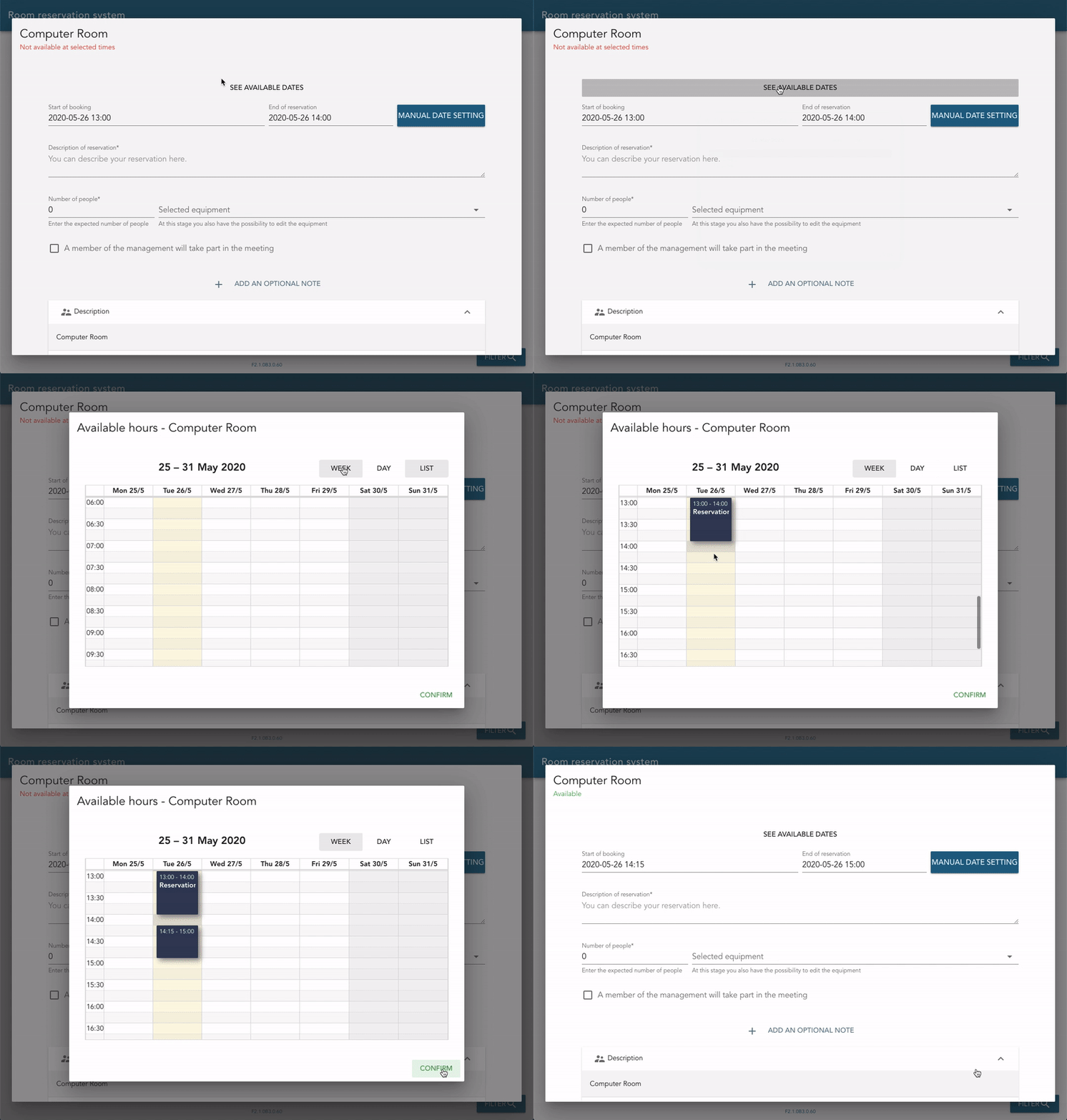](https://docs.intalioservices.com/uploads/images/gallery/2020-05/6GtH6SOSrR7Wvafi-image-1590502312444.gif)Grey spots before and after an event represents the minumum time between reservations. This parameter is configurable through OTRS system config. You can find out more in the [administration guide](https://docs.intalioservices.com/books/conference-rooms---installation-and-administrators-guide/page/system-configuration "System configuration").
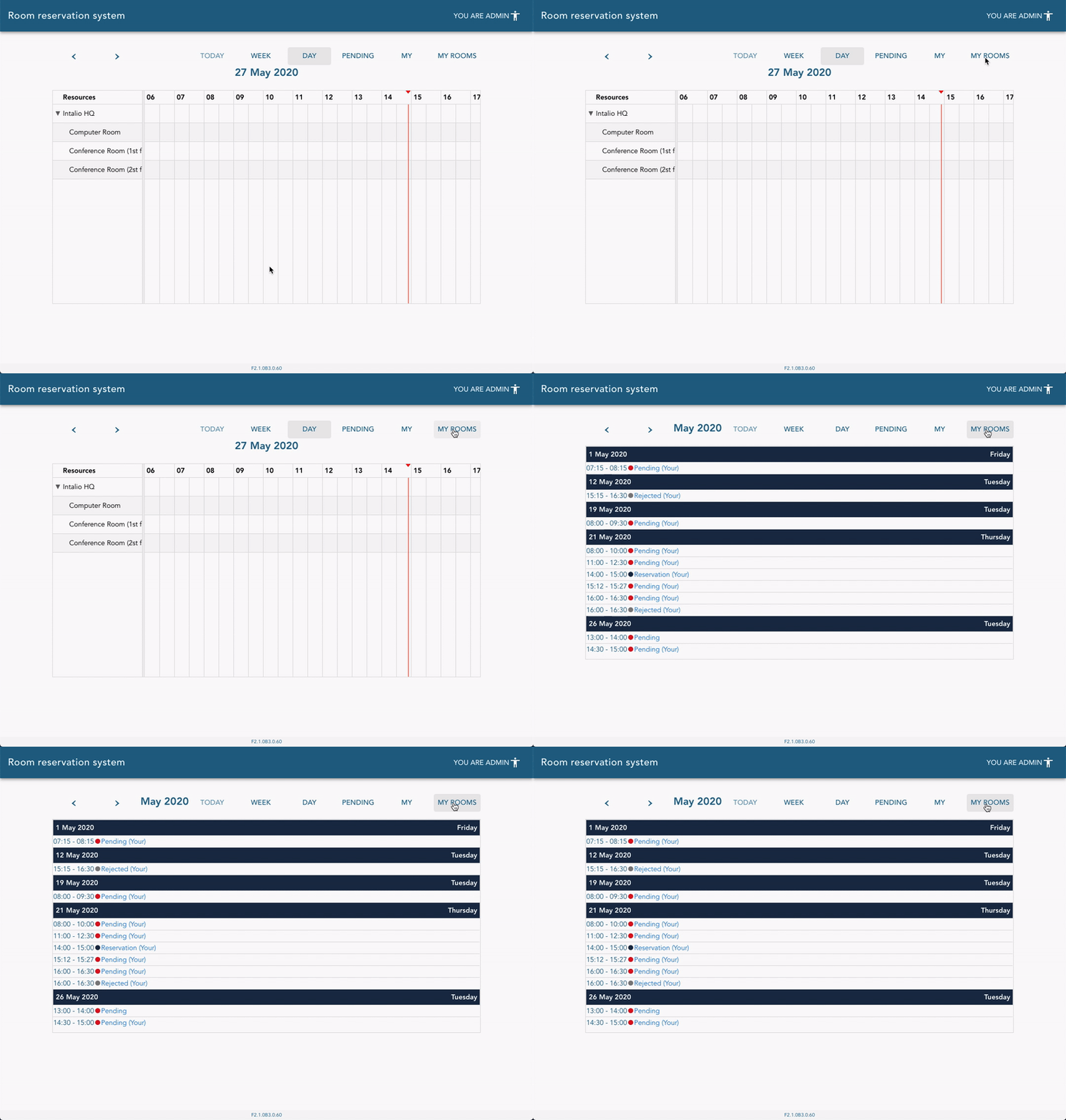
#### Description Write some description about your reservation ie. OTRS training or Daily standup. This field is required. #### Numer of people Enter maximum number of people that will tak part in the meeting. Note that you can't enter a value that is bigger than room's capacity. #### Selected equipment Choose the equipment that is necessary for your meeting from the list. #### Management meter will take part Check this field if the VIP will be taking part in the meeting. This information can be important for the staff that is responsible for preparing the room before the meeting. #### Optional note You could also add an optional note that will be saved in the reservation history. #### Send in a request Press send in a request button at the bottom of the form to send a reservation request. You will be redirected automatically to your OTRS customer or agent panel accordingly. ### Book a private room Only room managers are able to book private rooms. If you wish to book a private room you need to contact one of the local administrators. Room manager can create an event for you. You can find a list of room managers in the room details. [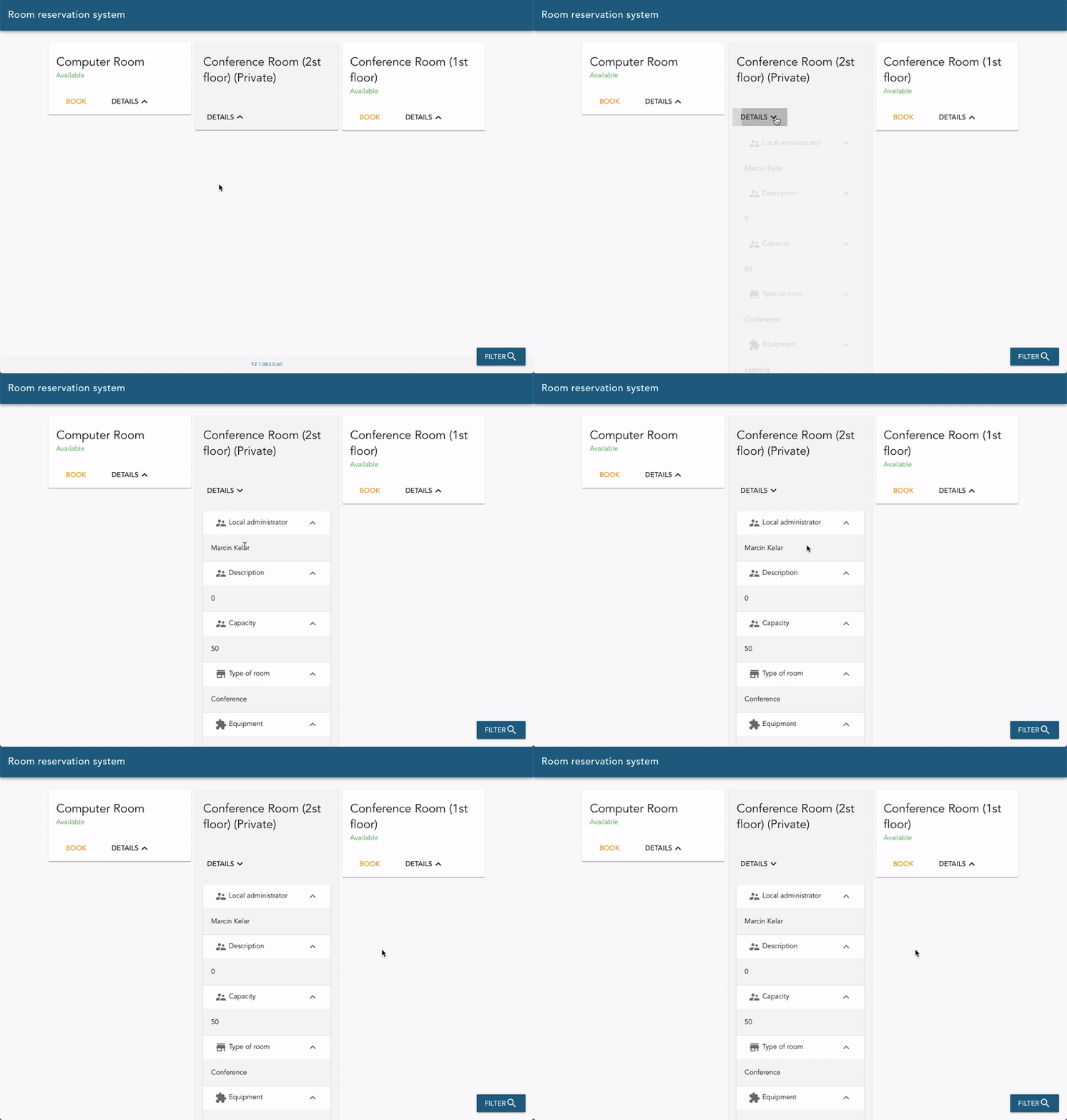](https://docs.intalioservices.com/uploads/images/gallery/2020-05/Aex2ym8k5qItJLio-image-1590583297223.gif) ### What's next? Now your reservation is in pending state and it was passed to your room manager to accept it. [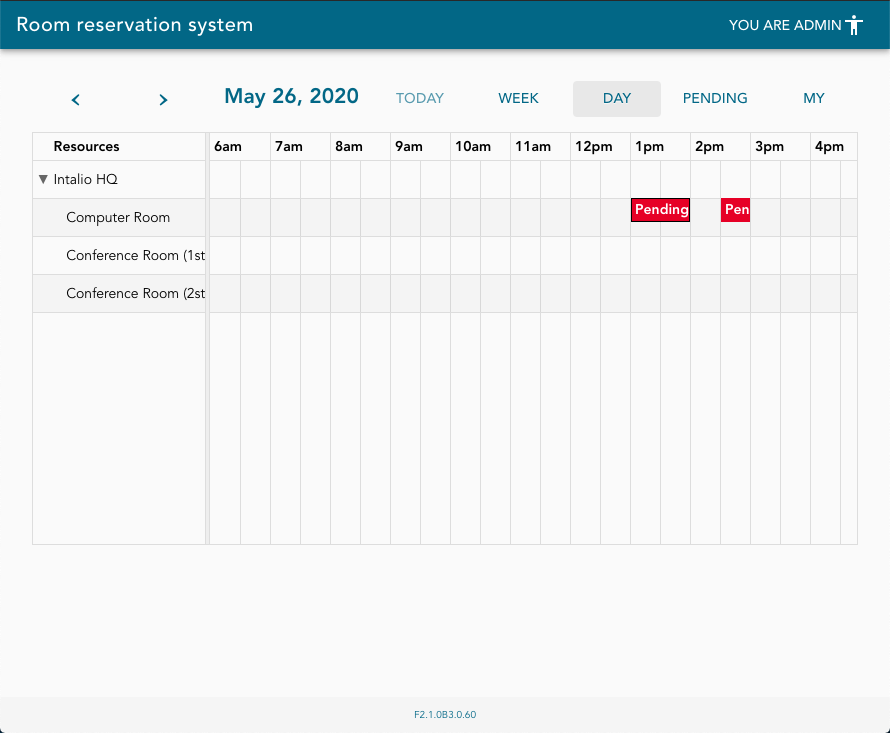](https://docs.intalioservices.com/uploads/images/gallery/2020-05/y4gjZ1nAILm5ua4b-image-1590505705221.png) # Room Manager Instructions for using the system for the user who is responsible for managing the reservations - room manager (local administrator). # Taking actions on the reservations If you are a room manager your main task is to accept or reject room reservations requests. ### Looking for reservations requests Th most convenient way to get an overview of the current situation is to use a dashboard's `My rooms` view.Check out [this link](https://docs.intalioservices.com/books/conference-rooms---users-guide/page/how-to-get-to-the-conference-rooms "How to get to the Conference Rooms") if you don't know how to get to the dashboard.
[](https://docs.intalioservices.com/uploads/images/gallery/2020-05/gCHPFumY2CBBErDe-image-1590584202553.gif) ### Taking action (accept, reject, release, edit) Go to the reservations details by clicking on the event in the calendar or a list. You will see available actions on the bottom of the details form.Action buttons visibility is strictly dependent on your current role and reservation state. [Read more about permissions here](https://docs.intalioservices.com/books/conference-rooms---users-guide/page/actions-and-permission "Actions and permission").
[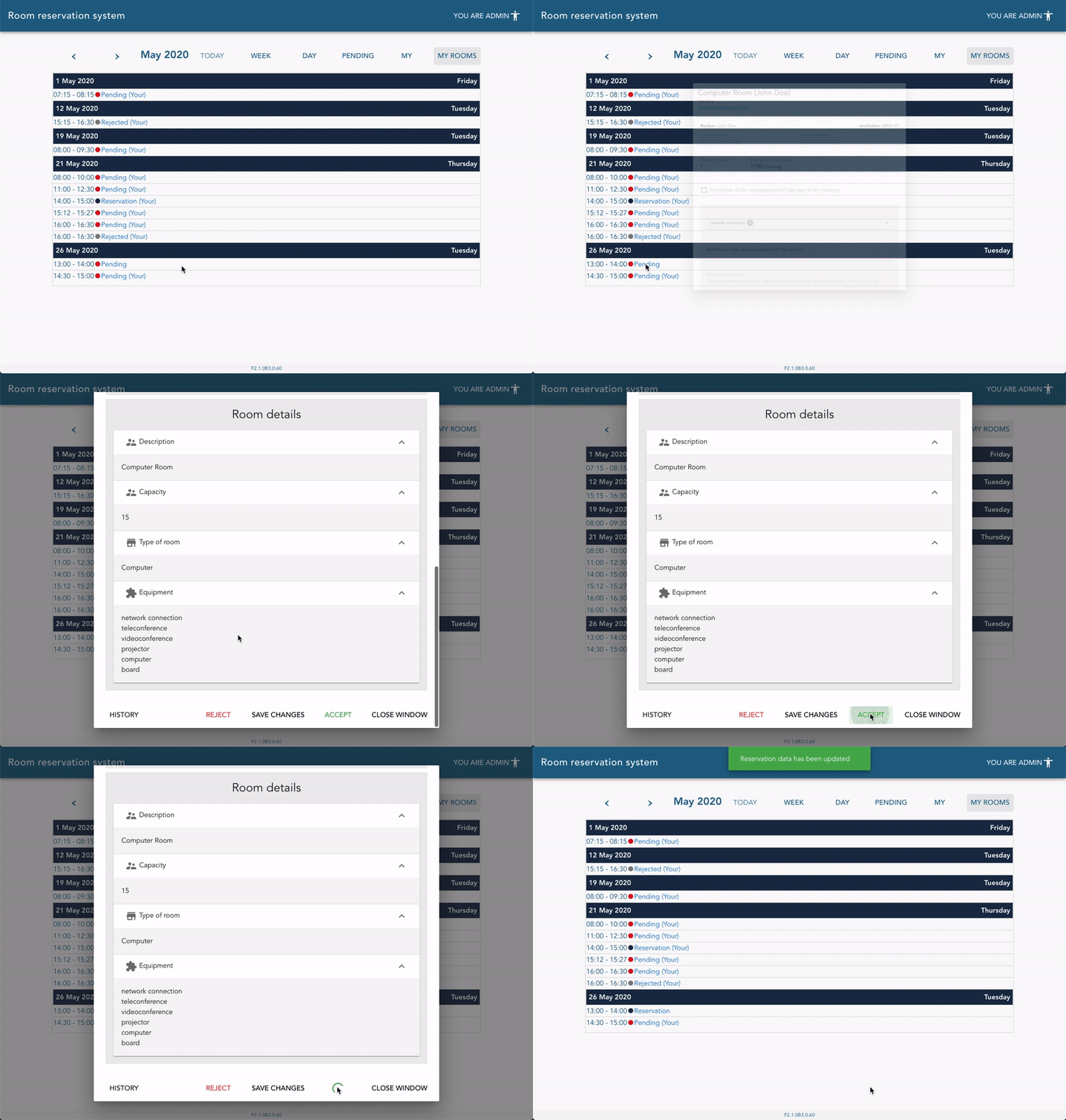](https://docs.intalioservices.com/uploads/images/gallery/2020-05/OTBNzT7CloG0Q0Qd-image-1590586020742.gif) # Viewing reservation history Every action on the reservation is saved in the reservation history including user notes. To check out the reservation history open the reservation details from the calendar or list view. You will find `HISTORY` button on the bottom of the screen near the rest of the possible actions. [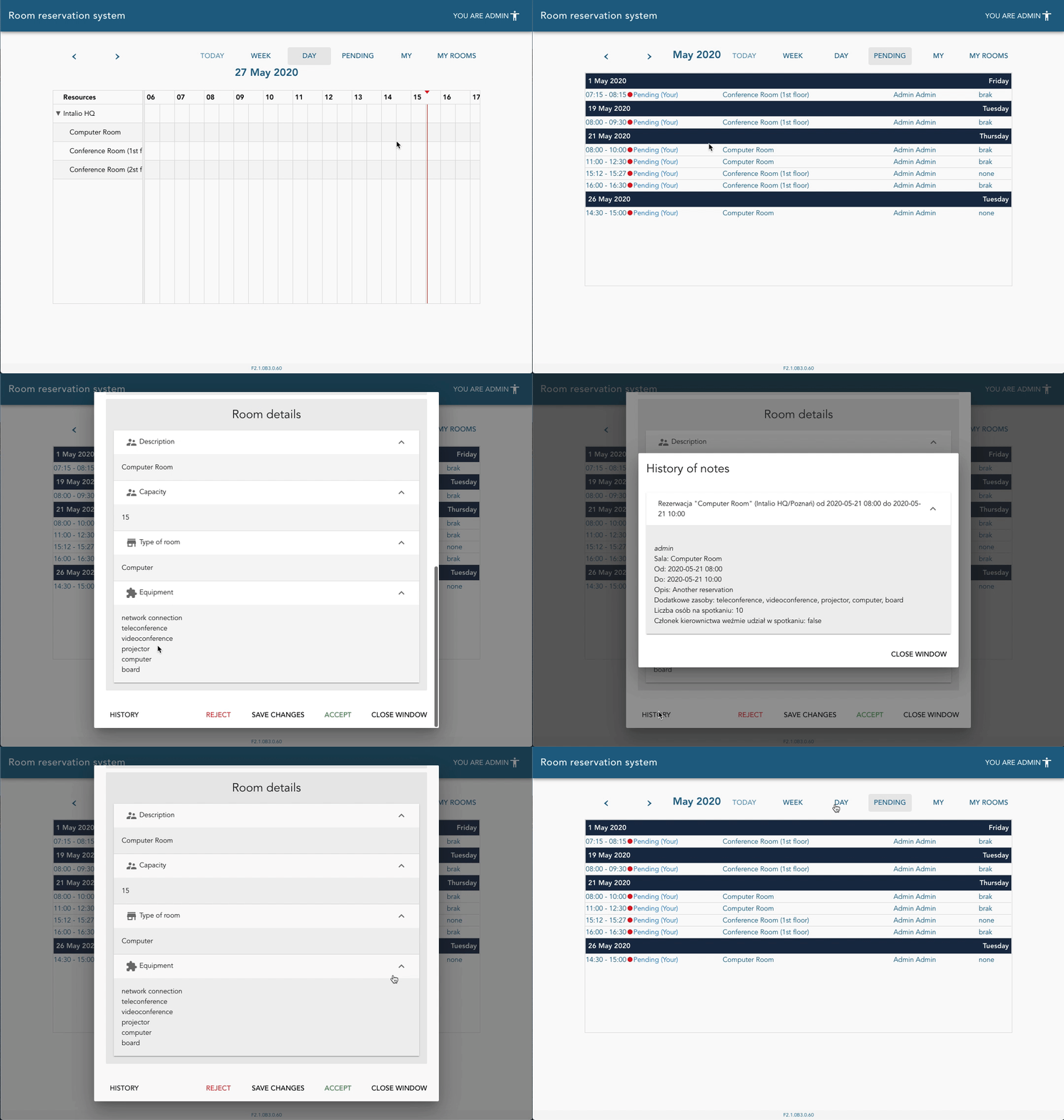](https://docs.intalioservices.com/uploads/images/gallery/2020-05/20OMD5b75Bfo9BE6-image-1590586440517.gif)