You can find a detailed description on how to get to the Conference Rooms [here](https://docs.intalioservices.com/books/conference-rooms---users-guide/page/how-to-get-to-the-conference-rooms "How to get to the Conference Rooms").
[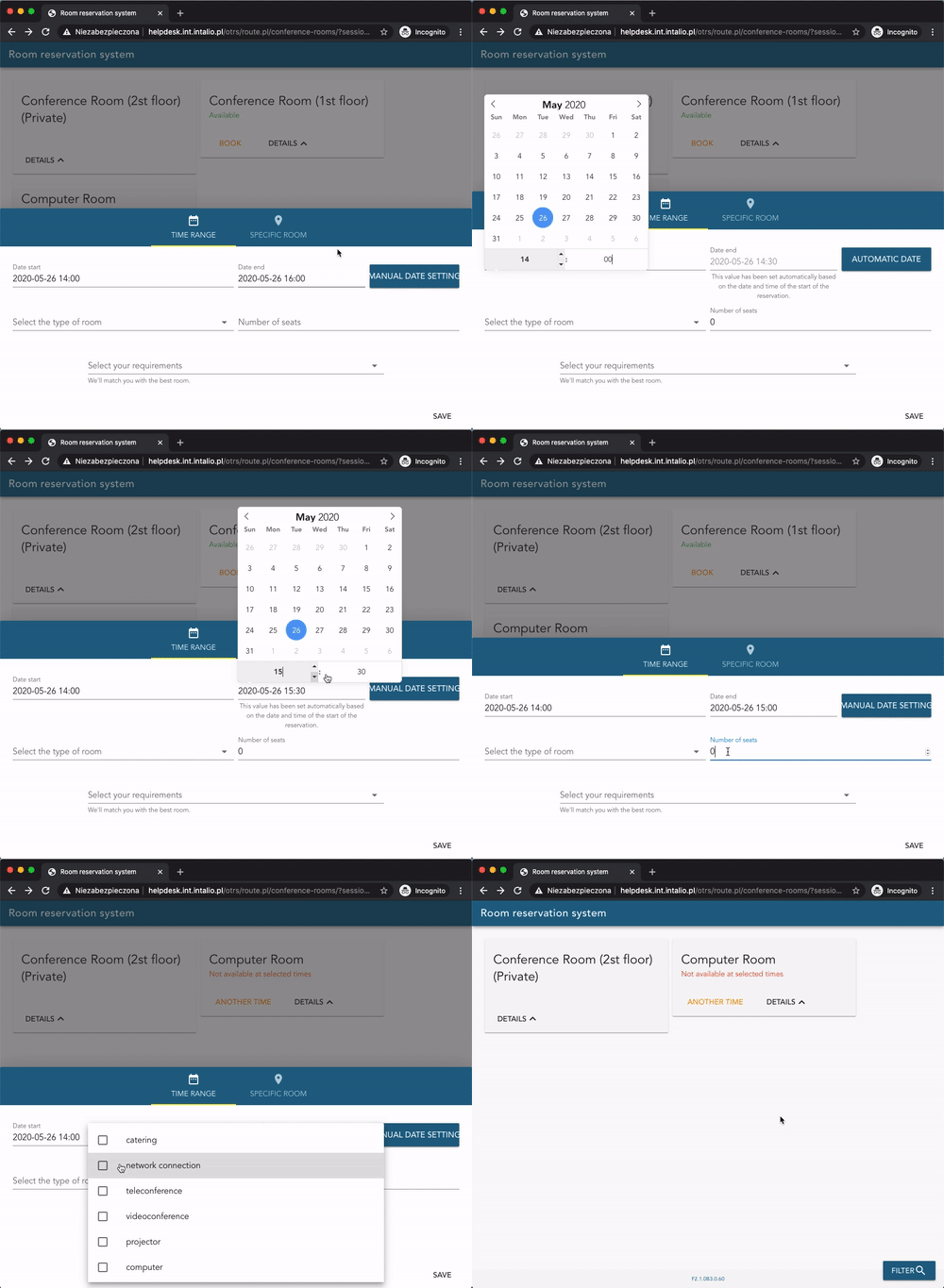](https://docs.intalioservices.com/uploads/images/gallery/2020-05/V6o7plZ877tFbgY9-image-1590499708580.gif) You can switch between two main filter menus: - Time Range - Specific Room ### Specific room Use this menu to switch between Cities and buildings or filter the rooms by their names.Note that rooms filtered out by those values won't be visible on the rooms list above the filter screen.
[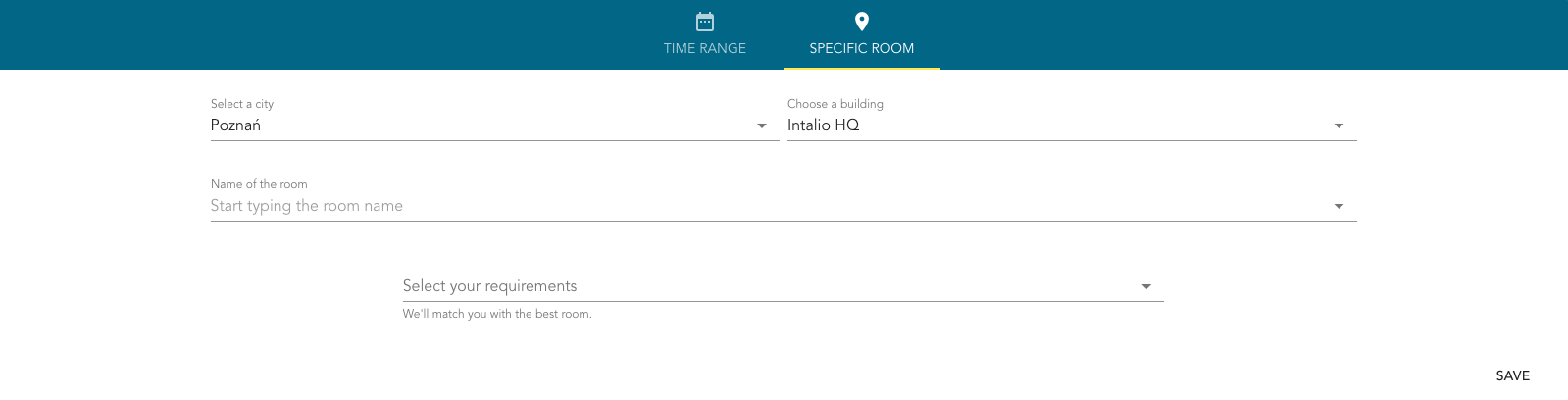](https://docs.intalioservices.com/uploads/images/gallery/2020-05/VBdRMBAPzpYSpQ20-image-1590490562099.png) You can also select your requirements from the dropdown list such as: - internet connection - projector - cateringYou can find more information about modifying additional resources list [here](https://docs.intalioservices.com/books/conference-rooms---installation-and-administrators-guide/page/system-configuration "System configuration"). If you don't have access to OTRS system configuration contact your OTRS administrator.
#### Time Range Use this menu to search for available rooms by dates. ##### Available filters - Date start Provide a start date of your reservation - Date end If `Automatic Date` is turned on end date is automatically set to half an hour after the start date If you wish to set the date manually, click on the `Automatic Date` button to set it to manual mode. - Select the type of room For example: conference, computer, other - Number of seats Enter maximum number of seats needed - Select your requirements As described above in the `Specific Room` section Click `Save` in the bottom right corner of click anywhere outside of the filters container to show the filtered rooms list. ### Rooms list In the upper part of the screen you can see filtered list of rooms. Each block is a different room which can or cannot be available to book. ##### Room Details If you look for detailed information about the room just click `DETAILS` button to expand the room card. [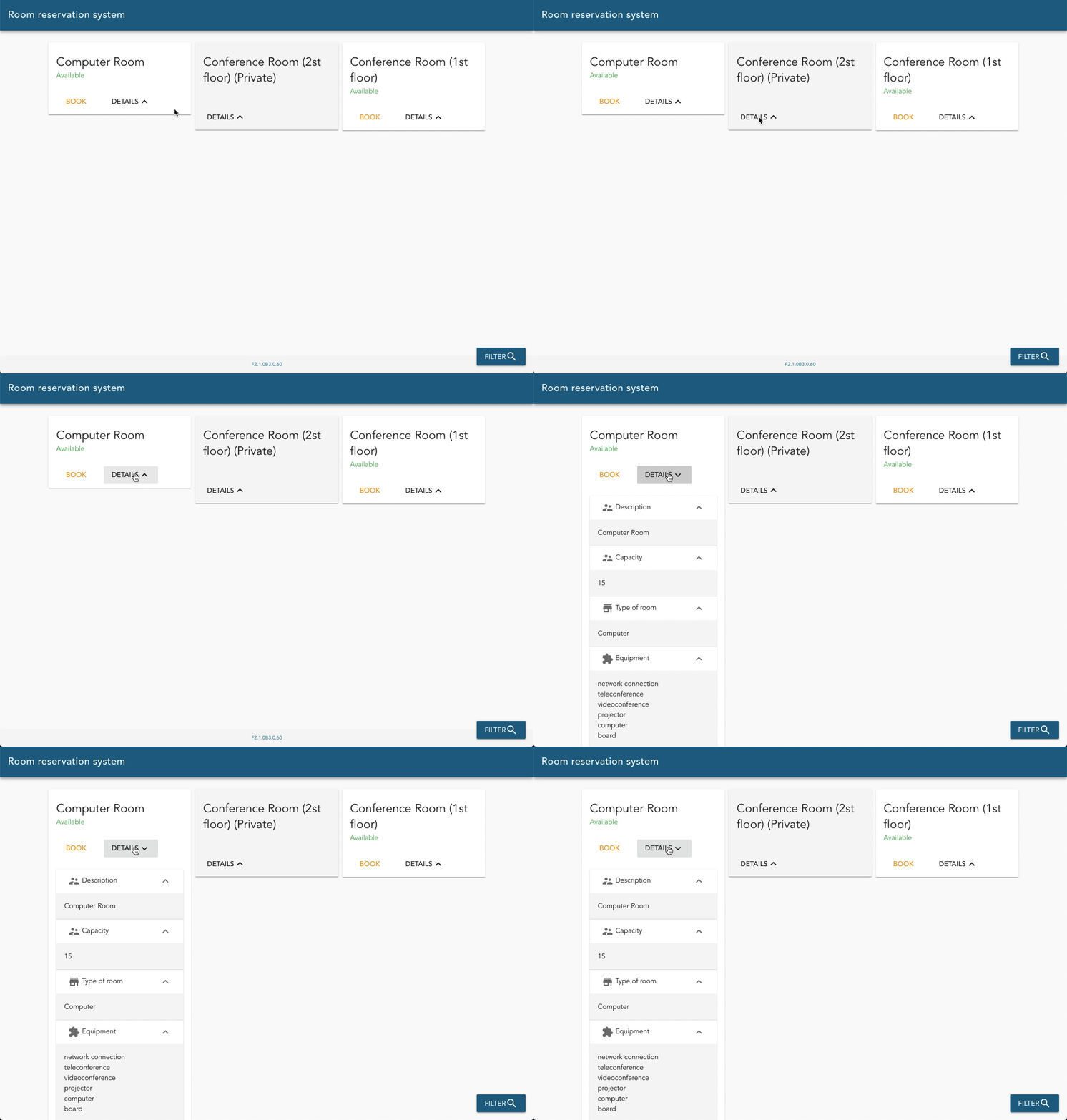](https://docs.intalioservices.com/uploads/images/gallery/2020-05/wG3spnMIoPW4mxZA-image-1590498676193.gif) #### Available room `Available` label means that the room meets all your requirements and is ready for booking at the times you specify. Click `BOOK` to open the New reservation form. ##### Not available at selected times `Not available at selected times` label means that room meets all your requirements but it is not available at selected times. You can still try to find available times by clicking `ANOTHER TIME`. You will be redirected to New Reservation form. ##### Private rooms Private rooms are special type of rooms that can only be booked by room managers. [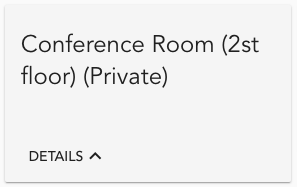](https://docs.intalioservices.com/uploads/images/gallery/2020-05/dujtn7VZNt8yeul6-image-1590497336877.png)Find out more about private rooms [here](https://docs.intalioservices.com/books/conference-rooms---users-guide/page/private-room "Private room").
# Private room Private rooms are special types of rooms that cannot be booked by regular users. Only room managers of the given room are allowed to book it. [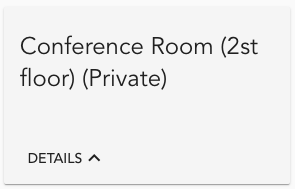](https://docs.intalioservices.com/uploads/images/gallery/2020-05/0hOi0G1M6oiZzpCe-image-1590498142190.png)If you wish to book private room contact your private room manager.
You can find a list of private room managers (Local administrator) if you expand the room's details. [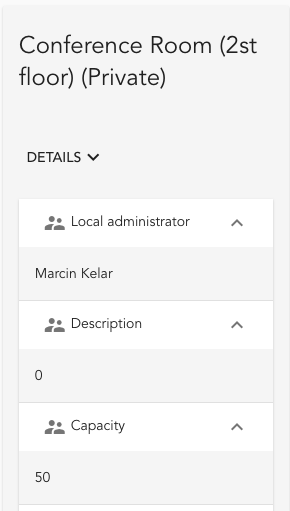](https://docs.intalioservices.com/uploads/images/gallery/2020-05/AyxMpd1Hf2WAN4um-image-1590498161983.png) # Add new reservation 1. To open the add new form click on the **`BOOK`** or `ANOTHER TIME` button in the room card. [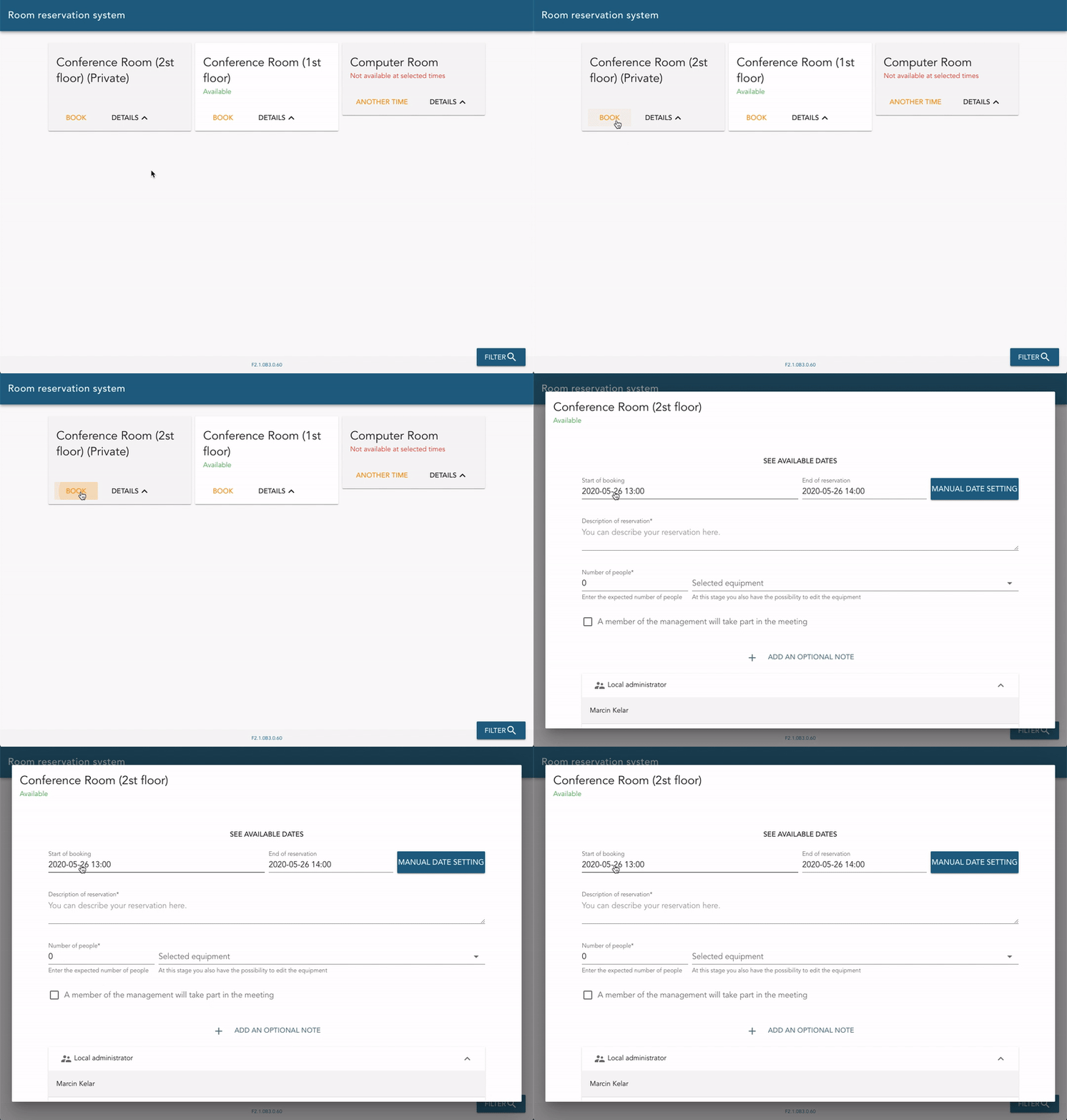](https://docs.intalioservices.com/uploads/images/gallery/2020-05/DUnk3kIr9aA3uKrB-image-1590501471884.gif) #### Available dates You can set start and end date using date picker fields (like in the filters) or you can take a quick look on the calendar view by clicking `SEE AVAILABLE DATES`. There 3 views that you can choose from: 1. Week 2. Day 3. List To set your reservation start and end date go to week or day view and create schedule by simply dragging it on the calendar view.This view will also conveniently show you other people's reservations so you see when the room is actually available to book.
[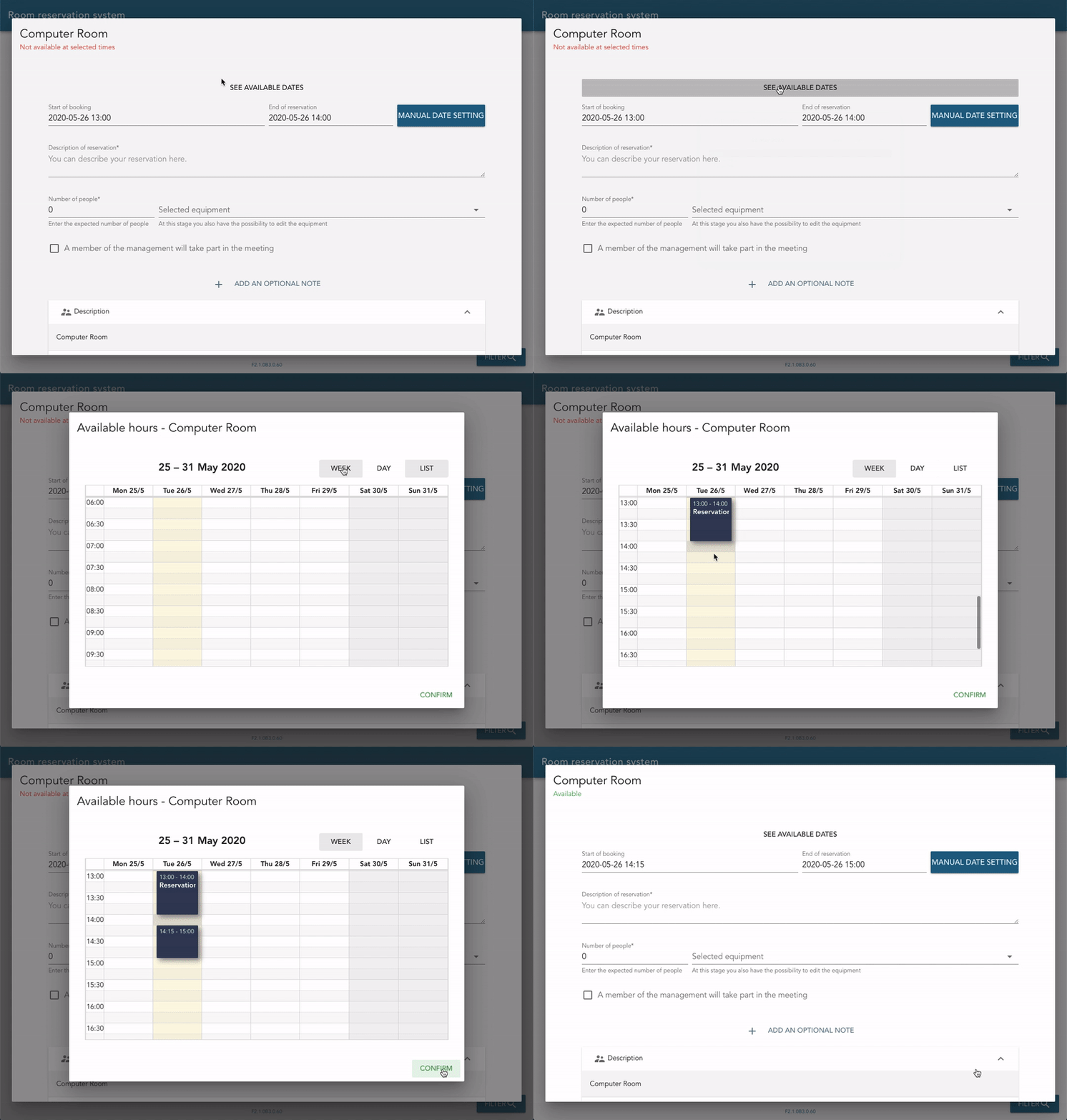](https://docs.intalioservices.com/uploads/images/gallery/2020-05/6GtH6SOSrR7Wvafi-image-1590502312444.gif)Grey spots before and after an event represents the minumum time between reservations. This parameter is configurable through OTRS system config. You can find out more in the [administration guide](https://docs.intalioservices.com/books/conference-rooms---installation-and-administrators-guide/page/system-configuration "System configuration").
#### Description Write some description about your reservation ie. OTRS training or Daily standup. This field is required. #### Numer of people Enter maximum number of people that will tak part in the meeting. Note that you can't enter a value that is bigger than room's capacity. #### Selected equipment Choose the equipment that is necessary for your meeting from the list. #### Management meter will take part Check this field if the VIP will be taking part in the meeting. This information can be important for the staff that is responsible for preparing the room before the meeting. #### Optional note You could also add an optional note that will be saved in the reservation history. #### Send in a request Press send in a request button at the bottom of the form to send a reservation request. You will be redirected automatically to your OTRS customer or agent panel accordingly. ### Book a private room Only room managers are able to book private rooms. If you wish to book a private room you need to contact one of the local administrators. Room manager can create an event for you. You can find a list of room managers in the room details. [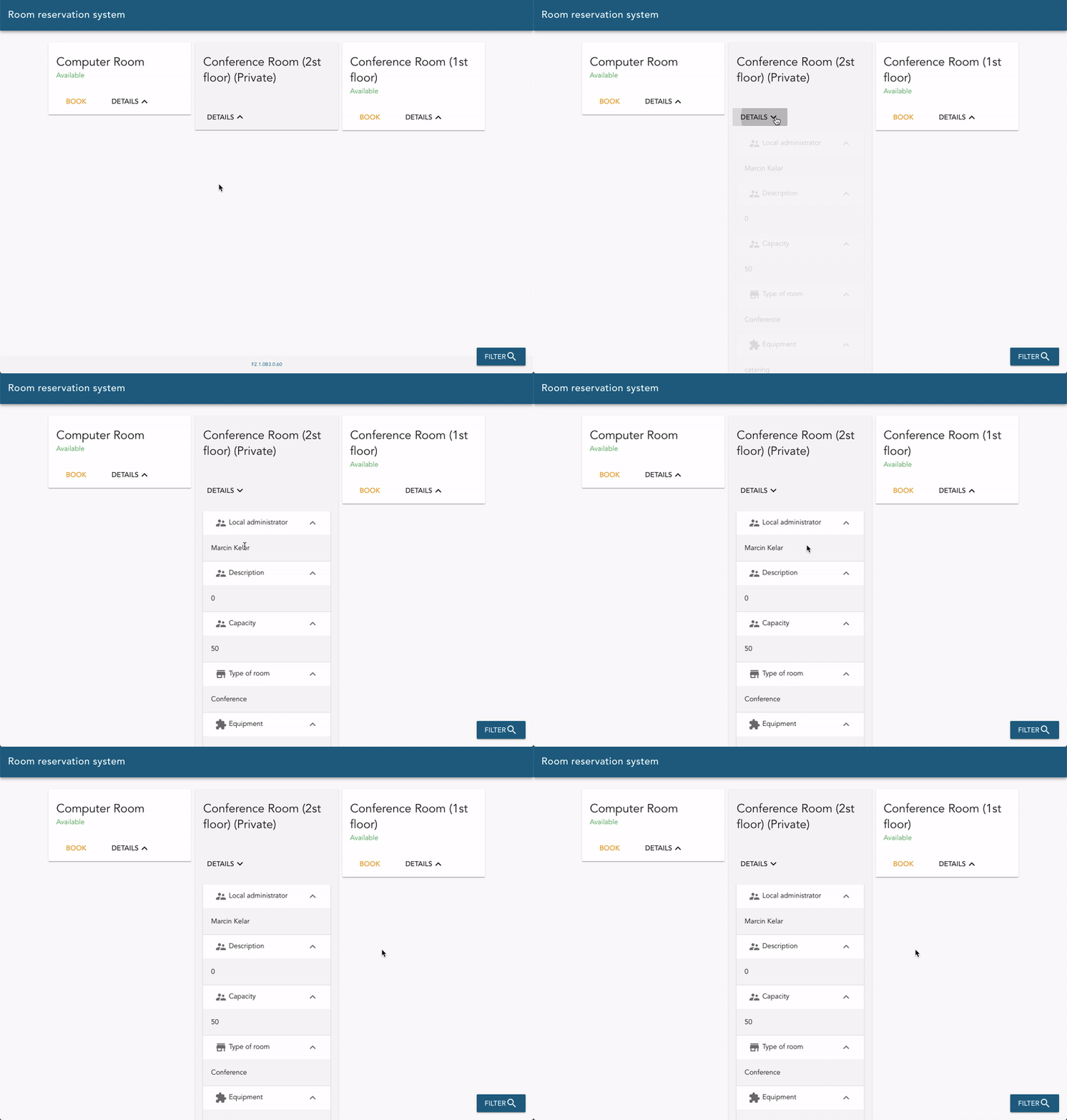](https://docs.intalioservices.com/uploads/images/gallery/2020-05/Aex2ym8k5qItJLio-image-1590583297223.gif) ### What's next? Now your reservation is in pending state and it was passed to your room manager to accept it. [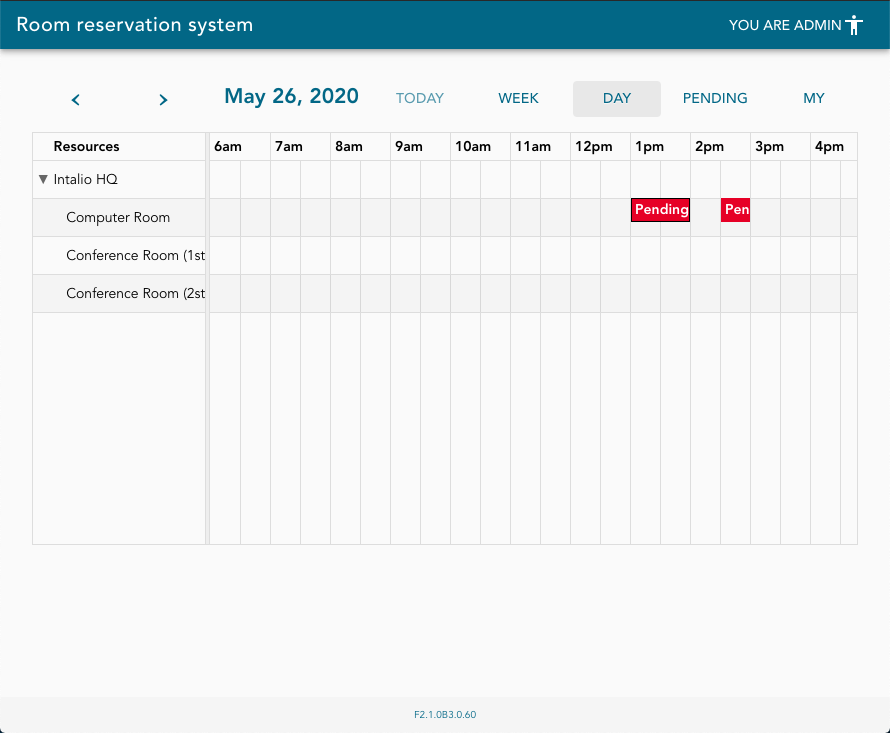](https://docs.intalioservices.com/uploads/images/gallery/2020-05/y4gjZ1nAILm5ua4b-image-1590505705221.png)