Example value: `closed successsful`
##### ResourcesManagement::RoomReservationActiveState Defines the default state of accepted reservationExample value: `closed successsful`
##### ResourcesManagement::RoomReservationNotActiveYetState Defines the default state of pending reservationExample value: `new`
##### ResourcesManagement::RoomReservationRejectedState Defines the default state of rejected reservationExample value: `rejected`
##### ResourcesManagement::RoomReservationMinTimeBetweenReservations Defines the minumum time (in minutes) between reservations. The user will not be able to create another reservation in less than e.g. 15 minutes before and after the given reservation. This limitation allows you to prepare the room for the next meeting.Example value: `15`
##### ResourcesManagement::RoomReservationDefaultQueue Defines the default queue for new room reservation ticket.Example value: `Reservations`
##### ResourcesManagement::RoomReservationRoomTypes List of possible room types. Users will be able to filter rooms based on this parameter. - Conference - Computer - Other # System administrator Some of the configuration features of the Conference Rooms system are accessible only for the administrators group.[Read more](https://docs.intalioservices.com/books/conference-rooms---installation-and-administrators-guide/page/system-configuration "System configuration") about configuring Conference Room including administrators group name
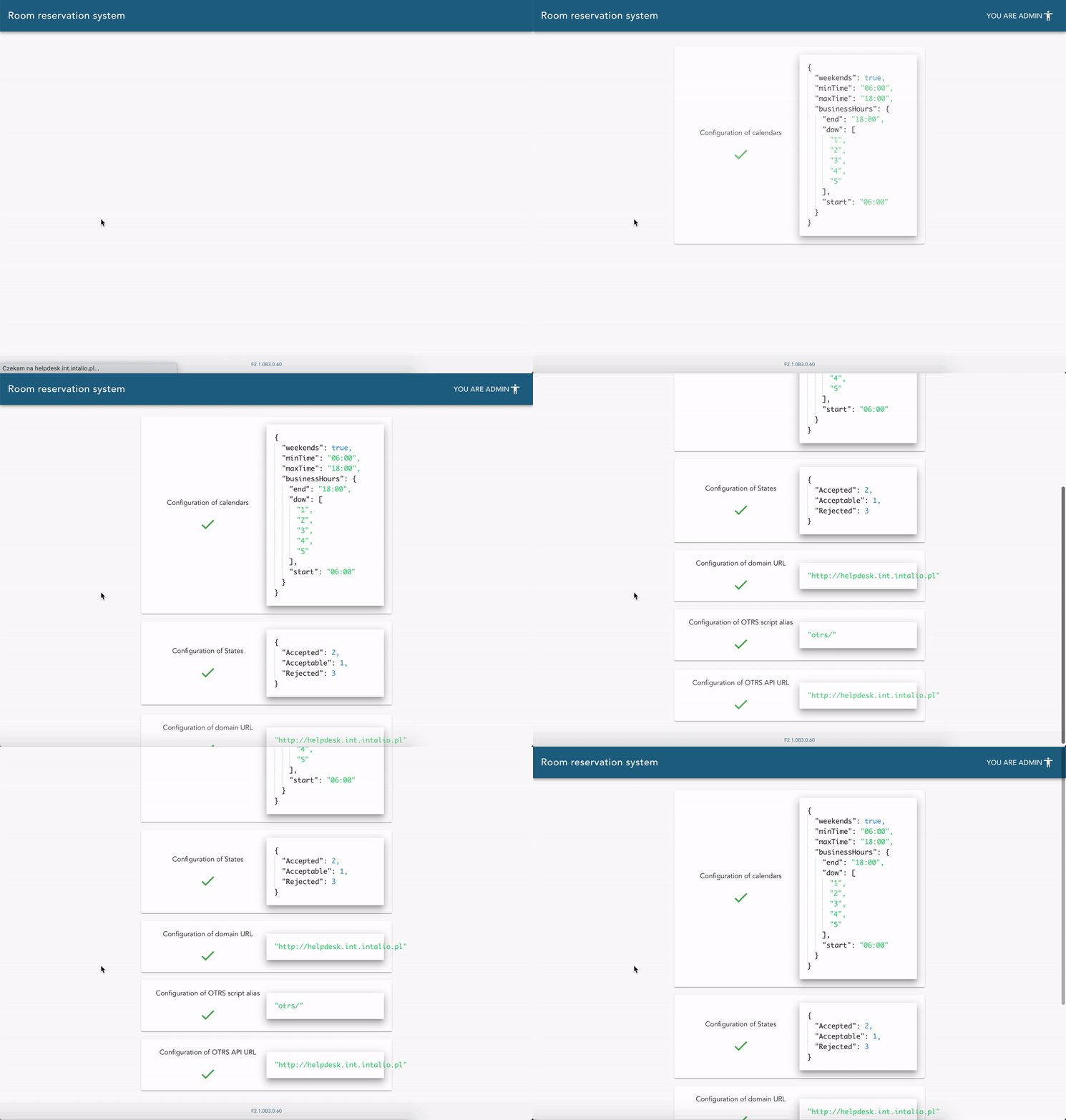
### Checking if you are an admin There is a label in the title bar on the dashboard and check config pages that describe your current role. If you see the `You are admin` label it means that you have the admin rights. [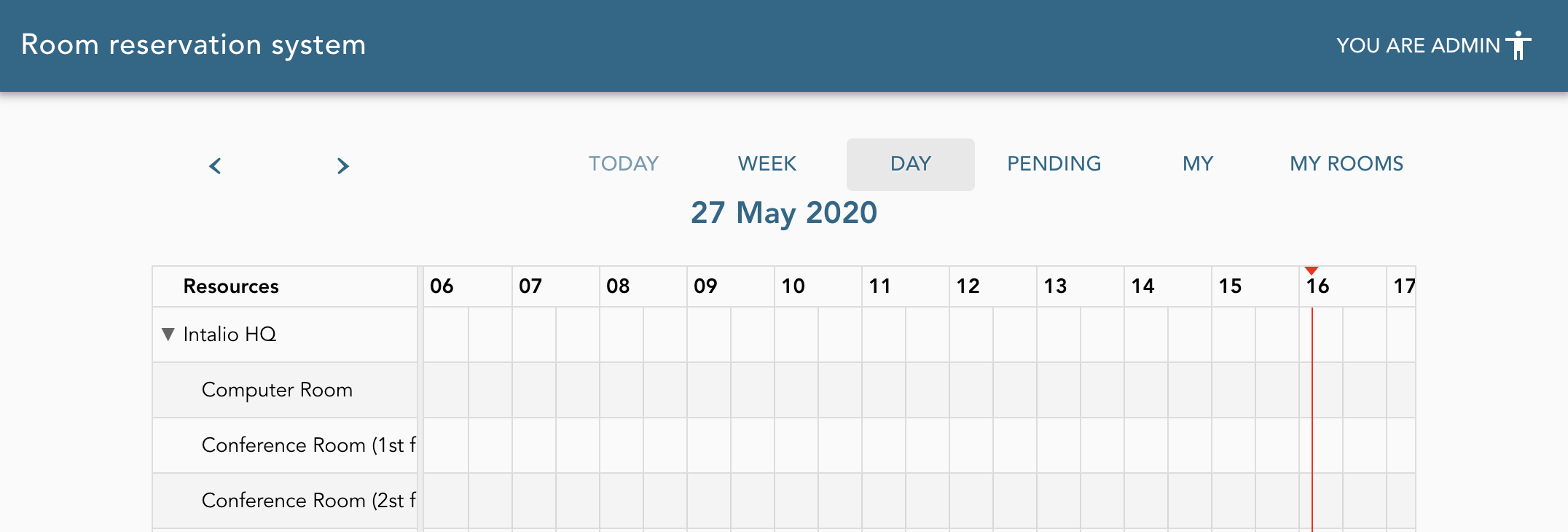](https://docs.intalioservices.com/uploads/images/gallery/2020-05/34uekSf9Hz0bTxvB-image-1590588607108.png) # Checking configuration We created a simple page that allow administrators check out the current Conference Rooms system configuration. Go to Conference Rooms' check config page - `/checkConfig?sessionId=tpXQ89oXql0BfuPKvfss09wZwC232yHA` (remember to update the sessionId parameter).Only administrators are allowed to see the page content. [Read more](https://docs.intalioservices.com/books/conference-rooms---installation-and-administrators-guide/page/system-configuration "System configuration") about system configuration including setting the administrator group.
[](https://docs.intalioservices.com/uploads/images/gallery/2020-05/IzqXHgqhTVPLkM97-image-1590589974507.gif) # Adding cities You can manage cities in a few simple steps. --- Go to the cities list by opening the *Conference Rooms* tab in the main menu and clicking *City Management*. [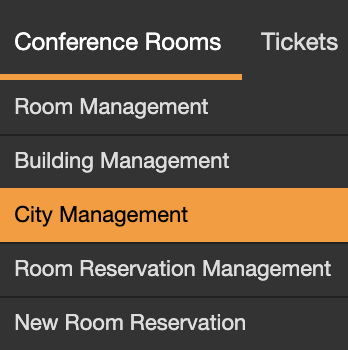](https://docs.intalioservices.com/uploads/images/gallery/2020-04/Mqt00fWDvOk5uTTi-image-1587023736430.png) --- Click **Add city** button in the actions block to add a new city. [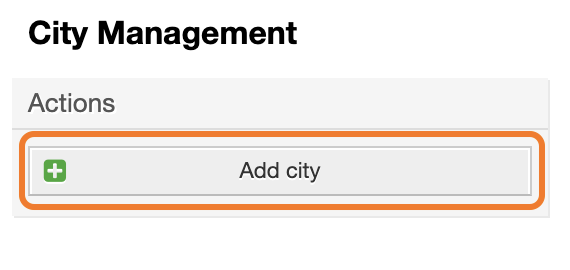](https://docs.intalioservices.com/uploads/images/gallery/2020-04/JKIOVAZ2cjvvj11R-image-1587023857631.png) --- Fill out the city name and make sure that the **Validity** is set to `Yes`. Submit the form. You should see a new city on your cities list. You can add more cities if necessary. # Adding buildings You can manage buildings in a few simple steps.Buildings must be placed in the cities so make sure you have added at least one city before proceeding further.
--- Go to the buildings list by opening the *Conference Rooms* tab in the main menu and clicking *Building Management*. [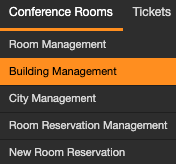](https://docs.intalioservices.com/uploads/images/gallery/2020-04/UsFKc0ARLhaLSeGR-image-1587029885475.png) --- Click **Add building** button in the actions block to add a new building. [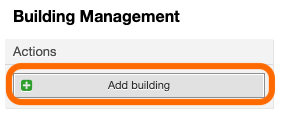](https://docs.intalioservices.com/uploads/images/gallery/2020-04/YjS6KVNywDCiCISk-image-1587029942916.png) --- Fill out the information about your building and make sure that the **Validity** is set to `Yes`. Submit the form. [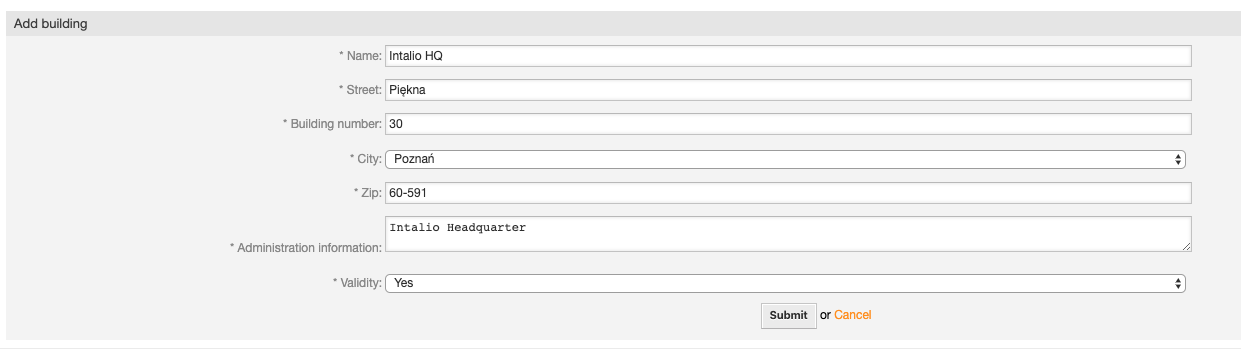](https://docs.intalioservices.com/uploads/images/gallery/2020-04/4s8aLA9Doz1X1sXq-image-1587030066136.png) You should see a new building on your buildings list. You can add more buildings if necessary. # Adding rooms You can manage rooms in a few simple steps.Rooms must be placed in the buildings so make sure you have added at least one building before proceeding further.
--- Go to the rooms list by opening the *Conference Rooms* tab in the main menu and clicking *Rooms Management*. [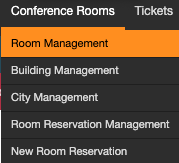](https://docs.intalioservices.com/uploads/images/gallery/2020-04/VoCGT47l0wvyW5Zs-image-1587030192565.png) --- Click **Add room** button in the actions block to add a new room. [](https://docs.intalioservices.com/uploads/images/gallery/2020-04/mxdW4mA9TWuaN12G-image-1587030255082.png) --- Fill out the information about your room. ##### Type Users will be able to filter rooms based on this parameter.If you wish to add more room types look for the System Configuration in the manual.
##### Room managers e-mail addresses Users whose e-mail addresses will correspond to the addresses indicated in this field will receive the rights to administer the rooms. They will be able to **accept**, **reject** and **edit** other users' reservations.Example value: `room.manager1@intalio.pl,room.manager2@intalio.pl`
##### Additional resources Select resources that are available in this room. You can add more than one by holding `Ctrl` key (or ⌘ key on a Mac).If you wish to add more resources look for the System Configuration in the manual.
##### Private Reservations for private rooms can only be made by local administrators. Regular users will still see private room on the rooms list, but they will not be able to book it by themselves. Contact with room manager will be required. [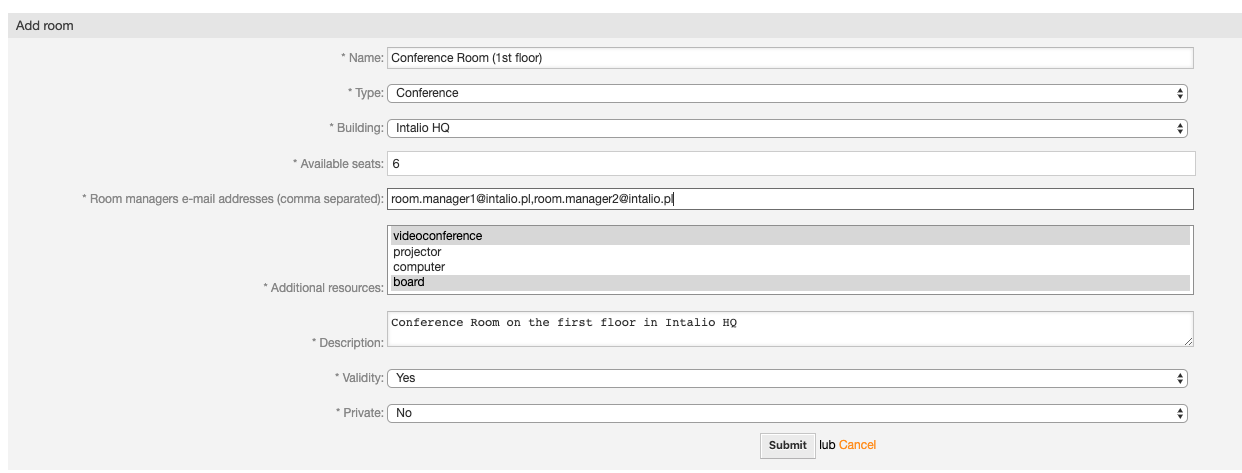](https://docs.intalioservices.com/uploads/images/gallery/2020-04/rtPV8JkwfOyhHFTm-image-1587032508312.png) Make sure that you set the **Validity** to `Yes` and submit the form. You should see a new room on your rooms list. You can add more rooms if necessary.